2-27
Copying Functions
2
ComColor Series User’s Guide 09
Scanning size
Specify the scanning size for originals.
● Selecting standard size or
registered size
Select a standard paper size or registered paper
size by the administrator.
[Auto]
Standard size originals are detected automatically. If
the original is a standard size, normally select [Auto].
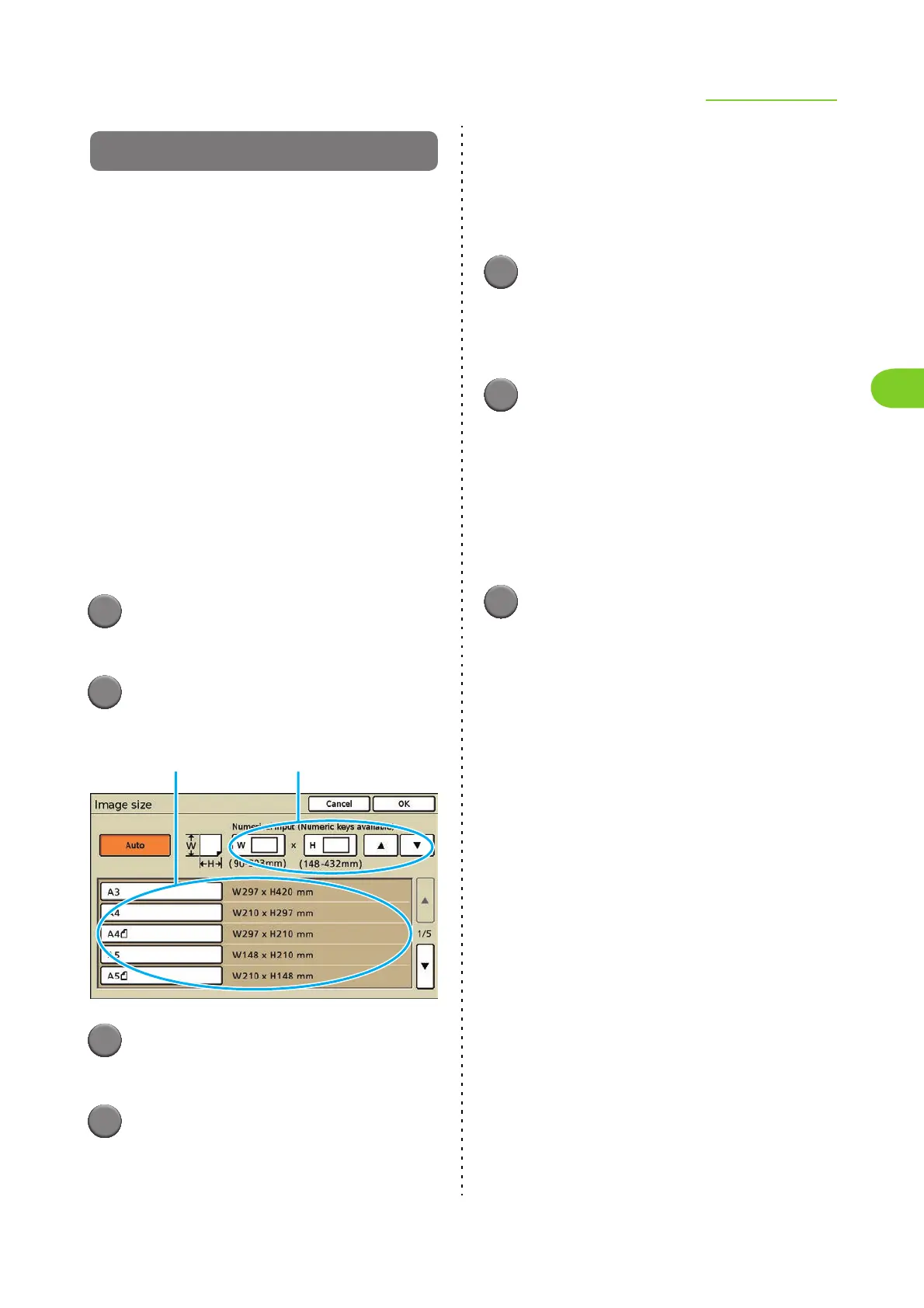
Original size list
When selecting a paper size that is different from the
original even though the original is a registered size
or standard size, select from the original size list.
When the administrator has registered paper sizes in
advance with "Custom paper entry", registered paper
sizes are displayed.
1
Press [Functions] on the copy
mode screen.
2
Press [Scanning size].
The [Scanning size] screen is displayed.
3
Select the original size from the
original size list.
4
Press [OK].
The settings are confirmed and the previous
screen is displayed.
● Entering the Size of the Original
When the original is a non-standard size that is not
registered, specify the size of the original to be
scanned.
1
Display the [Scanning size]
screen.
Follow Steps 1 and 2 in "Selecting standard size
or registered size".
2
Enter the original size.
Press the input box of [Numerical input], and enter
the numbers using [S] and [T] or the numeric
keys.
Specify the size in a range of 90 to 303 mm (W) by
148 to 432 mm (H) (3 9/16" to 11 15/16" (W) by
5 13/16" to 17" (H)).
• To clear the fields, press the [Clear] key.
3
Press [OK].
The settings are confirmed and the previous
screen is displayed.
Original size list [Numerical input]












 To Next Page