5-3
Overview of the RISO Console
5
ComColor Series User’s Guide 09
Starting the RISO Console
1
Start your Web browser.
2
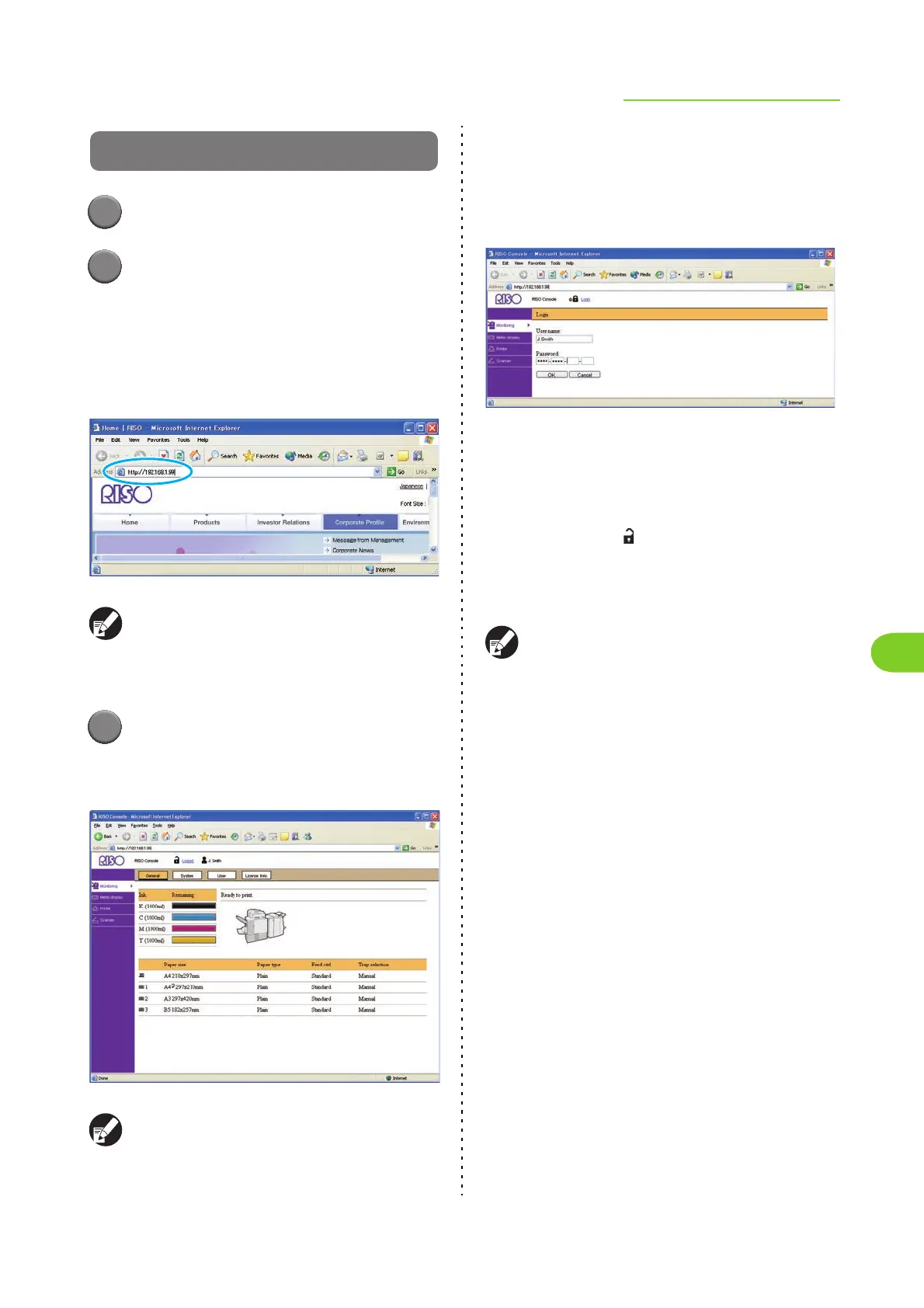
Enter the IP address of the printer in
the address box of your Web browser.
• The [Status]-[System] screen on the operation
panel shows the IP address of the printer.
<Example of how to enter the IP address
"192.168.1.99">
You can access the RISO Console when the
computer is connected to the printer by a local
area network.
Connection to the Internet is not required.
3
Press the [Enter] key.
The [Monitoring] screen of the RISO Console is
displayed.
You can create a shortcut on the desktop to easily
display the RISO Console screen.
● When [Login setting] has been
set to [Required]
Click [login] to display the login screen of the RISO
Console.
Enter the user name and password and click [OK] to
display the [Monitoring] screen.
• Enter a password of between 0 and 16
alphanumeric characters long. The entered
characters are displayed with asterisks (∗).
• To logout, click [ Logout].
• When the user is logged in with administrative
authority, [Admin mode] is displayed to the right of
the user name.
● If you forget the password, ask your
administrator.
● You can change the user password on the
[User] screen of the [Monitoring] screen. (p. 5-5
"[User] Screen")












 To Next Page