2-53
Copying Functions
2
ComColor Series User’s Guide 09
Front door release
Normally, you cannot open the front cover of the
machine. When the front cover needs to be
opened, such as when a paper jam occurs or an ink
cartridge is empty, the front cover can be unlocked
and opened.
To open the front doors in all other cases, press this
button. The front cover is unlocked and can be
opened.
When the front cover has been closed, it is locked
when the machine starts operations.
View balance
Displays the user's balance when using external
system link.
● This function is displayed when [External
system link] is set to [ON] by the administrator.
● For details on the billing system on the
[External system link] function, contact your
dealer (or authorized service representative).
1
Press [Functions] on the copy
mode screen.
2
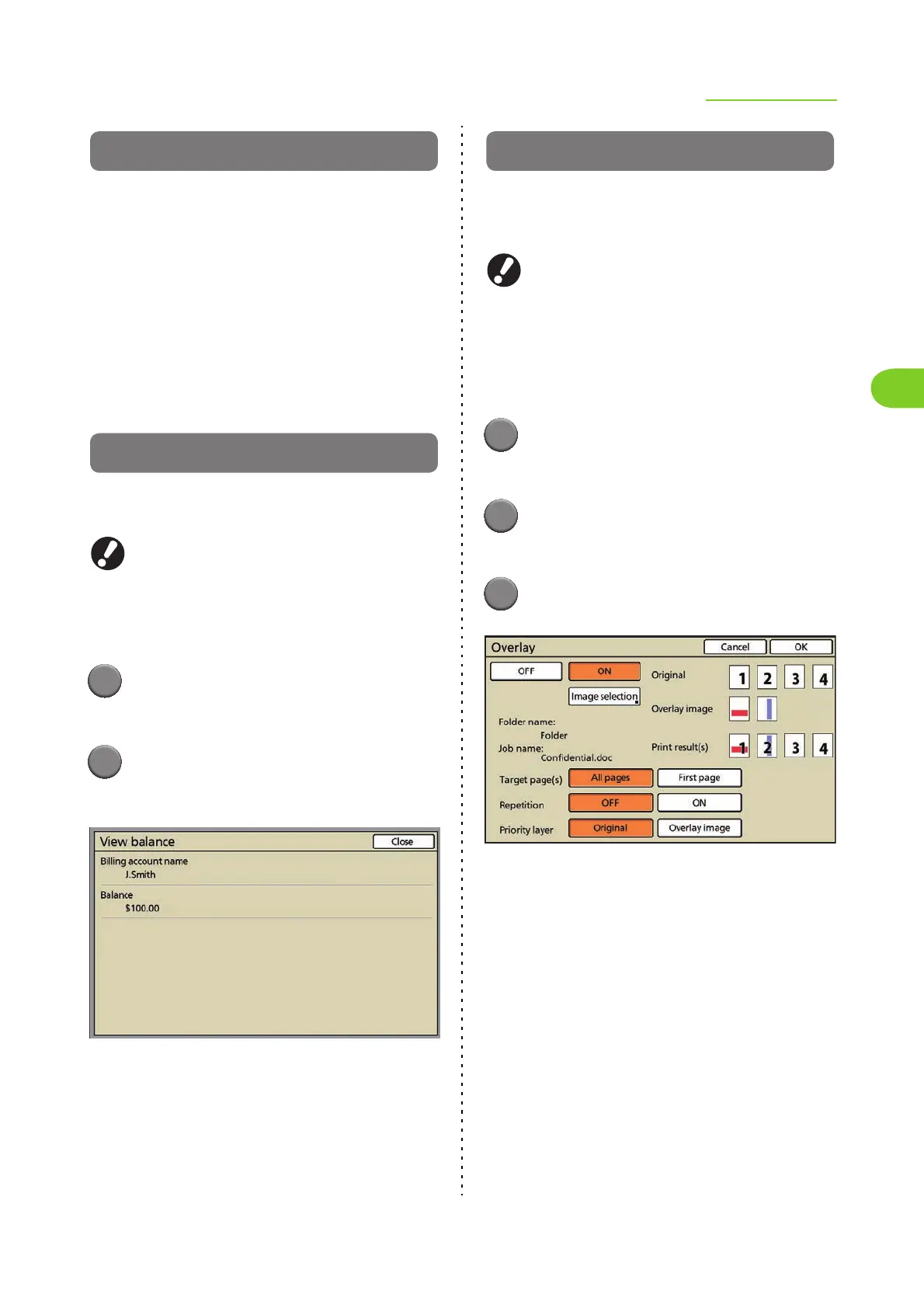
Press [View balance].
The [View balance] screen is displayed.
The account name and balance of logged in user
are displayed.
Overlay
You can use the job (stamps or texts) saved in the
folder to overlay on the original. Specify the overlay
function before starting to copy.
● You cannot use "Overlay" and "Mixed size
original" or "Multi-up" at the same time. (p. 2-28
"Mixed size original", p. 2-29 "Multi-up")
● The job used as the overlay image cannot be
enlarged or reduced. Make sure that the size of
the overlay image is the same as the size of
the original.
1
Press [Functions] on the copy
mode screen.
2
Press [Overlay].
The [Overlay] screen is displayed.
3
Press [ON] for Overlay.
When [OFF] is selected, "Folder name", "Job
name", "Target page(s)", "Repetition", "Priority
layer", and the overlay result image are not
displayed.












 To Next Page