2-35
Copying Functions
2
ComColor Series User’s Guide 09
Image quality
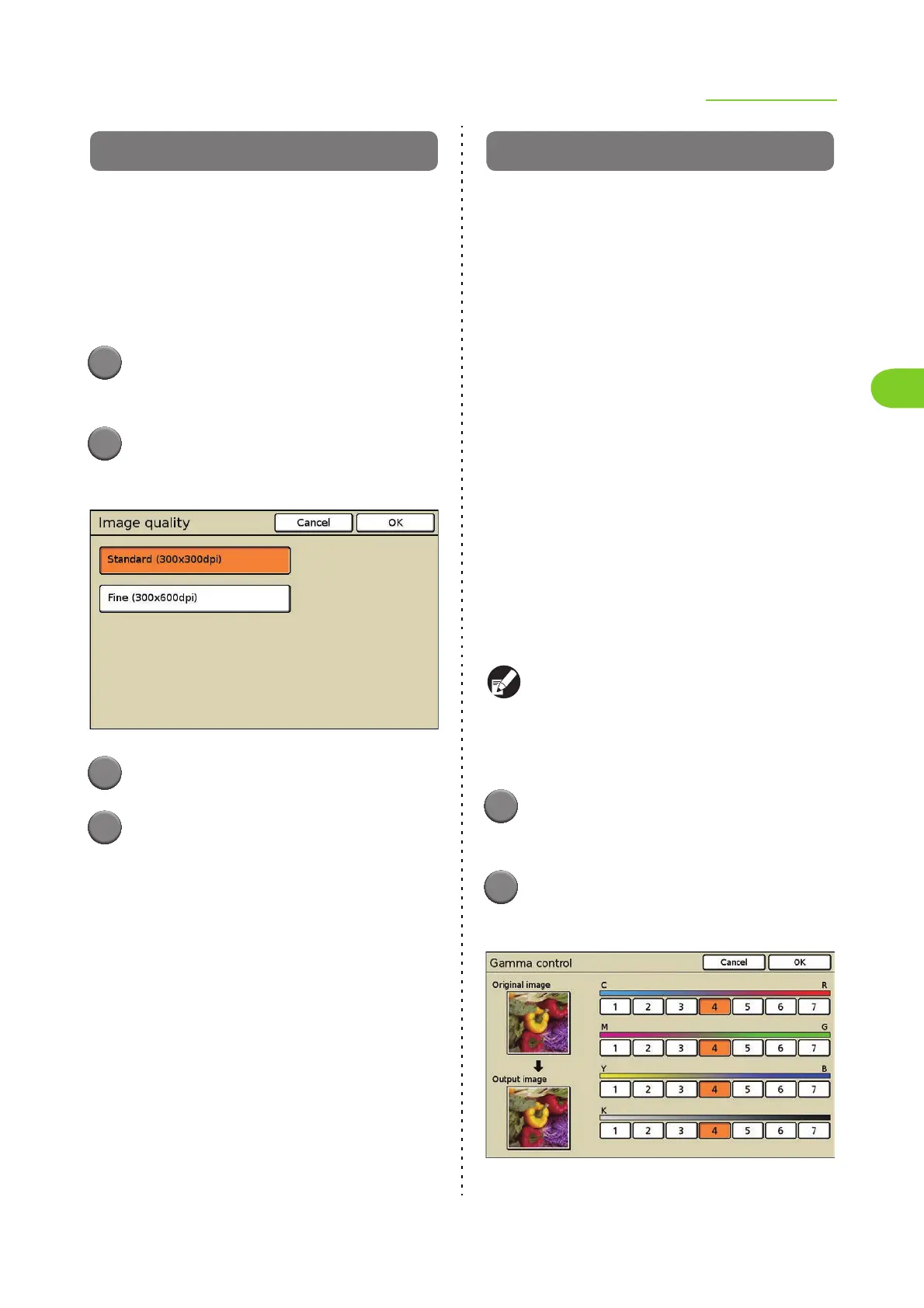
Specify the resolution for scanning originals.
[Standard (300 × 300dpi)]
Select this when the original has mostly text.
[Fine (300 × 600dpi)]
Select this when the original has photos. Scan with
higher resolution.
1
Press [Functions] on the copy
mode screen.
2
Press [Image quality].
The [Image quality] screen is displayed.
3
Select the resolution.
4
Press [OK].
The settings are confirmed and the previous
screen is displayed.
Gamma control
Adjust the color balance (CMYK) of scanned
images.
C [1] to R [7]
The lower the setting (toward [1]), the stronger the
cyan (C) and the weaker the red (R) in the image. The
higher the setting (toward [7]), the stronger the red
(R) and the weaker the cyan (C) in the image.
M [1] to G [7]
The lower the setting (toward [1]), the stronger the
magenta (M) and the weaker the green (G) in the
image. The higher the setting (toward [7]), the
stronger the green (G) and the weaker the magenta
(M) in the image.
Y [1] to B [7]
The lower the setting (toward [1]), the stronger the
yellow (Y) and the weaker the blue (B) in the image.
The higher the setting (toward [7]), the stronger the
blue (B) and the weaker the yellow (Y) in the image.
K [1] to [7]
The higher the setting (toward [7]), the stronger the
black (K) in the image, and the lower the setting
(toward [1]), the weaker the black (K) in the image.
When [Color mode] has been set to [Black],
[Cyan], or [Magenta], the gamma value can only
be adjusted for [K]. The gamma value cannot be
adjusted between C and R, M and G, or Y and B.
(p. 2-9 "Color mode")
1
Press [Functions] on the copy
mode screen.
2
Press [Gamma control].
The [Gamma control] screen is displayed.












 To Next Page