5-9
5
ComColor Series User’s Guide 09
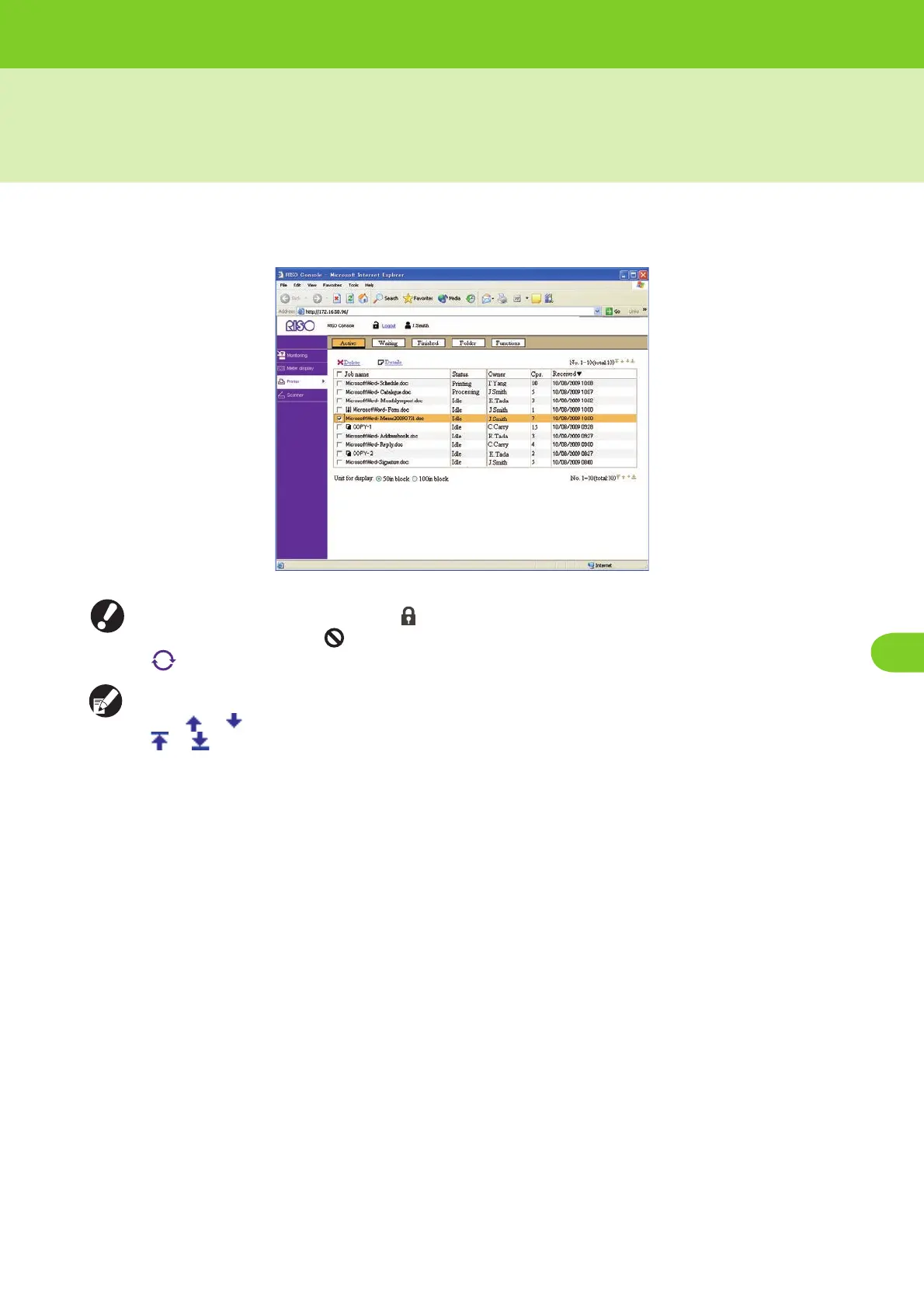
[Printer] Menu
You can click [Printer] on the side menu to display the job list on the RISO Console screen and check the
status of jobs. You can also operate the printer and change the settings job.
● When an item on the side menu has the icon, this indicates that you must log in before you can access that
item. When an item has the icon, this indicates that access to that mode is restricted.
● is displayed on the left side of the screen while information on the machine is being collected.
● Select [50 in block] or [100 in block] to change the number of jobs displayed in the list.
● Click or on the right of the screen (at above and under the list) to scroll one page through the list and
or to jump to the first or last page.
● When the job name exceeds the character limit, the first half of the job name is omitted and the job name is
displayed as "...xyz.doc".
● In the following cases, all job names are displayed in the list.
• When [Login setting] has been set to [Not required]
• When the user is logged in with administrative authority
● In the following cases, the job name is displayed as "∗∗∗∗∗".
• Jobs with the [Hide job name] check box selected on the printer driver
(p. 1-31 "PIN code" in "Printer driver")
• Jobs with a job name that is closed and requiring login












 To Next Page