1-12
1 Printer Driver
ComColor Series User’s Guide 09
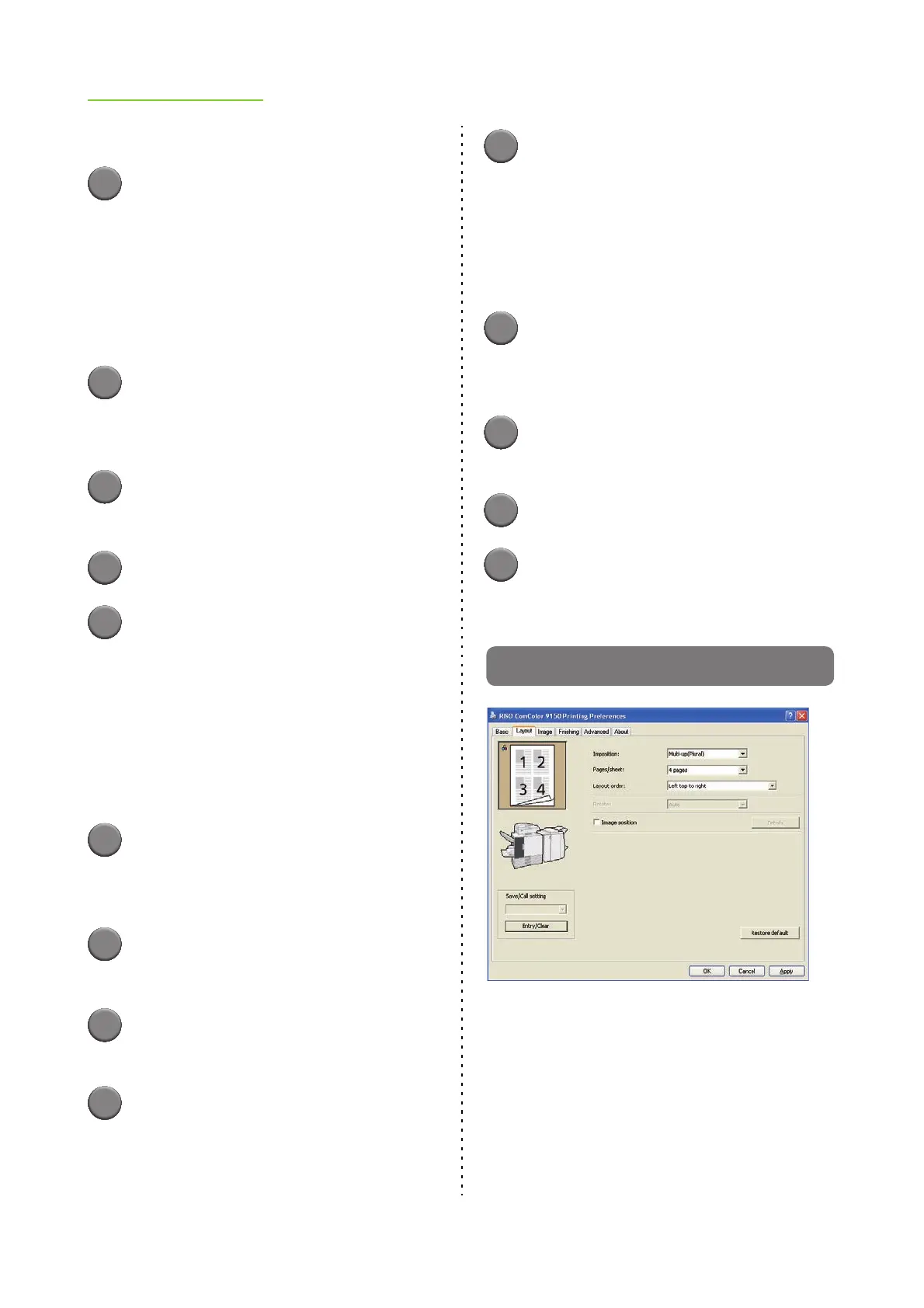
■ Retrieving Settings
1
Select the necessary settings in the
[Save/Call setting] pull-down menu.
The selected settings become the output settings
of the printer driver.
■ Clearing Settings
1
Click [Entry/Clear] for [Save/Call
setting].
The [Entry/Clear] dialog box is displayed.
2
Select the settings to delete in
[Status list].
3
Click [Clear].
4
Click [Close].
■ Saving Settings to a Computer
You can save the saved settings to a computer.
It is useful to save settings to a computer when, for
example, you want to share the settings among multiple
users or reinstall the printer driver.
1
Click [Entry/Clear] for [Save/Call
setting].
The [Entry/Clear] dialog box is displayed.
2
Select the settings to save in
[Status list].
3
Click [Save in file].
The [Save As] dialog box is displayed.
4
Specify the destination folder and
file name.
5
Click [Save].
The selected settings are saved.
■ Reading Settings from a Computer
You can retrieve and use settings saved to a computer.
1
Click [Entry/Clear] for [Save/Call
setting].
The [Entry/Clear] dialog box is displayed.
2
Click [Open file].
The [Open file] dialog box is displayed.
3
Select the file on the computer.
4
Click [Open].
The read settings are displayed in [Status list] on
the [Entry/Clear] dialog box.
[Layout] Tab












 To Next Page