4-6
ComColor Series User’s Guide 09
Managing Jobs
This section describes how to confirm details of, print, and delete jobs on the job list of each screen.
[Active] Screen
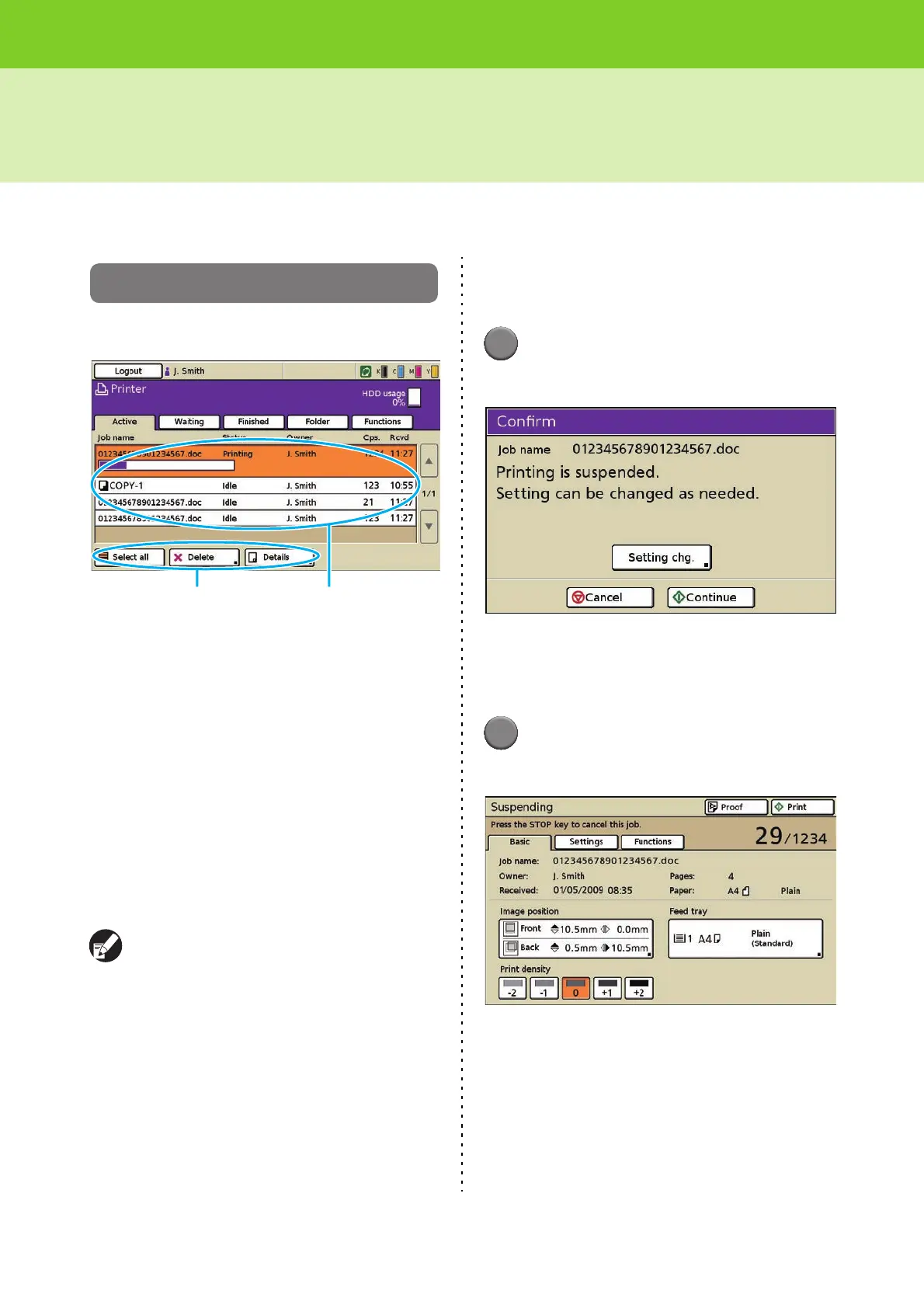
Press [Active] to display the [Active] screen.
The jobs that are being printed and the jobs that are
waiting to be printed are displayed.
The jobs displayed in the job list are automatically
printed in order from top to bottom.
• The job list displays the job name, status, owner
name, number of copies, and receiving time for jobs
that are being printed, processing, and waiting to be
printed.
• The current status of the job being printed is displayed
with a status bar.
• You can change the settings of jobs being printed.
(p. 4-6 "Changing Settings During Printing")
• For information on the operation buttons, see
"Operation Buttons" (p. 4-4).
Output order (order of job priority) of the "active
job list"
Print jobs operated from the machine have higher
priority over direct print jobs sent from a computer
by a user who is not logged in. When copying is
performed on the machine, the copy job has
higher priority over jobs sent from the printer
driver. Next, the job selected in the waiting list has
priority.
● Changing Settings During
Printing
1
Press the [STOP] key.
The confirmation screen is displayed.
• Press [Cancel] to stop printing and delete the
job.
• Press [Continue] to continue printing.
2
Press [Setting chg.].
The [Suspending] screen is displayed.
You can use the [Basic] screen on the
[Suspending] screen to modify the following
settings.
• "Image position" (p. 4-13)
• "Feed tray" (p. 4-13)
• "Print density" (p. 4-14)
Operation buttons Active job list












 To Next Page