2-34
2 Copy
ComColor Series User’s Guide 09
7
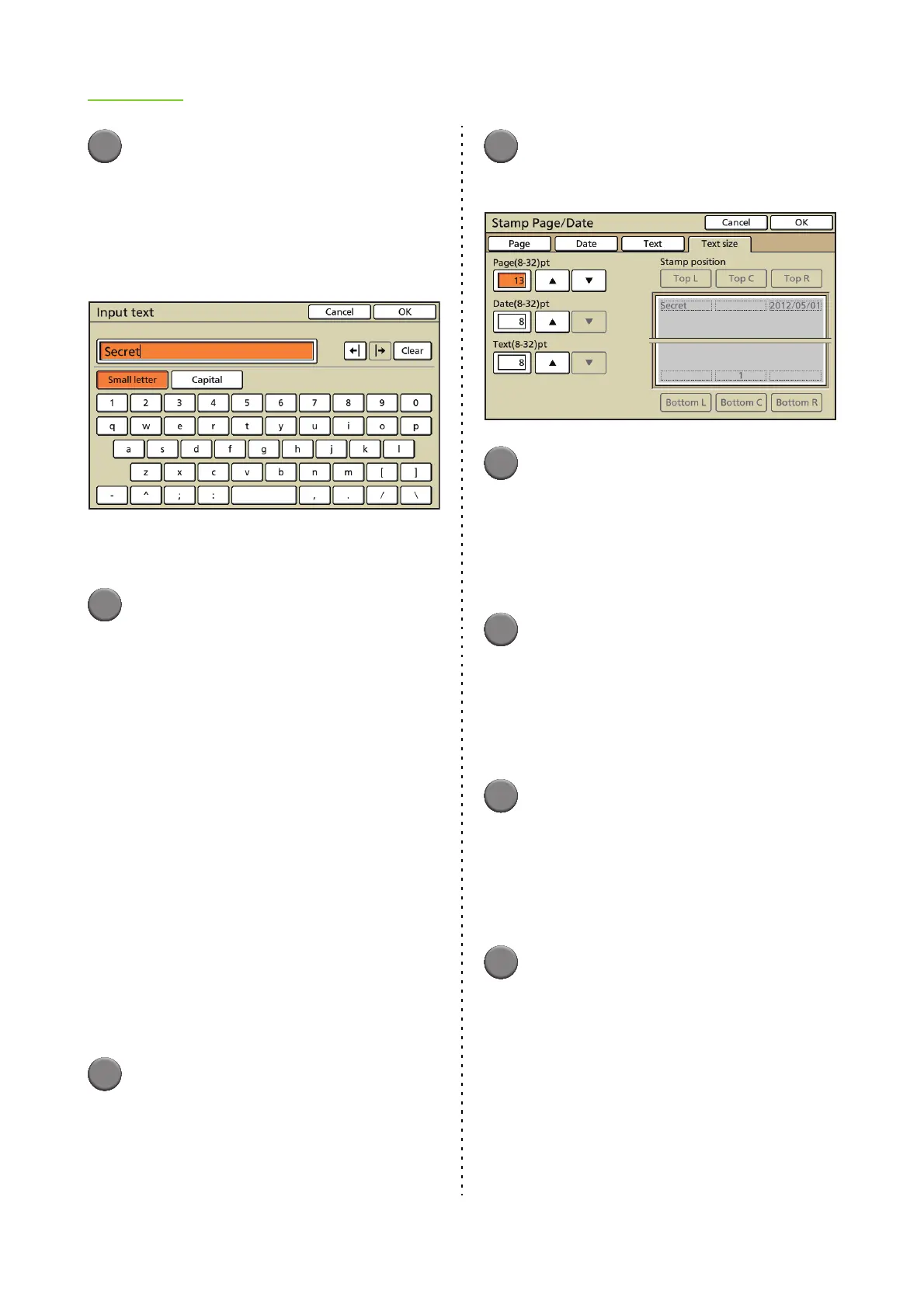
Specify the text (character strings)
to be stamped.
Select [Input text] to display the [Input text]
screen.
Select the type of text to enter. You can enter up
to 128 alphanumeric characters.
• Press [OK] on the [Input text] screen to confirm
the setting and display the [Text] screen.
8
Press [OK].
The settings are confirmed and the previous
screen is displayed.
● Setting the Text Size
Specify the text size of page number, date, and text.
■ Page
Specify the page number text size between 8pt and
32pt.
■ Date
Specify the date text size between 8pt and 32pt.
■ Text
Specify the text size between 8pt and 32pt.
1
Display the [Stamp Page/Date]
screen.
Follow Steps 1 and 2 in "Stamping the Page
Number" (p. 2-31).
2
Press [Text size].
The [Text size] screen is displayed.
3
Specify the page.
Enter the number between 8pt and 32pt using [S]
and [T].
• You can also enter the number using the
numeric keys.
• To clear the fields, press the [Clear] key.
4
Specify the date.
Enter the number between 8pt and 32pt using [S]
and [T].
• You can also enter the number using the
numeric keys.
• To clear the fields, press the [Clear] key.
5
Specify the text.
Enter the number between 8pt and 32pt using [S]
and [T].
• You can also enter the number using the
numeric keys.
• To clear the fields, press the [Clear] key.
6
Press [OK].
The settings are confirmed and the previous
screen is displayed.












 To Next Page