2-33
Copying Functions
2
ComColor Series User’s Guide 09
7
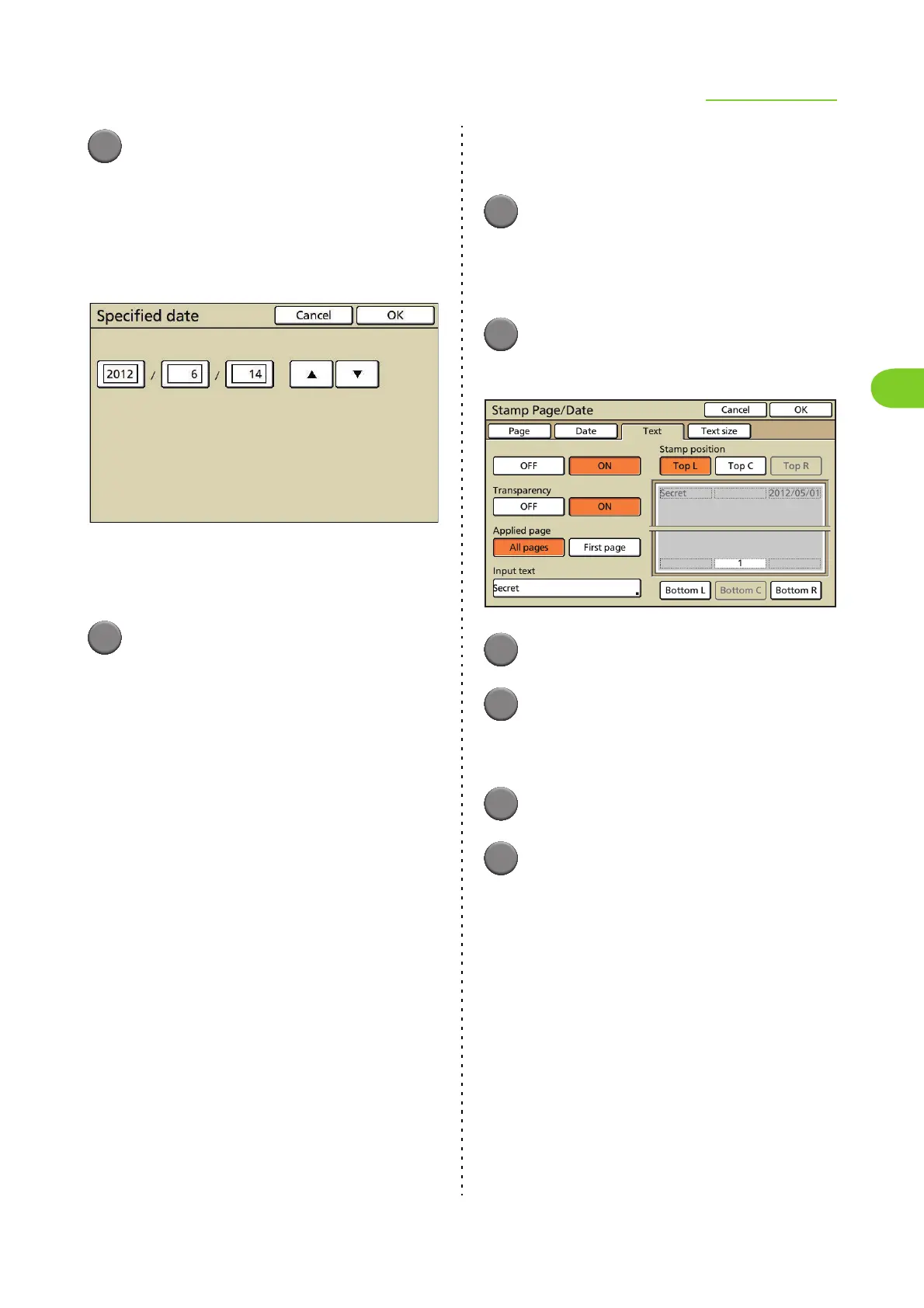
Select the date to be stamped.
Select [Specified date] to display the [Specified
date] screen.
Press the input box and enter the date using [S]
and [T] or the numeric keys.
• To clear the fields, press the [Clear] key.
• Press [OK] on the [Specified date] screen to
confirm the setting and display the [Date]
screen.
8
Press [OK].
The settings are confirmed and the previous
screen is displayed.
● Stamping the Text
Stamp the text (comment) on the header or footer.
■ Stamp position
[Top L], [Top C], [Top R], [Bottom L], [Bottom C],
[Bottom R]
■ Transparency
[OFF]
Remove images in the stamp area to create a white
space, and stamp the text in that white space.
[ON]
Stamp the text on top when the stamp area and
images overlap.
■ Applied page
Select the page(s) to stamp the text.
[All pages], [First page]
■ Input text
Enter the text using alphanumeric characters.
1
Display the [Stamp Page/Date]
screen.
Follow Steps 1 to 2 (p. 2-31) in "Stamping the
Page Number".
2
Press [Text].
The [Text] screen is displayed.
3
Press [ON].
4
Select the text stamp position.
• You cannot select the position for stamping the
page number and date.
5
Select the transparency.
6
Select the pages to apply.












 To Next Page