1-23
Basic Settings
1
ComColor Series User’s Guide 09
3
Send the printing command.
The printer prints only the covers and the
remaining data is set to [Waiting] status.
4
Load the printed covers in the tray
specified with [Feed tray for
cover].
5
On the operation panel of the
printer, press [Waiting] in printer
mode, and select a job from the
list.
6
Press [Print].
The main text is printed, aligned with the covers,
and created into a booklet.
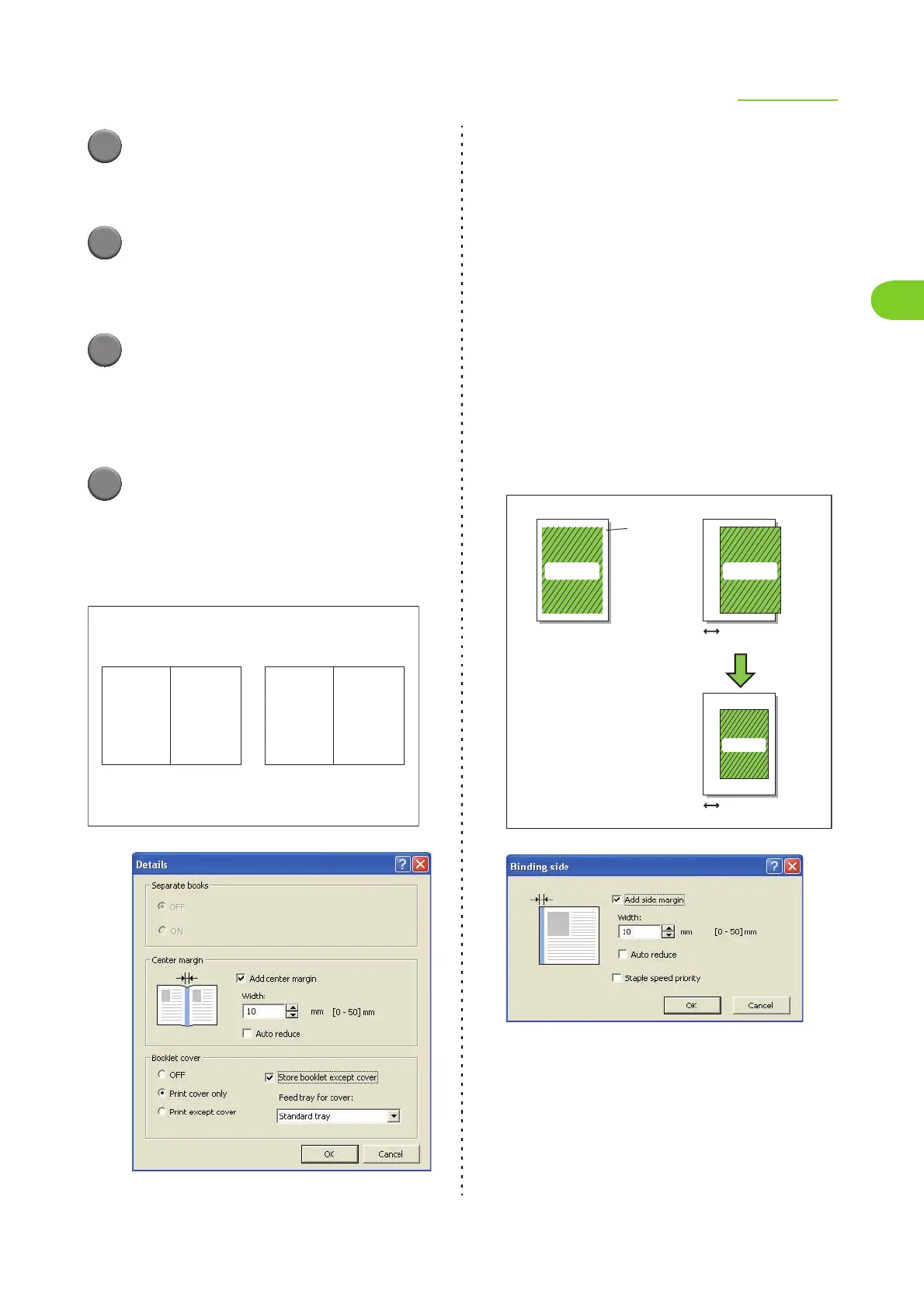
● Binding side
Specify the position for stapling and punching and
specify the binding margin.
Select the binding side and click [Details] to display the
[Binding side] dialog box.
[Left], [Right], [Upper]
■ Binding margin
Select the [Add side margin] check box and specify
the width between 0 mm and 50 mm (1 15/16") (in 1
mm units).
When you have select the [Auto reduce] check box
and the margin width you have specified would cause
the printed image not to fit on the sheet, the image is
automatically reduced to fit.
12 1 2 11
Front Back
Example: When printing a document of 12 pages including
the cover pages by using the [Booklet cover] function
Cover
Pages except the cover pages (the main text)
Page 3-10 (4 pages on each sheet)
Without a margin With a margin
Binding margin
Paper
Print surface
Print surface is
automatically
reduced.
Print surface
Print surface
Binding margin












 To Next Page