Style Panel : contains properties pertaining to how selected shapes will be cut or printed. Refer to
Section 8.01.
Text Panel : contains properties pertaining to how text will appear. Refer to Section 8.05.
Layers Panel : lists all shapes in the current project with options to organize, hide/show,
lock/unlock and more. Refer to Section 6.04.
Help Panel : opens a user guide to a section based on the currently selected tool. More tips and
instructions can be found under Help>Help.
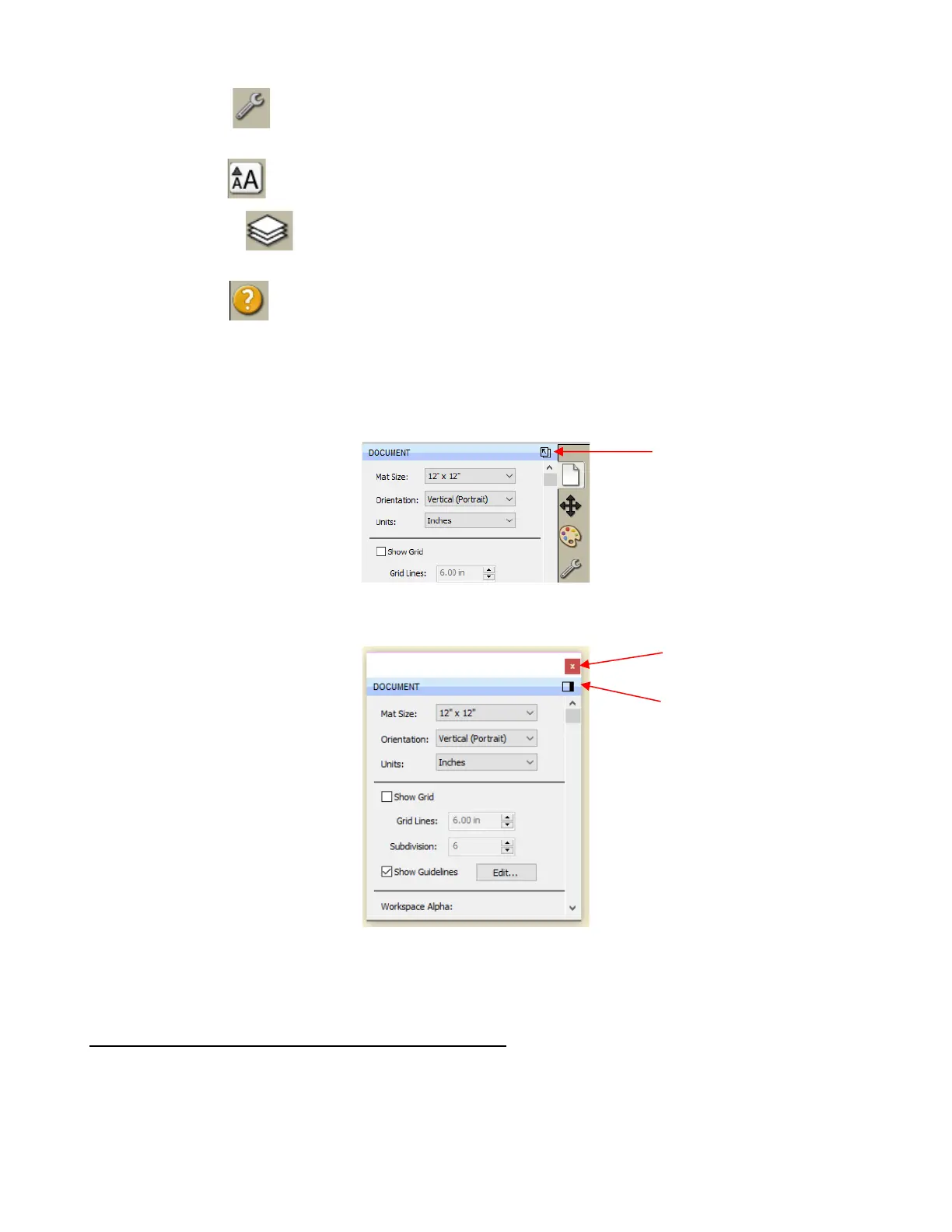
• Clicking on the icon for any the seven panels will open that panel. To expand a panel for easier viewing,
click on the small icon to the right of the panel name. This will open the panel in the area to the left of the
Properties Panel:
• To return a panel to the Properties Panel or close a panel, click on the following:
• A panel which has been moved out, can be dragged from either the top or the bottom in order to view more
properties and settings.
5.05 Customizing the Properties Panel / Workspace
• In SCAL, the Workspace refers to the arrangement of panels and whether or not you want the Library to
be open or closed by default. There are two versions already set up: Basic and Advanced. You can then
make changes and name and save others, as desired.
• By default, the Advanced Workspace opens. To switch to Basic, go to Window>Workspace>Basic. The
only difference between Advanced and Basic is the former has the Layers Panel open:


 To Next Page