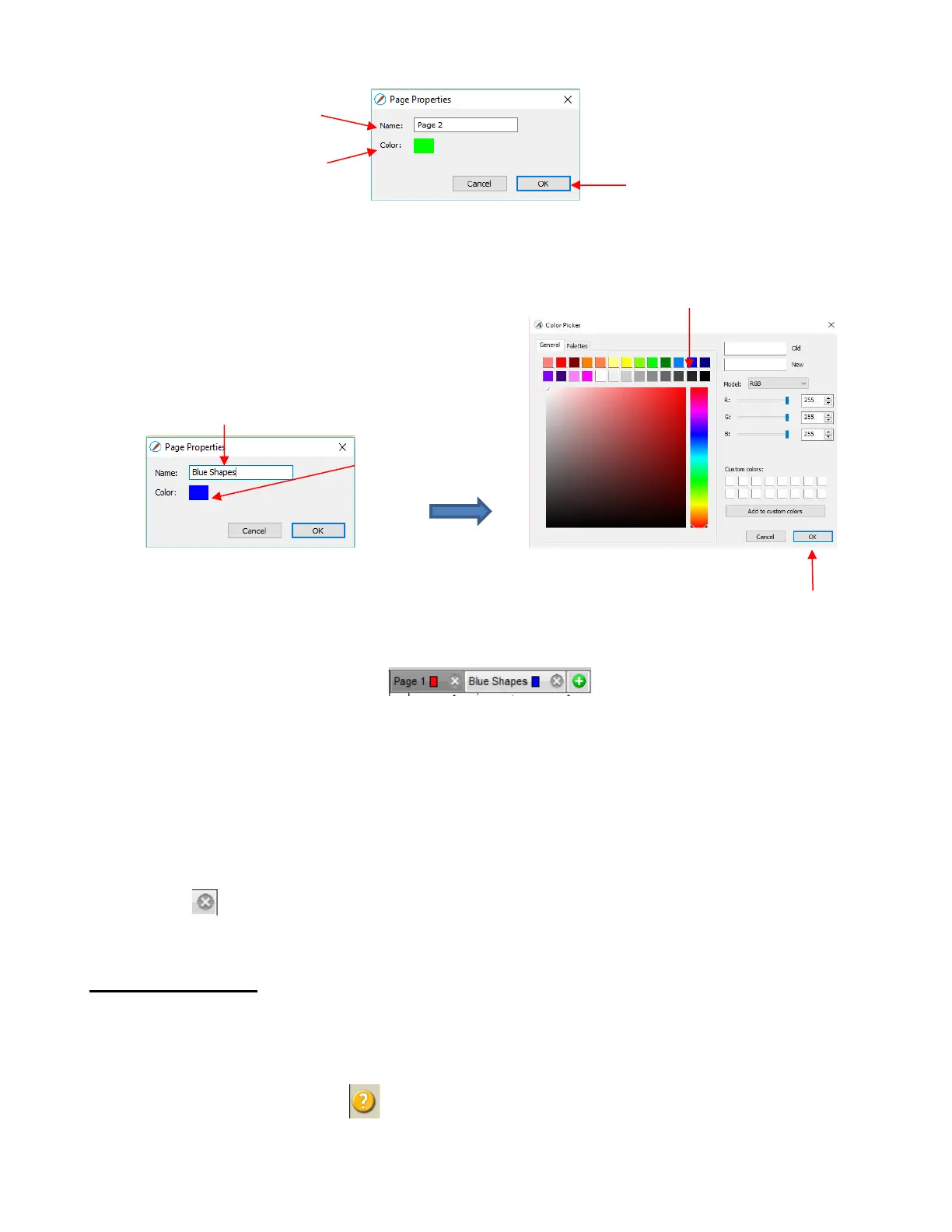
Either accept the default Page number as the new Name or provide your own. The same with color –
you can click on the default color provided and select a new color from the Color Picker window that
opens. For example, you might want to have all of the blue shapes on their own page:
Note: You can create your own custom colors within the Color Picker window. This will be covered in
Section 7.14.2.
After clicking on OK, the new page appears on the Page Bar:
Note: The color selected for the page tab will also be the color of the Cutting Mat if you mark the Show
Page Color option on the Document Panel.
If you change your mind and want to edit the Name and/or Color, either go to Page>Page Properties
or double-click on the Page Name and the same Page Properties window will open, allowing you to
make changes.
• To switch between pages, click on the Page name or go to Page on the Menu Bar and the menu will have
all pages listed.
• To delete a page, make sure it’s selected and then either go to Page>Delete Page or click on the Delete
Page icon . A window will open asking for confirmation.
5.12 Help Resources
• The following steps within SCAL will take you to help resources (note that some of these will require an
Internet connection):
Go to Help>Help for access to a user guide
Click on the Help Panel icon on the Properties Panel to open the user guide to a section based
on the currently selected tool
Go to Help>Forums to access the SCAL user forum


 To Next Page