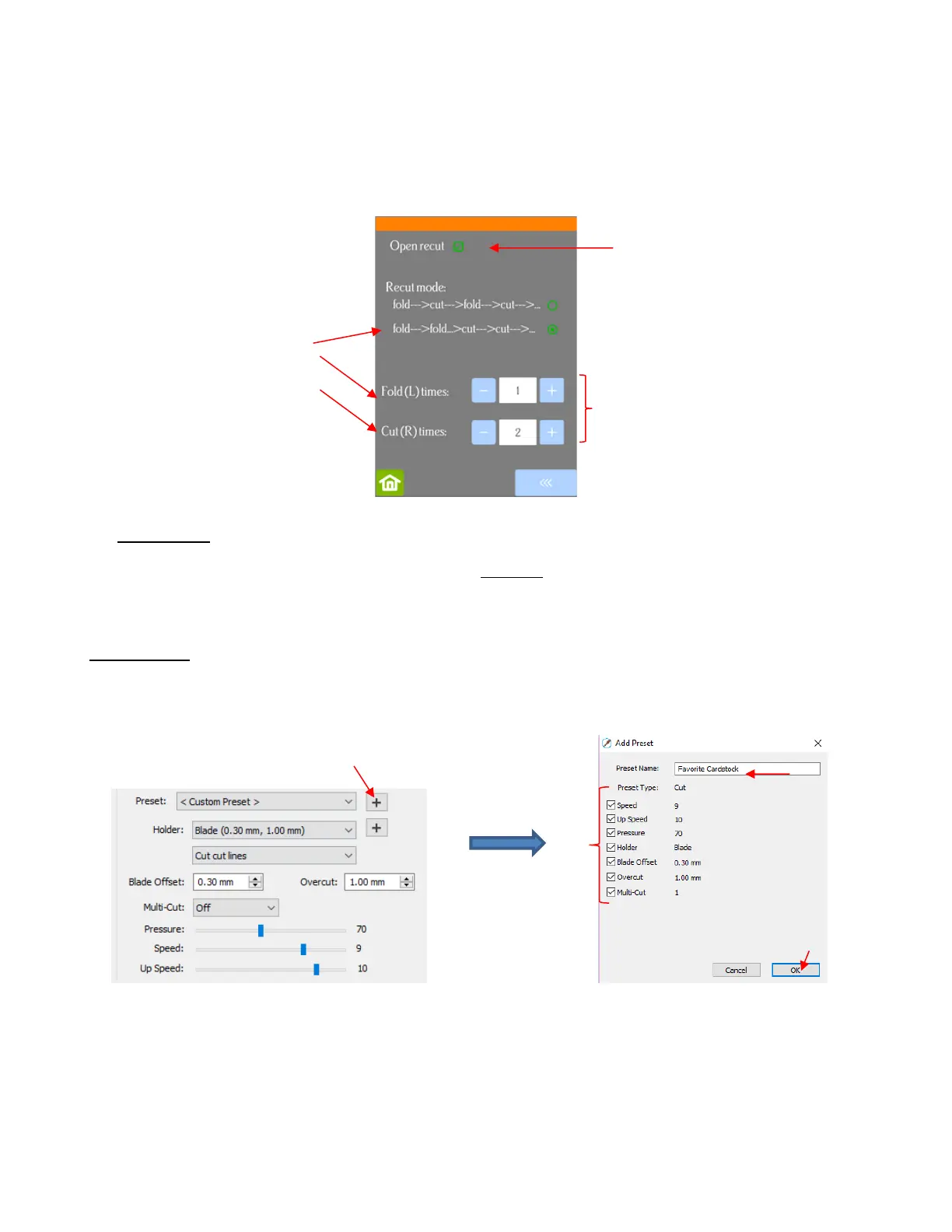
If the upper option is marked, then the screen shows a setting called Recut times which you set based
on the number of passes you want both sides to perform. Note that it will execute both sides’ shapes
before doing additional passes.
If the lower option is marked, the screen changes and you can enter different passes for the two heads
to perform. Note that it will execute the passes on one side before executing the passes on the other
side:
• IMPORTANT: Currently the Open recut option will default to unmarked (off) whenever the Skycut is first
powered on. Thus, make a mental note (or, even better, put a Post-It note on your cutter) to turn this option
on when needed. Also, note that when this setting is activated, it will be combined with the Multi-Cut setting
in SCAL. Thus, if you have 2 passes set in SCAL and on the control panel, the shapes will cut 4 times.
2.04 Presets
• Presets allow you to save your settings for a particular material or blade type. To do this, enter the settings
you wish to save. Then click on the “+” to the right of <Custom Preset>:
• After clicking on OK, the new preset will be found at the bottom of the list.
• In a similar manner, you can also add other Holders to your list, which would typically be blades with other
Blade Offset values. For example:
With the lower option selected,
the screen will display repeat
settings for both sides, separately


 To Next Page