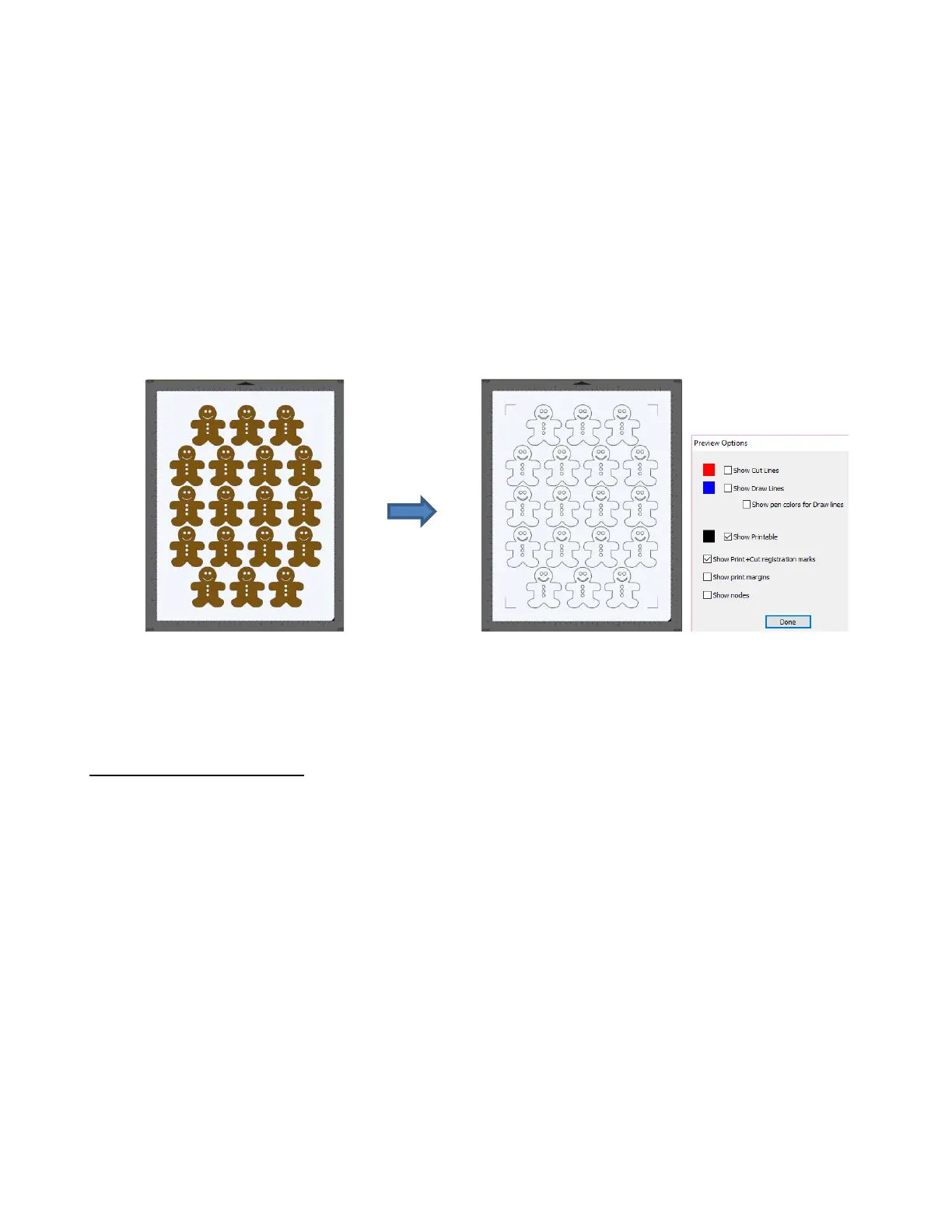
Mark Offset Reference: There are three options in this menu:
▪ Mark offset around design: The marks will be positioned based on the bounding box around the
layer(s) that will be cut
▪ Mark inset from print bounds: The marks will be positioned based on the paper size specified in
your printer properties
▪ Mark inset from page bounds: The marks will be positioned based on the Mat Size specified on
the Document Panel
Mark Offset or Inset Distance: This is the distance from the registration marks to whatever reference
point was selected. This can be reduced if you need more space on your printout for your images. Note,
however, that if you have images too close to the registration marks, then the scanning process can fail.
▪ When using Mark Offset around design, some users prefer to set the Mark Offset or Inset close
to 0, but then remove any shapes that are close to the corners:
▪ When using Mark inset from print bounds, you may need to turn on Borderless printing in your
printer properties window. This can introduce a problem with the reg marks being relocated so
you’ll also need to locate a setting called Extension or Expansion or Overspray and make it the
minimum setting.
3.05.2 Inaccurate Tracings
• When tracing imported images, the trace lines will not necessarily be perfectly aligned with the image. This
can result in tiny bits of white appearing in certain spots, suggesting the PNC wasn’t accurate. Zoom in on
the image so that you can see the trace line following the outline of the image. Look at the same spots
where the cut didn’t follow the image perfectly. This could be the cause of the inaccurate PNC. There are
three ways of handling this situation:
Retrace the imported image using a higher Resample setting (refer to Section 9.03.7). If you are still
using SCAL4, try using a lower Contrast and/or Smooth setting to get a tighter fit of the trace line to the
original graphic (refer to Sections 9.03.2 and 9.03.3).
Use Path Editing to move the trace lines to more closely fit the original graphic (refer to Section
10.10.4).
Create an inset line to use for cutting instead of the original trace line (refer to Section 11.05).
• If a PNC is not precise and the cause is not the alignment of the trace lines, then try slowing down the
speed. If the mat is moving numerous times, in and out of the cutter, a slight shifting can occur, especially
at high speeds. On the Skycut, use a speed of 7 or lower.


 To Next Page