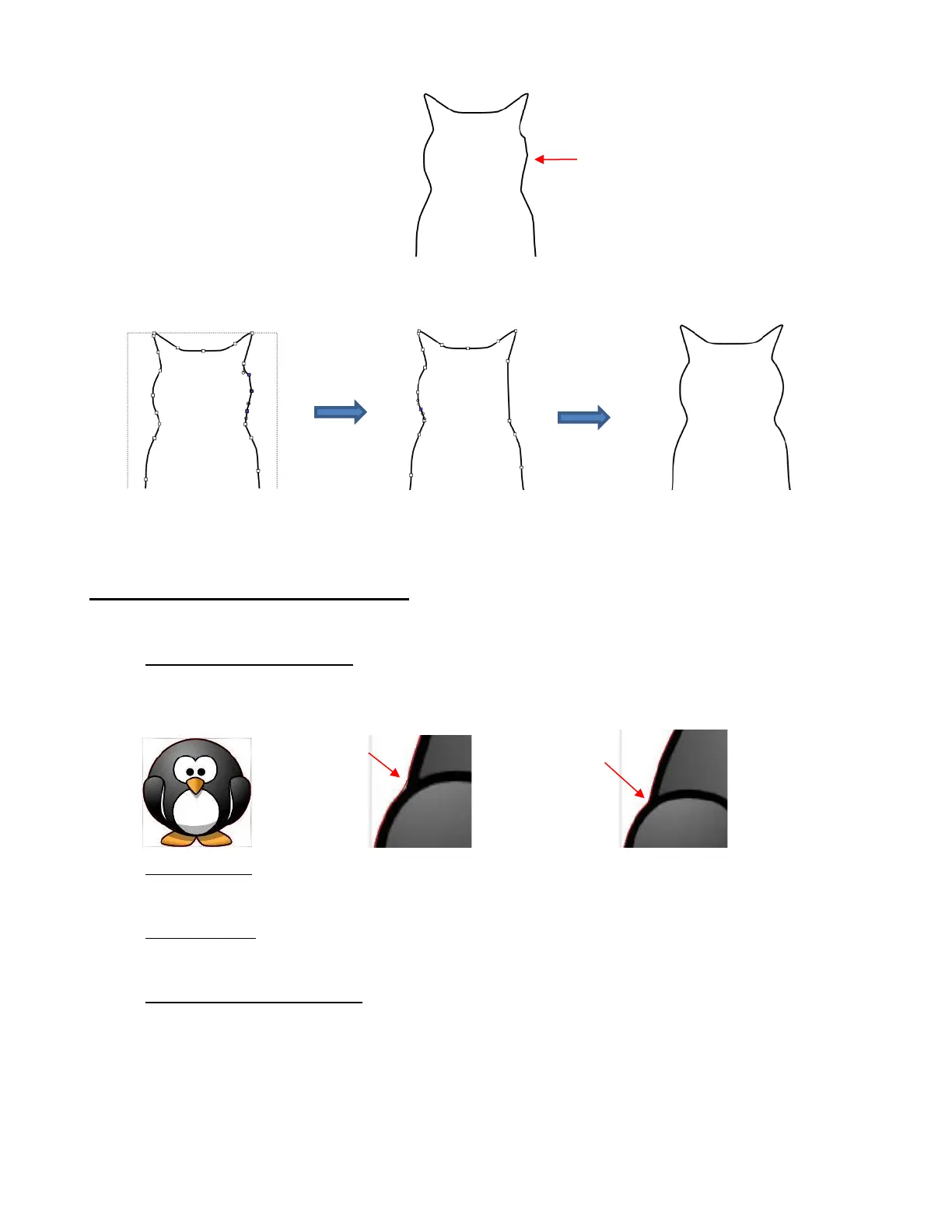
• Using the Shape Tool, the nodes causing the angular shape are marquee-selected and deleted. Then the
path is reshaped:
10.10.4 Applications for the Shape Tool
• It’s not always obvious when the Shape Tool might be needed. Here are a few examples to keep in mind:
Editing of pixel traced images: Sometimes a pixel trace will appear to be perfect until, for example, you
use it for a print and cut and discover that some of the paths are slightly outside the printed areas of the
original image:
Manual tracing: As shown in Section 9.05, one of the quickest ways to manually trace a raster image is
to use the Draw Tool and simply click/click/click around the image and then use the Shape Tool to
create curves and move nodes to more closely align with the original image.
Improving a cut: If you have problems with a particular location on a cut shape, examine the nodes in
that location. You may find a cluster of nodes or a sharp cusp. Delete those excess nodes, reform the
path, and then retest the cut.
Modifying poorly designed files: Sometimes you will pick up free files that don’t quite cut the way you
expected. Examples are often fold-up templates where corners and fold lines do not quite meet.
Having the ability to move paths and nodes can correct these kinds of files and provide cleaner and
more professional end products.


 To Next Page