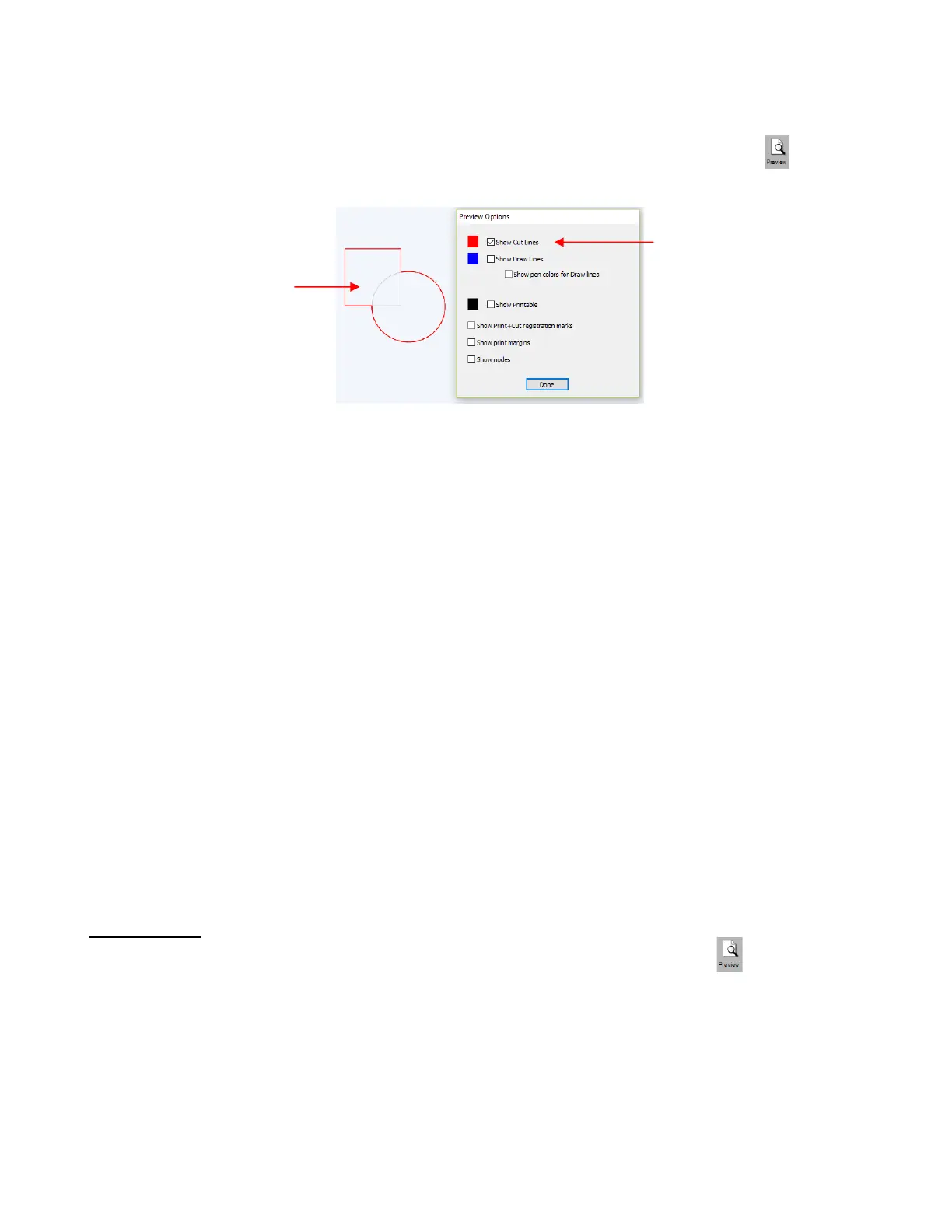
As mentioned before, settings in the Style window do not become permanent changes to the shapes on
the Cutting Mat. However, you can verify the Weld effect by clicking on the Preview icon on the
Toolbar (for more details on Preview, refer to Section 12.02):
• Clipping: options are available for either Clip Path or Clip Mask. Refer to Section 11.07. The clipping is
only applied during the cutting process.
• Cut Line Type: There are five options in this menu:
Cut: choose this option for regular cutting. Because this is the default, you don’t normally need to select
it.
Pen: choose this option when using a pen, embosser, engraver, glue pen, rotary tool or other device
that doesn’t require a blade offset
Print+Cut Cut: in print and cut applications, choose this option for the layer that will be cut. It will not be
printed.
Print+Cut Print: in print and cut applications, choose this option for the layer that will be printed only. It
will not appear in the cut window.
Color layer alignment (Pro version only): in applications such as vinyl where several layers will be cut
from different colors and aligned, choose this option for the layer that has registration shapes that need
to be cut from every color along with that color’s shapes. These registration shapes can then be used
to layer the colors perfectly. Refer to last part of Section 12.06.3.
• Tool: for cutters with more than one head, such as the Skycut D Series, choose if the layer should be
executed by the left side or by the right side.
• Preset (Pro version only) allows you to assign saved cut settings, called Presets, to individual layers. Refer
to Section 12.06.7.
12.02 Preview
• To see what your cutter will cut or what your printer will print, click on the Preview icon on the Toolbar.
The following window will open. Note that settings applied on the Style Panel are reflected in the Preview
window:


 To Next Page