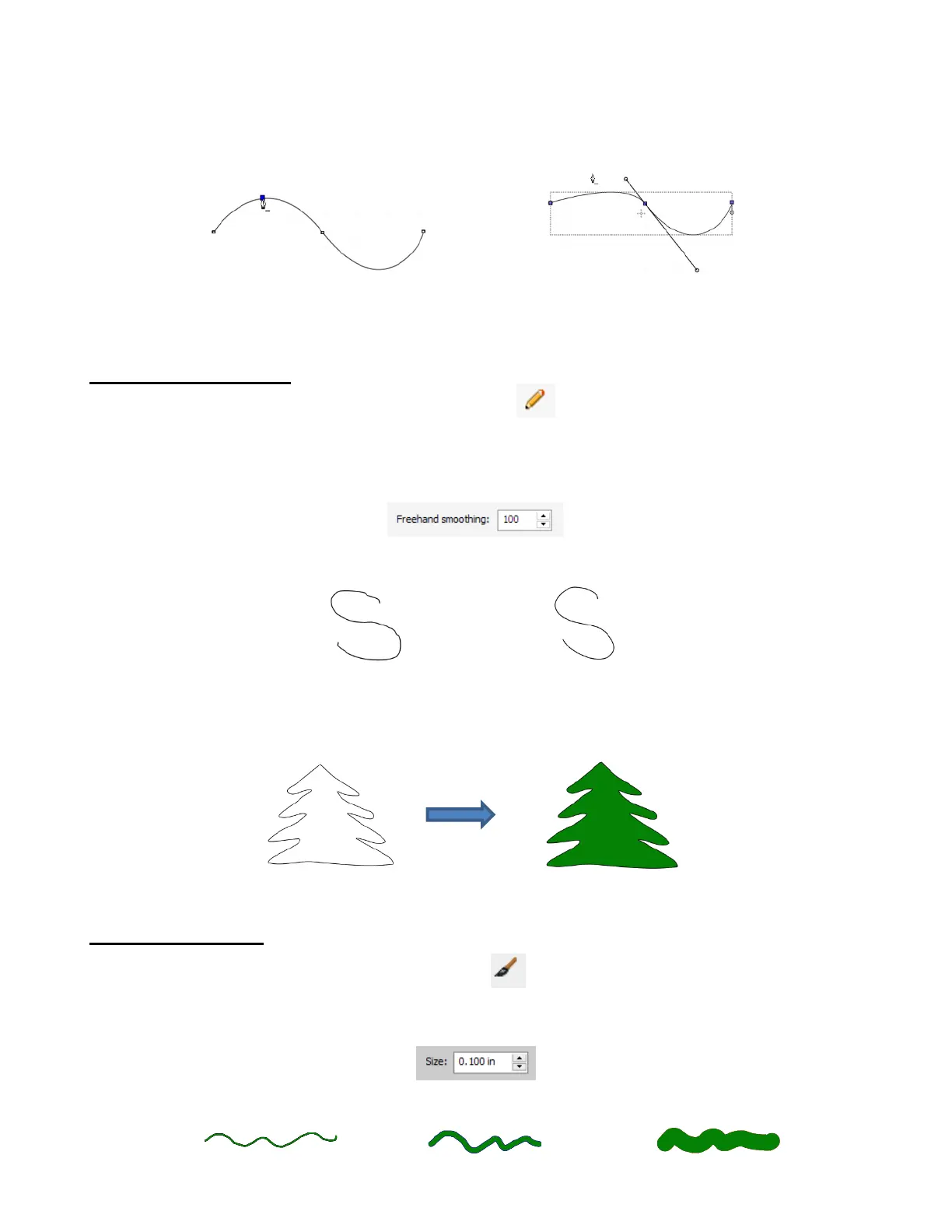
• To delete a node, move the cursor over an existing node until the cursor changes and you can see the node
turn blue. Left-click once to delete that node:
9.04.2 Freehand Drawing
• The Freehand tool is accessed by clicking on the 6
th
icon on the Tools Panel. This tool is used to
freely draw thin lines with your mouse or, better yet, a graphics tablet.
• In the Tool Options, there is a setting called Freehand smoothing. Increase that setting if you want the
software to reduce “shakiness” as much as possible:
• The two extremes for the Freehand smoothing setting clearly demonstrate the difference:
• When drawing closed shapes, the shape will remain an open path regardless of how precise you attempt to
be in returning to the start. To close the shape, select it and go to Path>Close Path:
9.04.3 Brush Drawing
• The Brush tool is accessed by clicking on the 7
th
icon on the Tools Panel. It is used to freehand draw
thick lines. As with the Freehand tool, using a stylus with a graphics tablet will provide the most control.
• In the Tool Options is a Size setting for the thickness of the Brush tool:
• Select the Size you desire and freehand draw:


 To Next Page