7. SCAL: Manipulating and Coloring Shapes
This chapter covers all of the ways to modify shapes. Note that while the singular term “shape” will be
repeatedly used when describing various functions, it also refers to a selection of shapes. For example, resizing
a selection of three shapes uses the same menu functions or mouse movement as a single shape.
7.01 Basic Shapes
• Besides the shapes included in the Library, SCAL also offers the ability to add various geometric shapes to
the Cutting Mat: Rectangle, Rounded Rectangle, Circle, Triangle, Polygon, Star, and Spiral. Some of
these have customizing functions which will appear on the Tool Options bar and will be detailed in the
following subsections.
• To access these various shapes, hold down the left mouse button on the Rectangle icon on the
Tools Panel and then select the desired shape from the popup menu.
• Once a different shape is selected, that shape’s icon will then replace the Rectangle icon on the Tools
Panel.
7.01.1 Rectangle
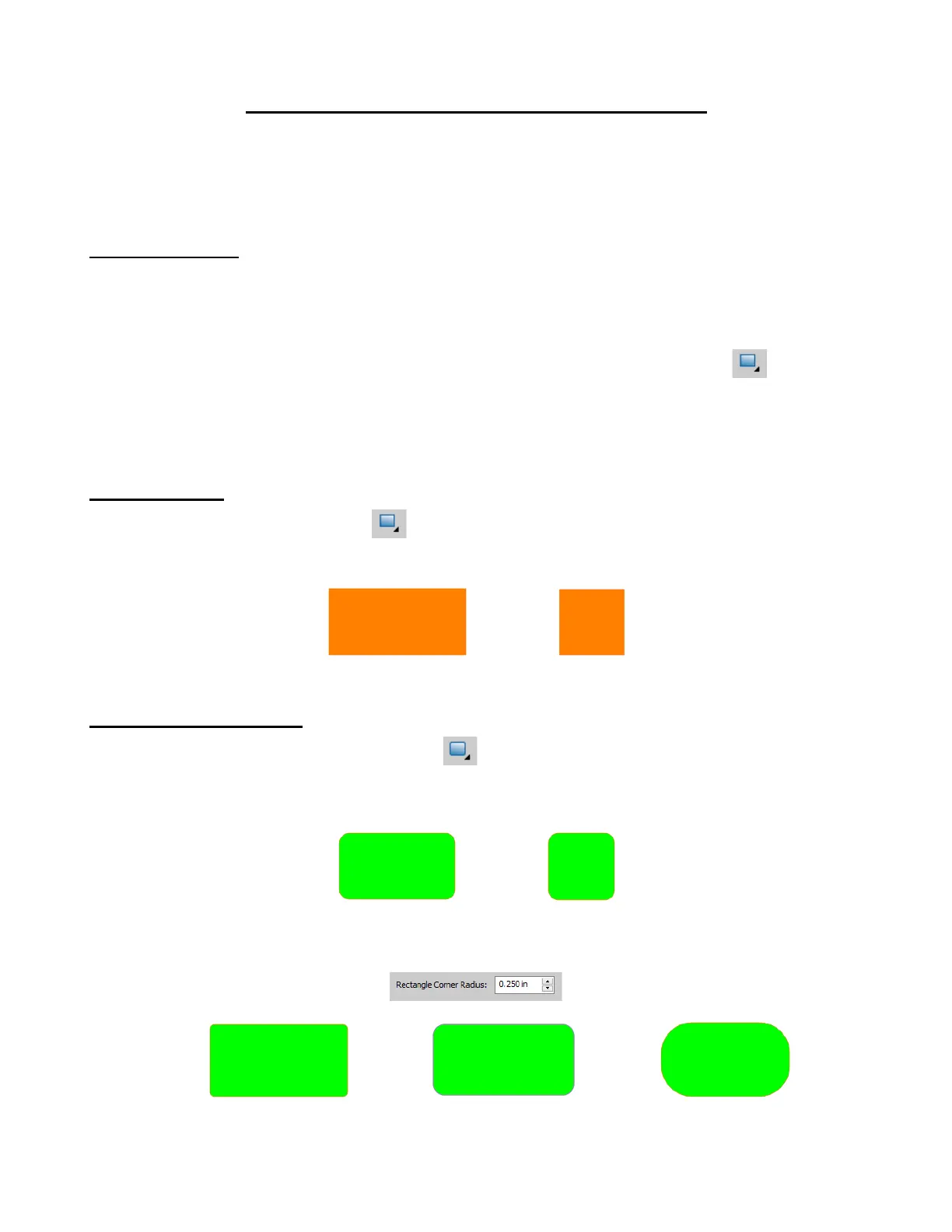
• After selecting the Rectangle shape , drag the left mouse button to form a rectangle.
• Holding the Shift key while dragging the mouse will constrict the proportions, resulting in a square:
7.01.2 Rounded Rectangle
• After selecting the Rounded Rectangle shape , drag the left mouse button to form a rectangle with
rounded corners.
• Holding the Shift key while dragging the mouse will constrict the proportions, resulting in a rounded square:
In the Tool Options, a setting will appear. This can be used to control the roundness of the corners:


 To Next Page