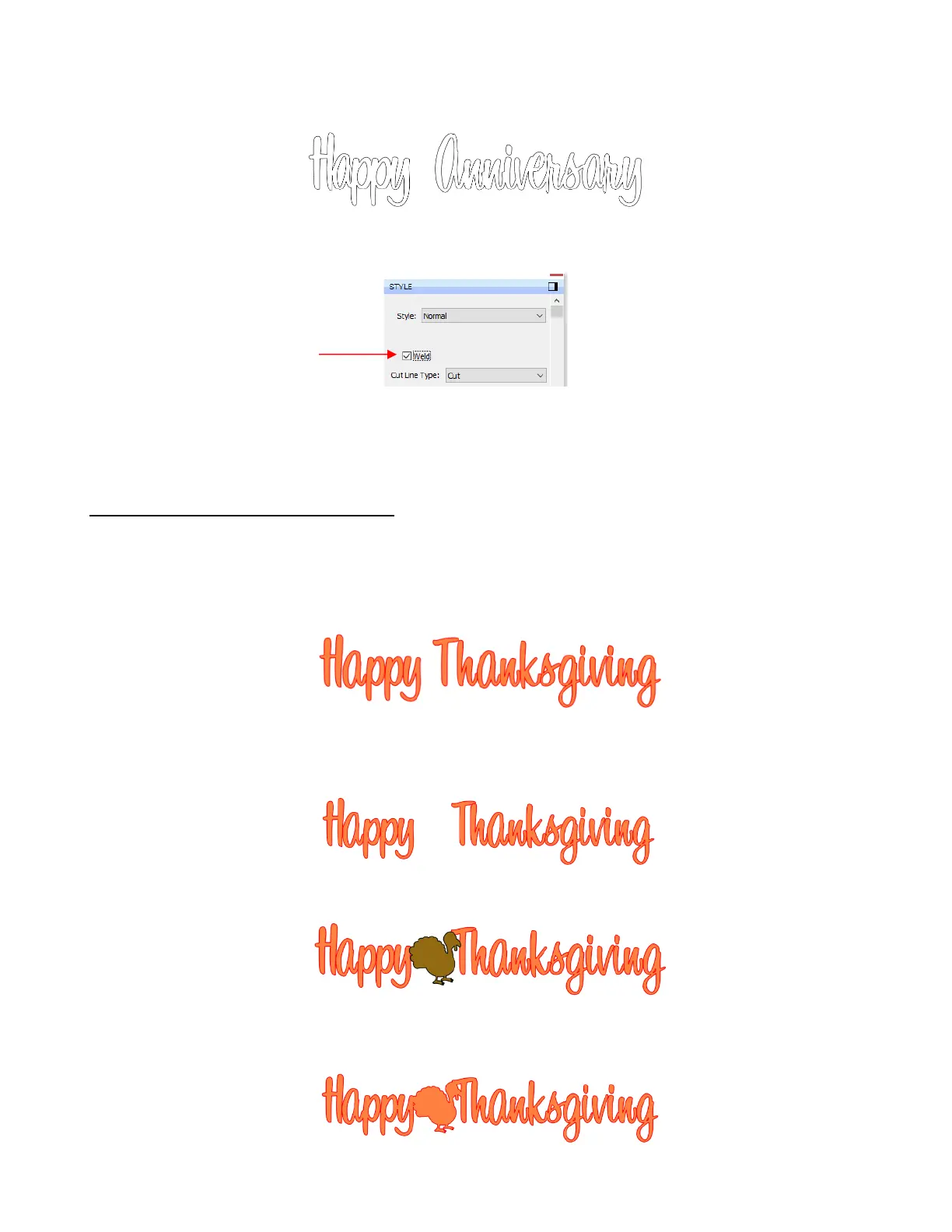
• When you are satisfied with the overlap, select all of the letters and go to Path>Union. The overlap will be
removed:
• Alternatively, if you do not want to make the weld permanent, you can select the shapes and mark the weld
option on the Style Panel:
• To create an outline/shadow for titles and other shapes or if you need to thicken a font that turns out to be
too thin for cutting, refer to Section 11.05.
8.08 Incorporating Shapes into a Title
• A quick way to incorporate a shape into a welded title is to use any of thousands of dingbat fonts available
from the Internet for free or even check the SCAL Library for a shape. In this example, a script font is being
used for the title and a turkey, found in the Library under the Fall folder, will be used for the shape.
• Using the steps in Section 8.04.1, create the title:
• Select the title and go to Object>Ungroup. Then move the “Thanksgiving” part to the right to add some
spacing for the turkey. In this example, other parts were also moved so that all letters in “Happy” and all
letters in “Thanksgiving” overlap.
• In the Library, locate the turkey shape and click on it to add to the Cutting Mat. Resize and arrange to
overlap with the lettering:
• Go to Path>Union or press Ctrl+Shift+U to remove the overlap or mark the Weld option on the Style
Panel:


 To Next Page