• Make sure you have all of the cut settings made under the General tab of the Cut Settings window. Once
you click on Cut, all of the duplicates will be cut out and it appears that using Cancel, in the current version
of SCAL, will not abort the cut.
12.06.6 Cut Order (SCAL PRO only)
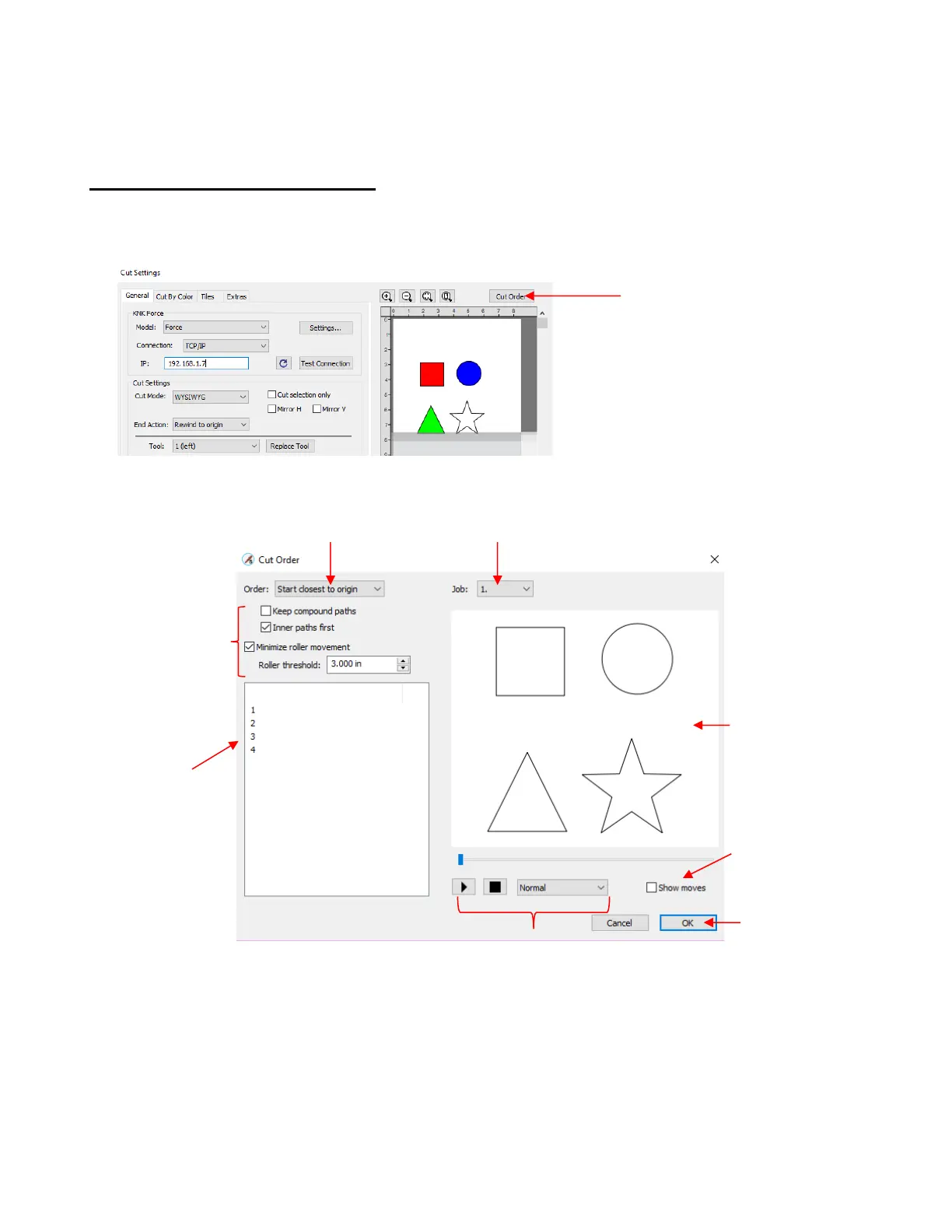
• The Cut Order function provides control over the order in which shapes will be cut on your cutter. To access
this function, go to the Cut Settings window and, in the upper right corner, click on Cut Order:
• When you click on Cut Order, the following window will open, displaying the shapes that will be cut:
Order - Select start location preference from the following:
o Start closest to origin – The first shape to cut will be the one closest to the cutter’s origin based on
where the blade drops down to cut that shape.
o Start farthest from origin – The first shape to cut will be the one farthest from the cutter’s origin,
again based on where the blade drops down to cut that shape.
o Layer order (Back to Front) – The shapes will cut from bottom to top on the Layers Panel
o Layer order (Front to Back) – The shapes will cut from top to bottom on the Layers Panel


 To Next Page