8. SCAL: Working with Text
8.01 Text Options
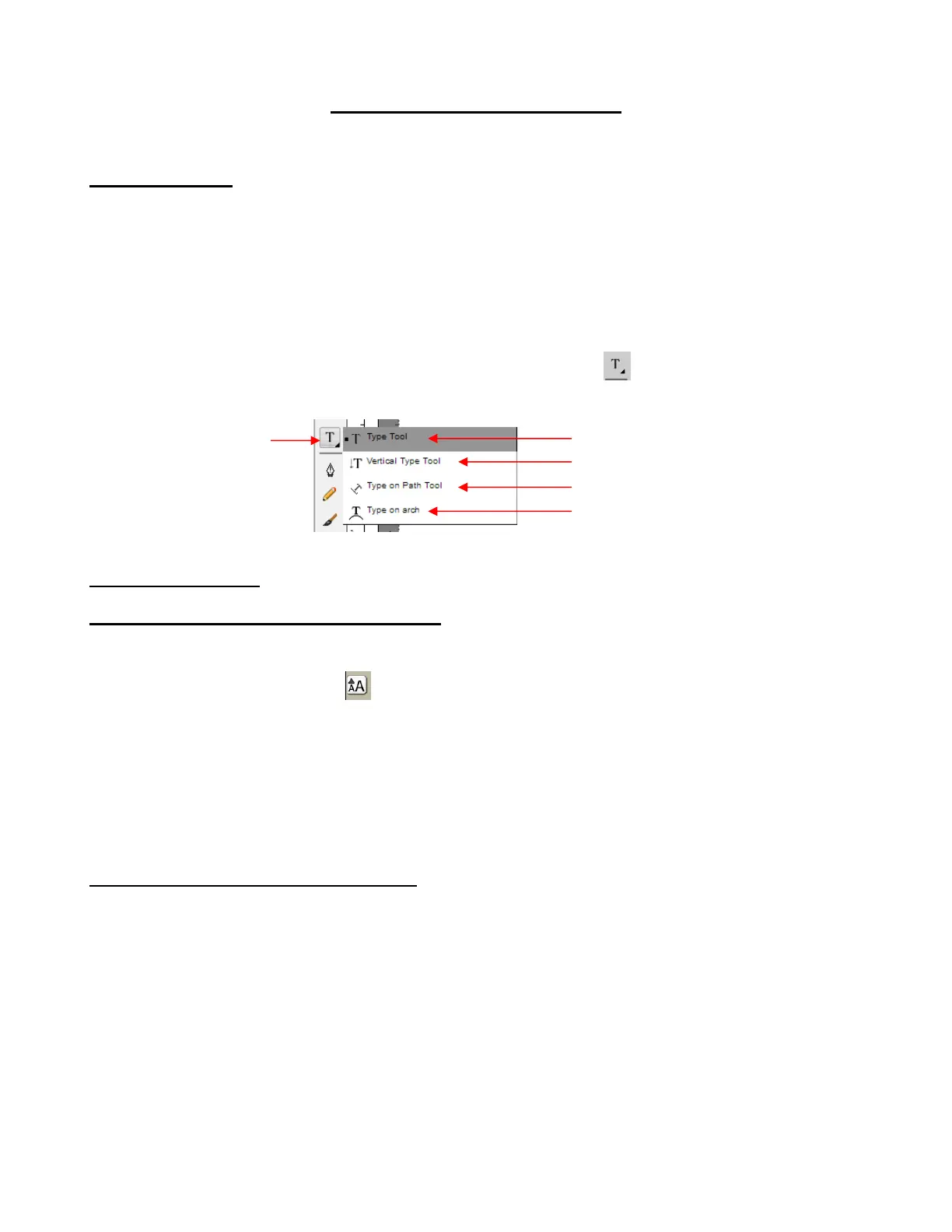
• There are four modes for adding text to the Cutting Mat:
Type Tool: normal left to right typing of text
Vertical Type Tool: vertical aligned lettering
Type on Path Tool: text is aligned along the path of your choosing
Type on arch: text is arranged in a circular pattern
• To select a mode, hold down the mouse button on the Type Tool icon on the Tools Panel. The
screenshot below indicates where to go for further instructions on using that text mode:
8.02 Selecting a Font
8.02.1 Choosing a Font from the Font Menu
• There are three places to select an installed font:
Click the Text Settings icon on the Properties Panel to open the Text Panel. Select from the
Font drop-down menu.
Go to Text>Font
Click on the Fonts tab in the Library (refer to Section 6.03.2).
• If you are looking for a particular font in any of those three menus, type the first letter of the font name and
you will be taken to the fonts that begin with that letter.
8.02.2 Choosing a Font via Font Preview
• To view the text you’re using in different fonts, first type out the text using the instructions in Sections 8.03
and 8.04. Then select the text and go to Text>Font Preview. There you can scroll through all of the fonts
currently installed in SCAL to view others you might prefer:



 To Next Page