Keep compound paths – If two or more shapes have been joined using Object>Merge, they will be
treated as a single shape in the cutting order.
Inner paths first – It’s almost always desirable to have an inner/child shape cut before an outer/parent
shape due to stability of cutting the inner shape. However, that option can be turned off and inner
shapes will be treated independently in the cutting order.
Minimize roller movement – The accuracy of cut location (very important in print and cut applications)
can be affected if the material or mat is rolling in and out over long distances throughout the cut. This
option is also usually left marked.
Roller threshold – Select from 0.01 inches to 10 inches based on the maximum roller movement
allowed when cutting a series of shapes before advancing the mat/material to the next series. Note that
if the Keep compound paths option is marked, it will take precedence over Roller threshold.
Job – If Cut by Color with Separate Jobs has been opted, select each job separately from this menu
to set the cut order, as desired.
• A video simulation is available so that you can verify the cut order:
Click on the Play icon . The shapes will be sequentially highlighted in the order in which they will
cut.
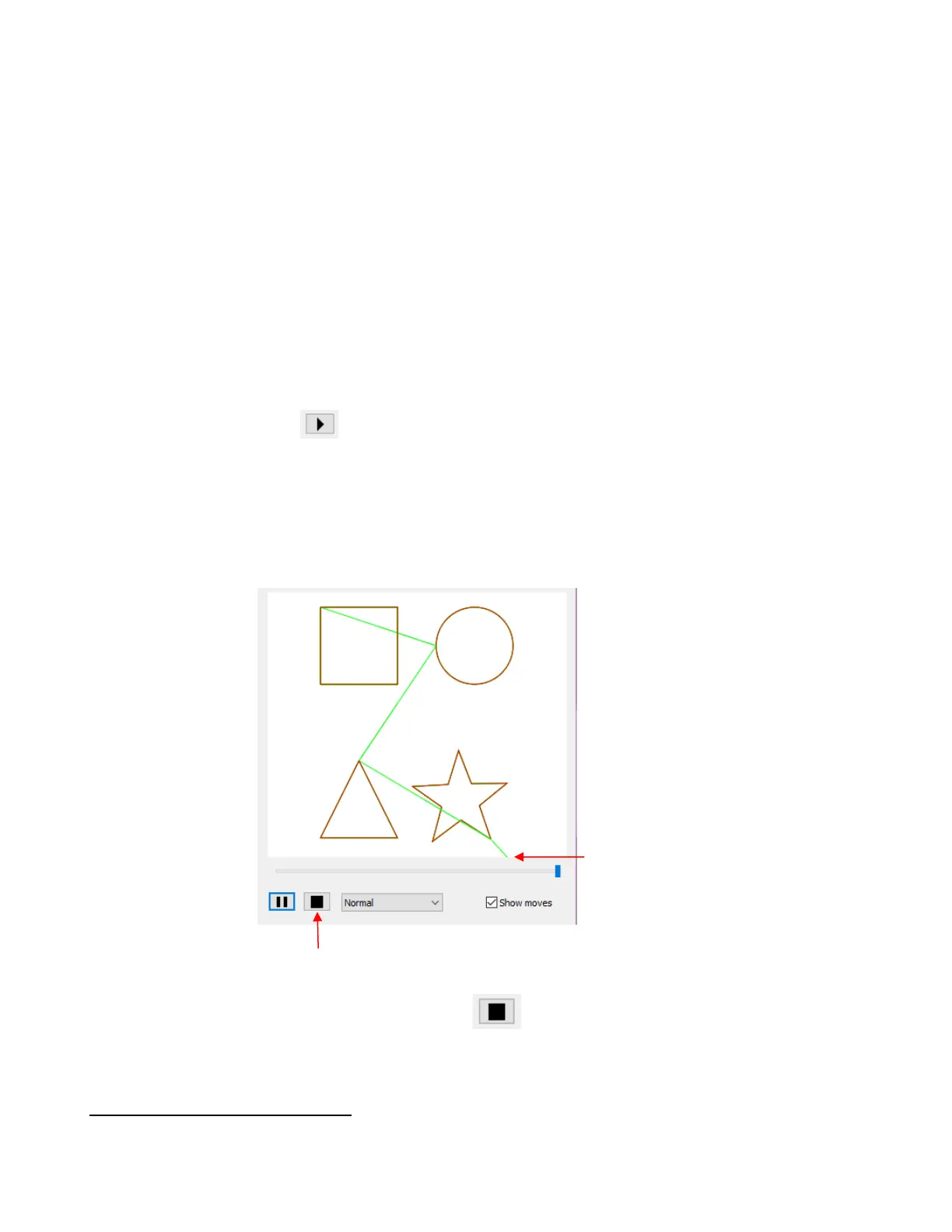
There are three speeds in which this video can be played: Slow, Normal, Fast. As an example,
verifying the cut order for a rhinestone pattern is probably best set at Fast.
Marking the Show moves option will draw a green path between the shapes indicating the cut order. It
also shows the starting location on each shape and the map will remain displayed at the end of the
video:
To replay the video, click the black square icon first. Then the Play icon will return and can be
clicked.
12.06.7 Layers (SCAL PRO only)
• There may be occasions where you want certain layers of your project to cut at different settings than other
layers. Two examples would be:


 To Next Page