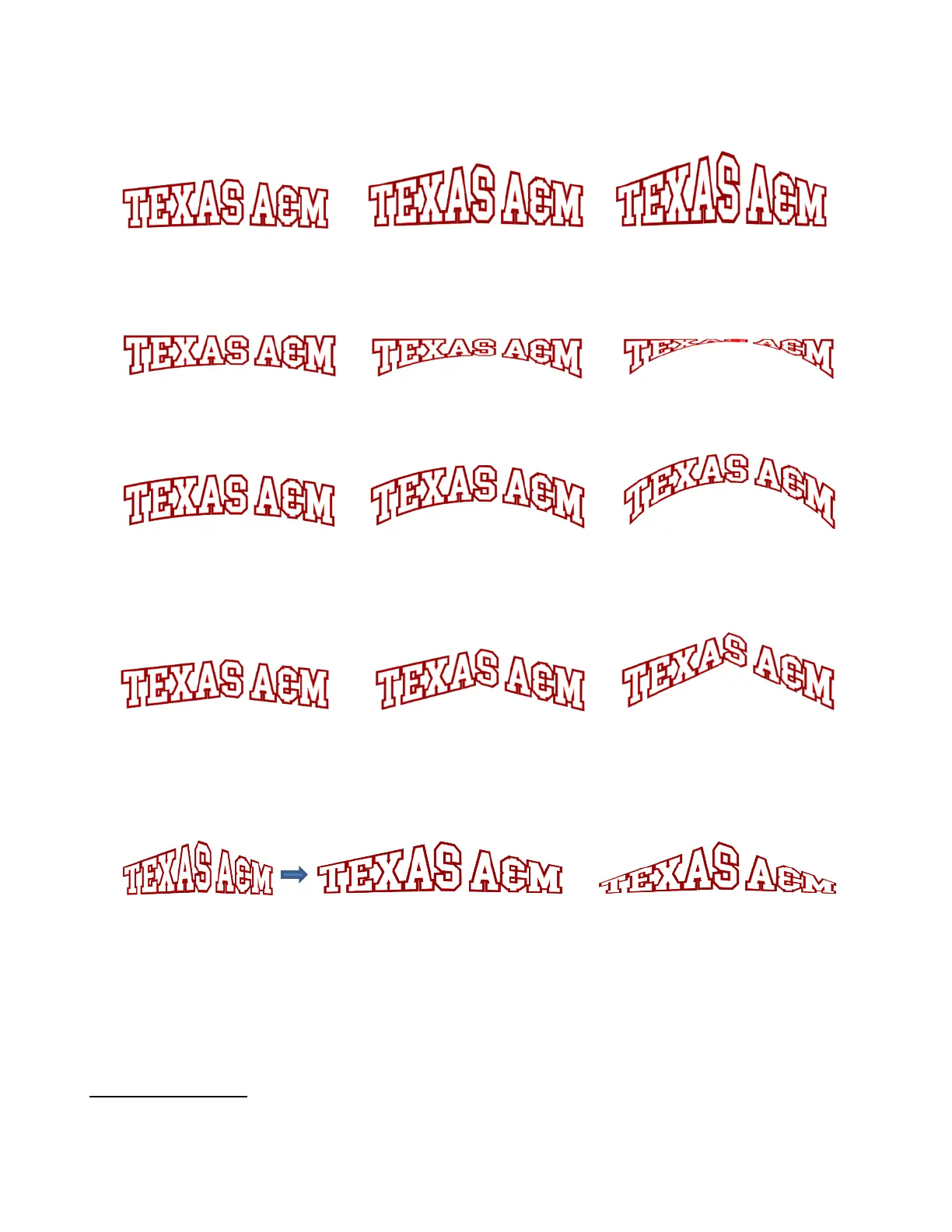
• With these same settings, note the difference if the Straight Warp setting is marked:
• In a similar way, when Bottom Offset is increased the bottom is warped:
• If the Sync Offset option is checked, then both the top and the bottom will be warped together:
• With both the Straight Warp and Sync Offset options marked, then these are results with the same
settings:
• Finally, there is a Scaling setting which can be used to rescale and, essentially, exaggerate the effect of the
warp. Notice the difference between using Bridge Warp to rescale the width versus simply resizing to the
same width normally:
The two examples on the right have the same overall width and height, but the lettering from scaling in
the Bridge Warp window is compressed more towards the two ends
11.21 Drop Shadow
• The Drop Shadow function is yet another way to produce a 3-dimensional shadow effect:


 To Next Page