2.02 Choices Before Cutting
• There are a number of factors under your control for cutting:
What shapes to send to the cutter: Section 2.02.1
Where the shapes will be cut from the material: Section 2.02.2
What tool(s) will be used for cutting (or drawing, scoring, engraving, etc.): Section 2.02.3
What settings will be used: Section 2.02.4
2.02.1 Controlling Which Shapes Will Cut
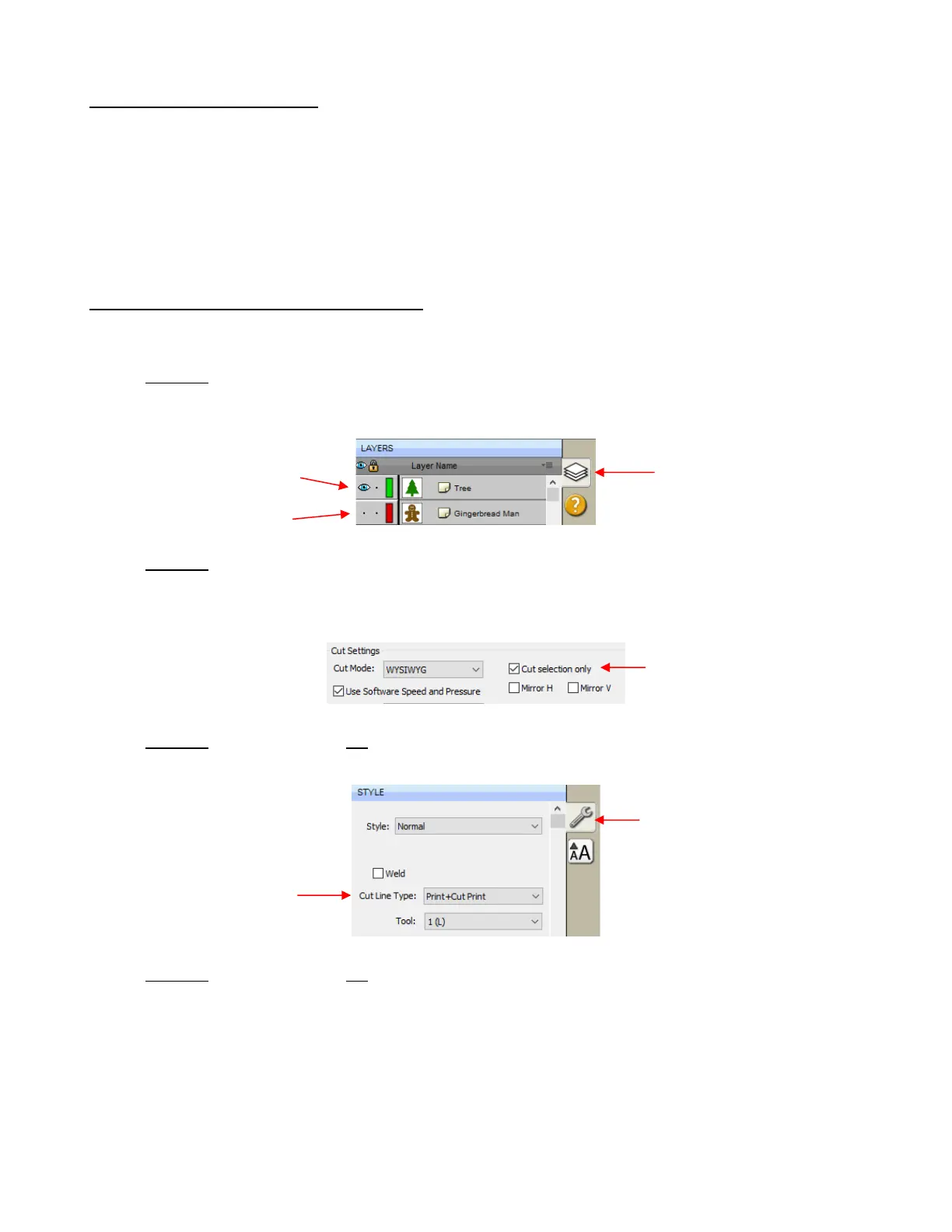
• There are four ways to control whether a shape will be cut or ignored:
Option 1: Show/hide shapes on the Layers Panel (refer to Sections 6.04 and 7.10) – anything hidden
will not be sent to the Cut Settings window. By clicking on the left side icon, a layer can be hidden.
This is the most common way to control what shapes will cut.
Option 2: Select/highlight which shapes you want to cut (refer to Section 7.02). Then, in the Cut
Settings window, mark the option for only cutting those that are selected. This is useful if you have
shapes you want to cut that are in the same folder with other shapes you do not want to cut. You still
have the option to hide those other shapes, as in the prior option, but this could be quicker if there are a
lot of shapes to omit:
Option 3: For shapes you do not wish to cut, change the Cut Line Type (on the Style Panel) to
Print+Cut Print. Those shapes can then only be printed and will not be sent to the Cut Settings
window. This is typically used in Print and Cut applications (refer to Sections 12.01 and 3.04).
Option 4: For shapes you do not wish to cut, change the Cut Line Type (on the Style Panel) to Draw
(Pen). Those shapes will not be cut if you then have Cut cut lines selected in the Cut Settings window
(refer to Section 12.01).



 To Next Page