AI (Adobe lllustrator): common format due to the popularity of Adobe Illustrator
EPS: another common export format for many vector programs
Nine embroidery file formats: .DST, .EXP, .HUS, .YEF, .PEC, .PES, .SEW, .VIP, .XXX
FCM: format used by the Brother ScanNCut machines
GSD: format created by RoboMaster, RoboMaster Pro and Wishblade Advance. This format was used
with the Craft Robos, Wishblade, and original Silhouette cutter.
PLT (SCAL PRO version only): developed by HP for their plotters, the PLT file evolved into a standard
format used by early vinyl cutters
DXF (SCAL PRO version only): common format exported by CAD programs
WPC: format used in programs developed by Sign Max, which include WinPC Sign, Funtime, Pazzles
Inspiration, and Gazelle.
• There are two ways to open the import window:
Click on the Import icon on the upper Toolbar
Go to File>Import
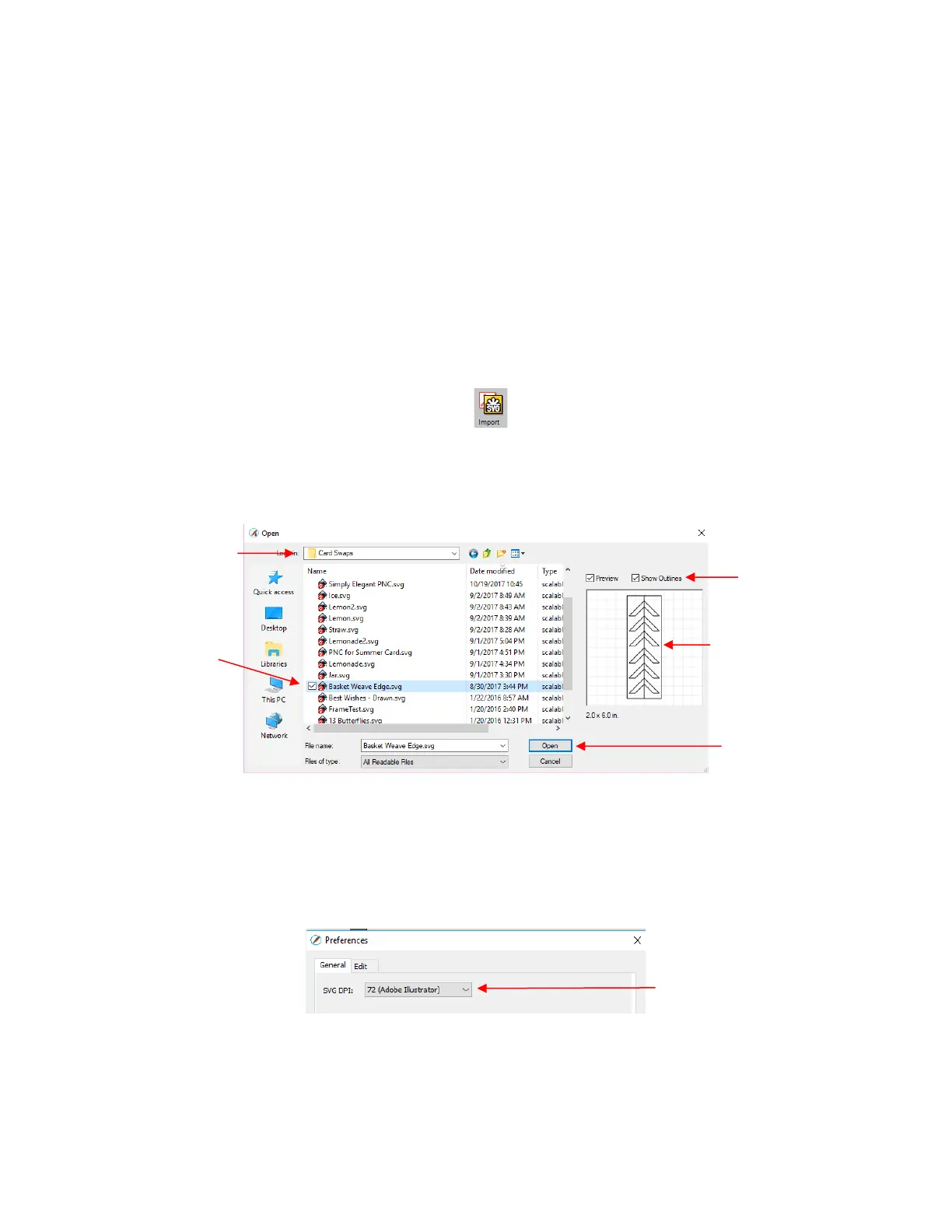
• Either choice will open the following window where you can browse to locate the file you need. Note there
are options to see a Preview and Show Outlines:
• You can also drag and drop any of the file formats directly onto the SCAL screen to import that file.
• If the file is in SVG format, it can also be imported via the Library. Refer to Section 6.03.1. Also, SVG files
vary in size depending on the program which exported them. Thus, always check the imported size before
cutting your project. If you are regularly importing SVG files from one of the following programs: Adobe
Illustrator, Inkscape, Corel Draw, or you know the DPI used by the exporting program, you can set it under
Edit>Preferences (on a Mac, press Command + ,) so that you will not need rescale the file:
• PDF files can contain multiple pages. If this is the case with a PDF file you wish to import, note the
following:
Use Adobe Reader or some other PDF browser to locate which page you wish to import
After selecting the PDF file to import, a second window will open where you can select which page you
want to import. Note that if there are many pages, there will be a delay in opening the Preview window
and you may wish to uncheck that box.
Only vector shapes in a PDF will be imported. Raster shapes will be ignored.



 To Next Page