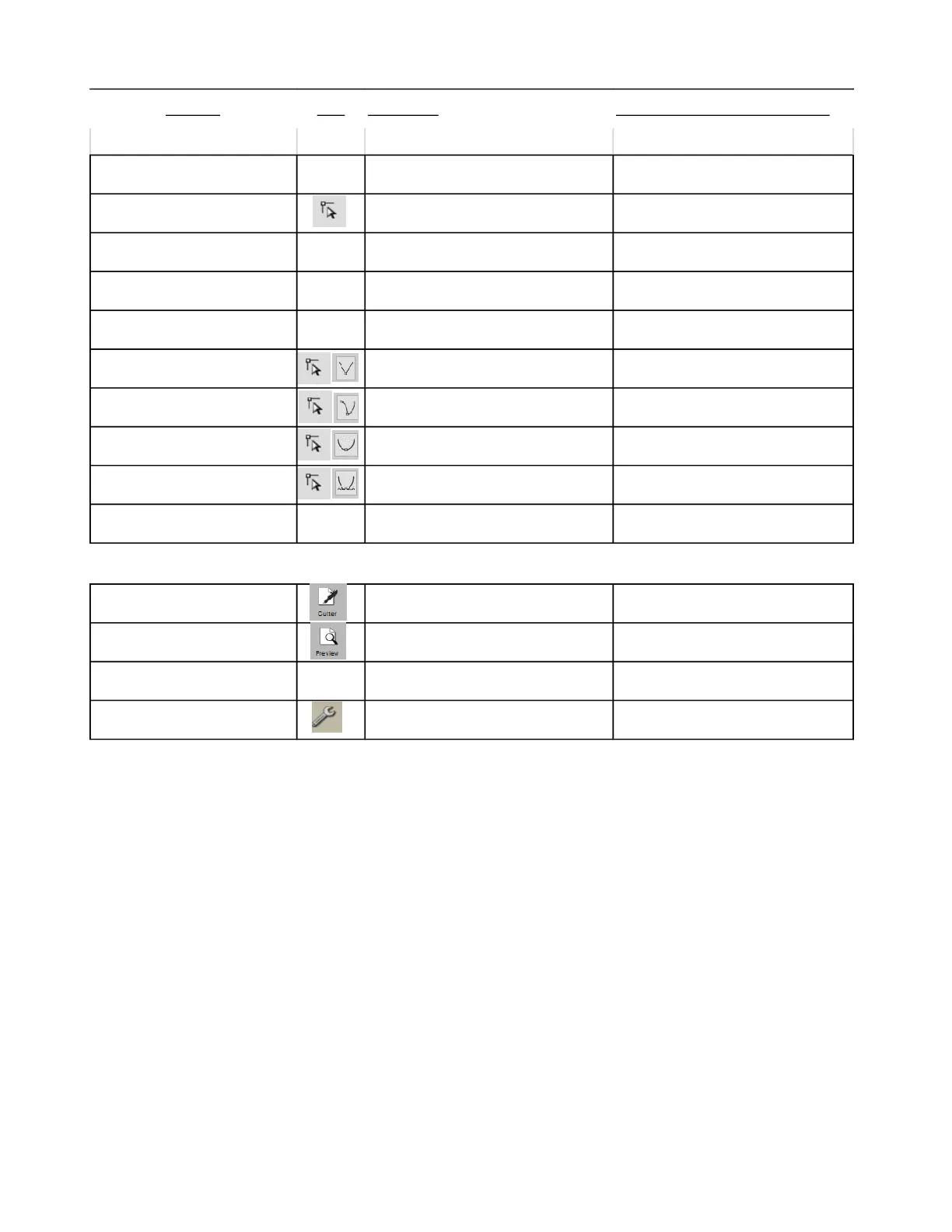
Shortcut Icon Description Menu (m:) and/or Icon (i:) Location
Right click>Path>Simplify
Reduce the number of nodes in the selected
shape
Right click>Path>Split Path
Break the path between the two selected
nodes
m:Path>Split Path
i:Tools Panel
Right click>Path>Reverse Path Reverses the direction the path will cut m:Path>Reverse Path
Right click>Path>Object to Path Remove the text, rhinestone or lattice status m:Path>Object to Path
Right click>Path>Close Path
Close shape by adding a straight line
between the start and ending nodes
Right click>Path>Convert Node to
Corner
Convert current selected node to corner i:Tools Panel>Tool Options
Right click>Path>Convert Node to
Cusp
Convert current selected node to cusp i:Tools Panel>Tool Options
Right click>Path>Convert Node to
Smooth
Convert current selected node to smooth i:Tools Panel>Tool Options
Right click>Path>Convert Node to
Symmetric
Convert current selected node to symmetric i:Tools Panel>Tool Options
Right click>Path>Path Details Show path to be travelled when shape cuts
Open controller window for current default
cutter
m:Cutter>Cut with (name of cutter)
i:Toolbar
Show preview of cut shapes and/or print
shapes
m:Cutter>Preview
i:Toolbar
Ctrl+P Open print window m:File>Print
Open Style Panel i:Properties Panel



 To Next Page