12 Software description
120 CyFlow
®
Cube 8 | Operating Manual | May 2018 | Revision 032
The option selected here will take precedence over that selected in the
"Print Setup" dialogue.
Size: Click the button to display a drop-down list and select the desired
page size (A4 or letter). The page size for all pages in the report is
changed. All header, footer and body objects that lie outside the bounds
of the new page size are automatically resized to fit the new size. If the
size is then switched back, any resized objects are not restored to their
original size or position. In order to restore pages exactly as they were,
click the Undo button in the Quick Access Toolbar.
If there is a mismatch between the paper size set in the "Print Setup" and
the size selected here, the page will be automatically scaled to fit the
paper when printing.
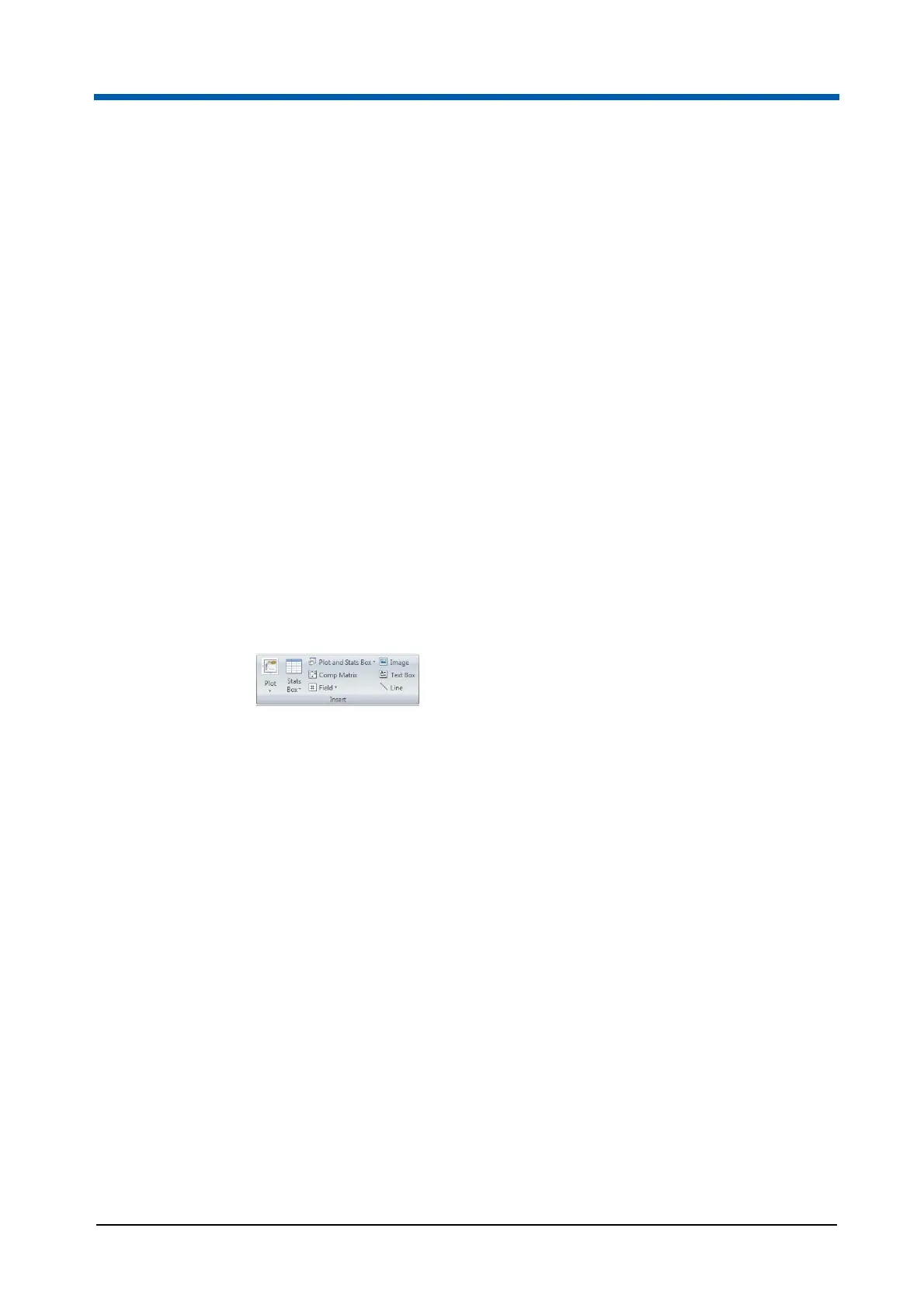
Insert group
The Insert group contains options to insert objects into the report. The
controls are only enabled when you are on the Reports tab of the
Workspace. To insert an object into the report, first select it with the buttons
described below, then click on the report to insert the object in default size or
draw out a rectangle of the desired size. For more information on inserting,
resizing and moving objects in the report, see chapter 12.8.4 Reports tab of
the Workspace on page 179.
The Insert group contains the following buttons:
Plot: Click the Plot button to display a drop-down gallery of all the plots
currently open in the Workspace. The order in which the plots appear
matches the order they appear in the Workspace when in Gallery view.
To select a plot for insertion into the report, click on the desired plot.
Stats Box: Click the button to display a drop-down gallery of all the plots
currently open in the Workspace. The order in which the plots appear
matches the order they appear in the Workspace when in Gallery view.
Click on a plot to select the corresponding statistics box for insertion into
the report.
Plot and Stats Box: Click the button to display a drop-down gallery of all
the plots currently open in the Workspace. The order in which the plots
appear matches the order they appear in the Workspace when in Gallery
view. Click on a plot to select the plot and the corresponding statistics
box for insertion into the report.
Comp Matrix: The button is only enabled when an LMD file is open.
Click the button to select the compensation matrix for insertion into the
report.
Field: The button is only enabled when an LMD file is open. Click the
button to open a drop-down list and select a report item for insertion into
the report.



 To Next Page