12 Software description
CyFlow
®
Cube 8 | Operating Manual | May 2018 | Revision 032 121
In the "Report Item" drop-down list, the page number, date and time, user
name, file names and/or file paths with file names of the currently open
files can be selected.
In the "Primary Keyword" and "Secondary Keyword" submenus, the
primary and secondary keywords from the currently open LMD file can be
selected.
Image: Click the button and navigate to the desired folder to select an
image file for insertion into the report. Only image files with the extension
".jpg", ".gif", ".bmp" and ".png" are supported. If required, use the "Save
as Type" drop-down list to display pictures of a viable file type.
Click the Open button or double-click on the image file to insert the
selected image file into the report. If the inserted image lies outside the
bounds of the page, it is automatically resized. Images are inserted into
the body section of a page by default. They can, however, be moved into
the header or footer.
Text box: Click the button to select a text box for insertion. Click on the
report page at the point where you wish to place the text box. Double
click on the text box to enter the desired text. You may need to resize the
text box.
Line: Click the button to select a line for insertion. Click on the report
page at the point where you wish to place the line.
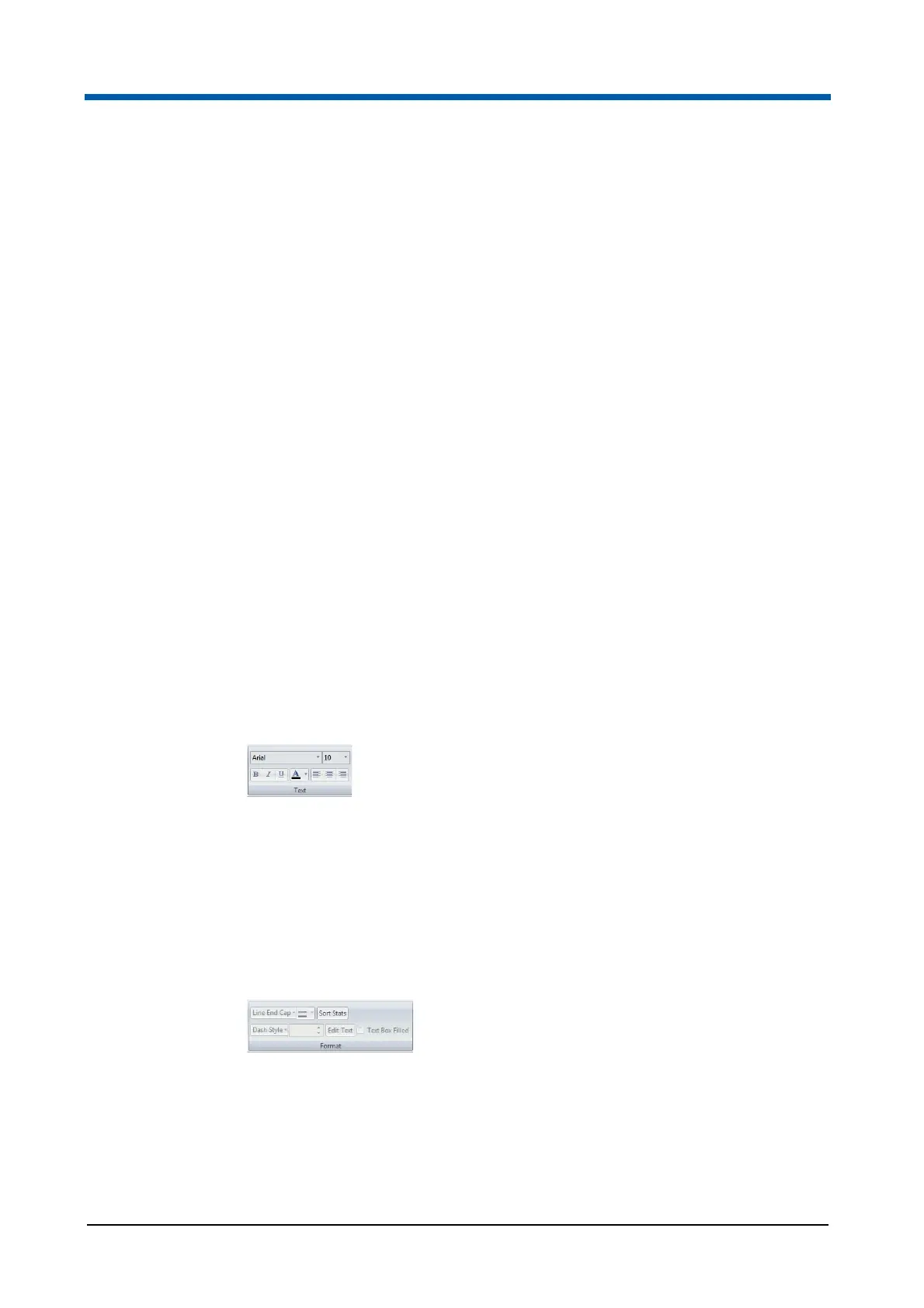
Text group
The Text group contains controls for editing and organising of text.
Select a text box, statistics box, compensation matrix and/or field and use
the options in the Text group to edit the font typeface, font size, font style
(bold, italic, underlined) and colour of the selected object.
Select a text box and/or a field and use the alignment buttons (align left,
centre, align right) to align the text.
Format group
The Format group contains options to format items in the report.
The Format group contains the following options:
Line End Cap: The box is enabled when one or more line objects are
selected in the report. Click the arrow to expand a drop-down list and
select the desired option for the line end (uncapped, solid arrowhead or
line arrowhead).



 To Next Page