12 Software description
CyFlow
®
Cube 8 | Operating Manual | May 2018 | Revision 032 129
Type group
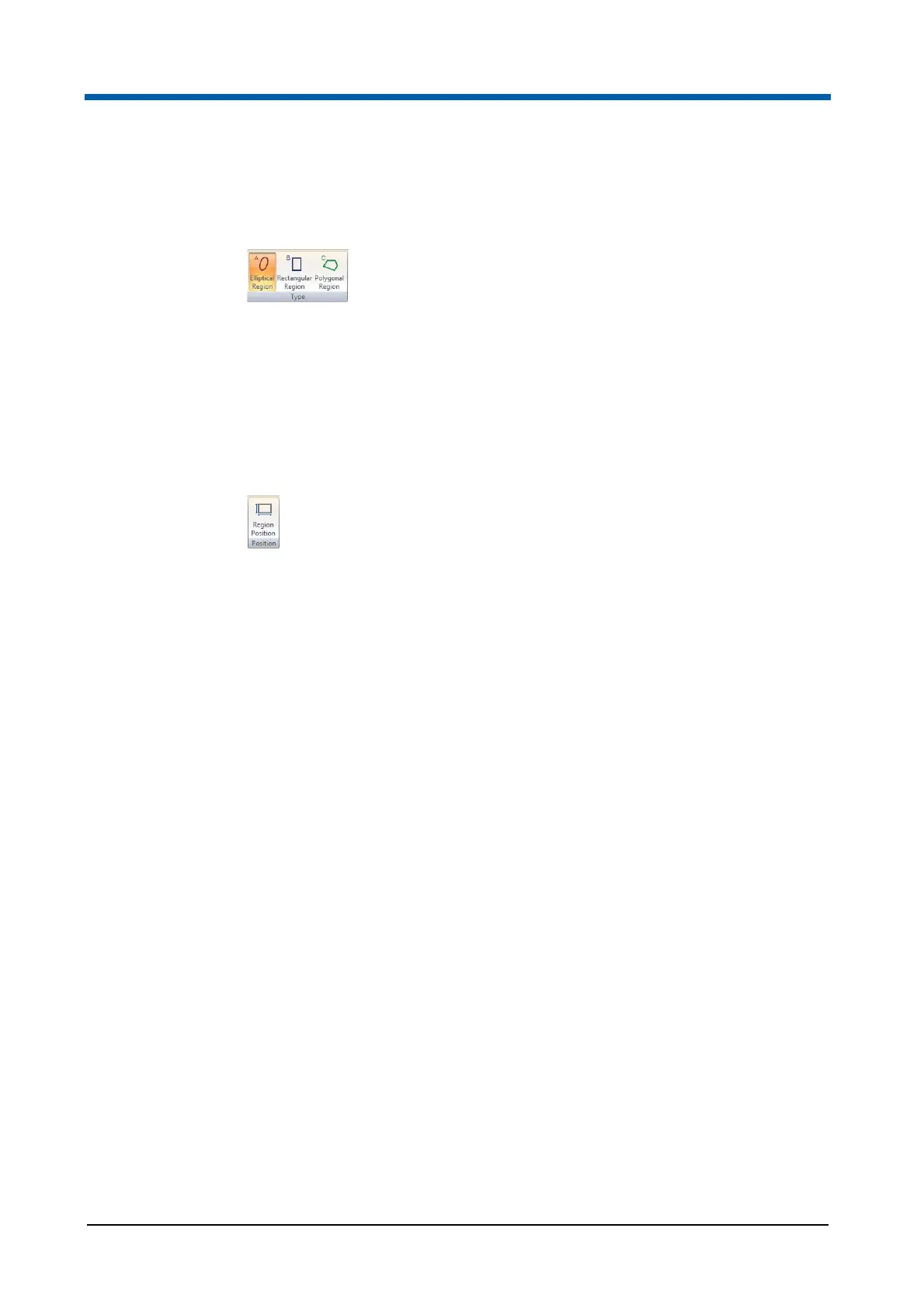
The Type group contains options to change the type of a selected region.
The region type of the currently selected region is highlighted. To change the
region to another type (elliptical, rectangular or polygonal region), click the
respective button.
Position group
The positioning of created elliptical, rectangular, linear and quadrant regions
can be modified by selecting a region and clicking the Region Position
button. The button is disabled if a polygonal region is selected.
A dialogue is launched that allows for precise definition of position and size
of the region.
Depending on the type of the selected region, the corresponding dialogue is
displayed:
Ellipse: To position the centre of the elliptical region, use the "Center X"
and "Center Y" input fields. A lower value positions the centre to the left
or down, respectively. The values must be between -1500 and 1500.
To define the width of the X-axis of the ellipse, use the "Major Axis size"
input field. To define the width of the Y-axis of the ellipse, use the "Minor
Axis size" input field. The size values must fall between 0 and 1023.
To rotate the ellipse, enter the desired number of degrees into the
"Rotation(degrees)" input field. Rotation limits are -360° to 360°.
Rectangle: Use the input fields to define the positions of the left side
("Lower X"), the bottom side ("Lower Y"), the right side ("Upper X") and
the top side ("Upper Y") of the rectangle. A lower value positions the side
of the rectangle to the left or down, respectively. The values must be an
integer between 0 and 1023.
Linear: Use the input fields to define the positions of the left point
("Lower bound") and of the right point ("Upper bound") of the linear
region. A lower value positions the respective point to the left. The values
must be an integer between 0 and 1023.
Quadrant: To choose between straight and bendy quadrant region,
select the corresponding option (see chapter Creating regions on
page 165).
Use the "Center X" input field to position the quadrant intercept on the
X-axis. Increase the value to shift the intercept to the right. Decrease the
value to shift the intercept to the left.



 To Next Page