4.
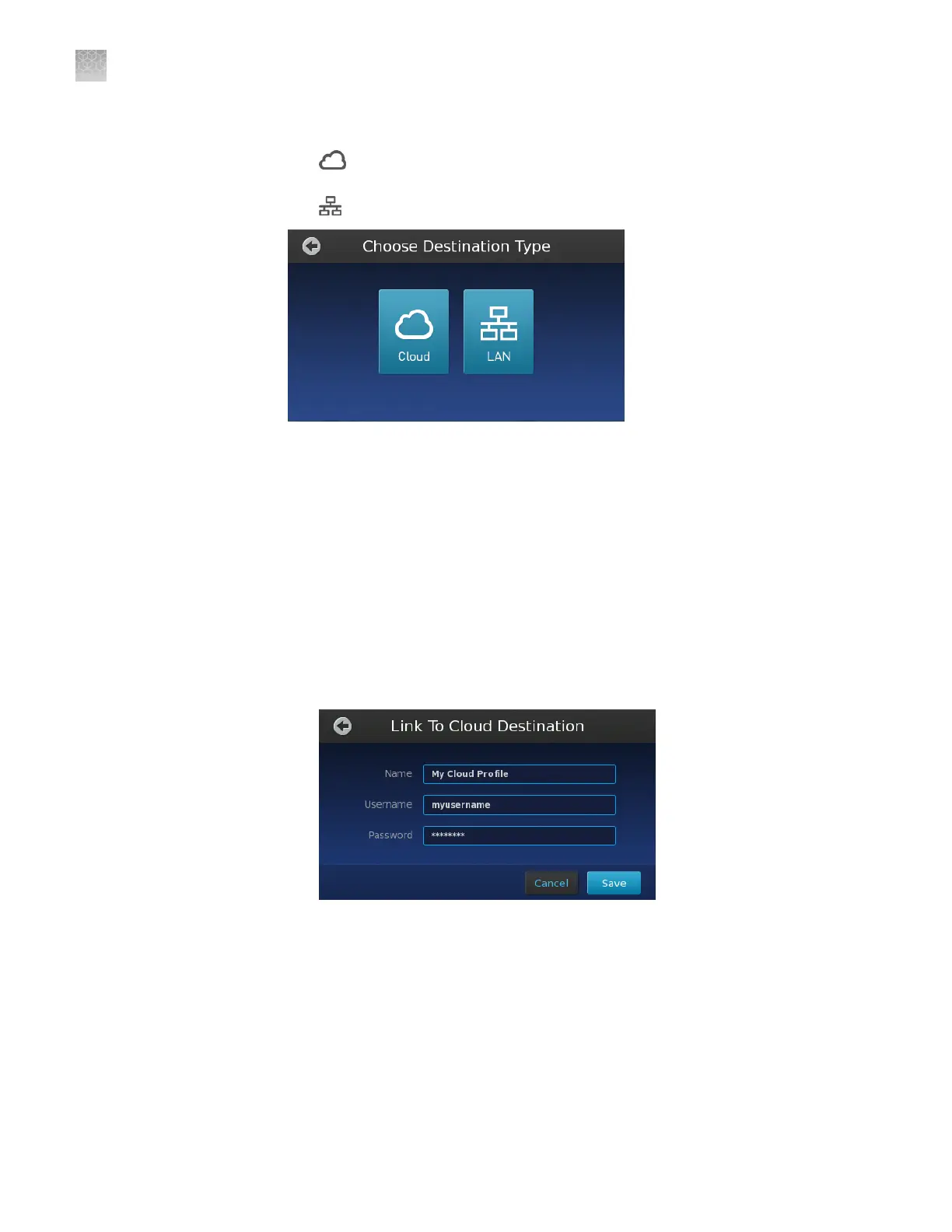
In the Choose Destination Type screen, touch the desired network destination:
•
Cloud—Touch to specify a Connect cloud-based platform data
destination (for your QuantStudio
™
3D AnalysisSuite
™
Software projects).
•
LAN—Touch to specify a network le server data destination.
5.
Touch each eld, enter the appropriate data for the destination, then touch
Save.
•
Cloud data destination elds:
–
Target Name—Enter a name to identify the Connect cloud-based
platform data destination.
Note: The target name appears within the Destination Selection and
Export screens.
–
User Name—Enter the user name that the instrument should use when
authenticating to the Connect platform.
–
Password—Enter the password that the instrument should use when
authenticating to the Connect platform.
•
LAN data destination elds:
–
Target Name—Enter a name to identify the LAN data destination.
Note: The target name appears within the Destination Selection and
Export screens.
–
Server—Enter the path of the le server using the following syntax,
where smb: and path are optional:
–
smb://servername/share/path
–
\\servername\share\path
Appendix D
Networking
Connect the instrument to the network
D
104
QuantStudio
™
3D Digital PCR System User Guide










 To Next Page