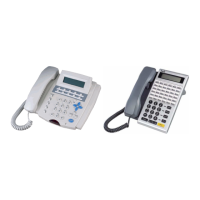
[TRF/FL]{FLASH}: Enters a FLASH command as part of a Speed Dial Entry. LCD will display F
(upper case "F") to indicate a Flash command. This key also means clears a digit during other entries
(Passwords, etc).
[DSS 31]{MSG}: (Pulse to Tone) Enters a command to convert from pulse dialing to DTMF dialing into
a Speed Dial Entry. LCD will display T (upper case "T") to indicate a tone conversion command.
[DSS39]{MIC/AT}: CHANGE key. Depending on the form, it will toggle through available
Programming parameters.
[TRF/FL]{CLR DIGIT}: Enters a FLASH command as part of a speed dial number. This key also
means clears a digit during other entries (Passwords, etc).
[SPK]{EXIT}: Exits Programming. Returns telephone to normal idle mode.
[DSS 37]{REDIAL}: Clears all digits on an entry such as speed dial or account codes.
Alphanumeric Entry:
The following table indicates the capabilities of the name programming functions if they are selected on the system.
System Speed Dial, Personal Speed Dial, Stations, CO Lines and Sensors may be programmed with names.
Key 1 = (Blank Space) – 1 Key 2 = A - B - C – 2
Key 3 = D - E - F – 3 Key 4 = G - H - I – 4
Key 5 = J – K - L – 5 Key 6 = M - N - O – 6
Key 7 = P - Q - R - S – 7 Key 8 = T - U - V – 8
Key 9 = W - X - Y - Z – 9 Key 0 = (Period). : & – 0
Key # = ( ) $ # Key * = (Dash) / ! *
DSS Key 1 = Backspace Cursor (Left) DSS Key 2 = Cursor Forward
If an entry is made that is not within valid system parameters, the system will not accept the entry when [SAVE] is
pressed. The Speaker on the programming set will return a busy tone and the LCD Display will place the
programming cursor under the invalid entry. You may make corrections and press [SAVE] again. If multiple errors are
made, the system will continue to return you to the illegal entries until they are corrected.
It is not necessary to re-enter existing information on a multi-item form. You need enter only the information that is to
be changed. You may move the cursor to the left or right in order to access only the specific entry that you want to
change. You may press [SAVE] without regarding for the placement of the cursor on the LCD display.



 To Next Page