3-16 Using the Detector
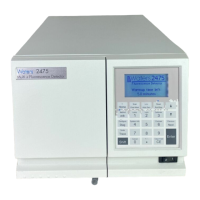
Navigating the user interface
Press Enter or and to navigate among editable fields. A thick border
appears around the active field. When you complete an entry, press Enter to
advance to the next active field.
If you make an error, press CE (Clear Entry) to undo any changes and return
to the active entry field.
An active field containing a list has a number to the right of the field within
the thick border. To display a list, press Enter, and then perform one of these
actions:
• Press the corresponding number key to select an item immediately.
• Use and to scroll through the list, and then press Enter.
If you know the number corresponding to a choice, you can press that number
without pressing Enter first.
The and keys do not incrementally increase or decrease numerical field
entries. To change field entries, use the numerical keypad.
Navigating to and from the home screen
Pressing HOME displays the home screen from most other screens. From the
home screen, you can choose several secondary functions. To move to the home
screen’s secondary function screens, press Next. The secondary functions
include these:
• Filter type
• Analog output specifications
• Time constant
• Data units selection
• Voltage offset
• Chart polarity
• Enable/disable several inputs
• Enable/disable external events
The values and settings you specific in the secondary function fields become
part of a current method’s conditions and are retained when you store the
method (see page 3-43).


 To Next Page