108 Avaya 374x DECT Telephones - User Guide 02/2016
Multiple Radio Configuration
The Master can configure the same Radio settings for all Radios in the system. All settings
configured in the Radio Config page replace the local Radio settings. This means that all
settings in the Radio Config menu will have precedence over values configured locally or
received via DHCP options.
1. Select DECT > Radio Config.
2. Configure alarm and event forwarding, see Forward Alarms and Events
on page 115.
3. Configure automatic firmware update, see Certificates
on page 84.
4. Configure NTP settings, see Trust List
on page 84.
5. Configure IP settings, see Configure IP Settings
on page 95.
6. Click "OK".
7. Click "OK".
PARI
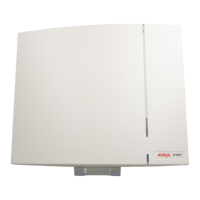
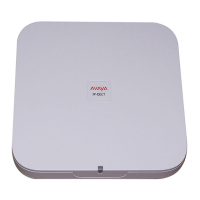
The PARI is a part of the broadcast identity, which uniquely identifies an IPBS/IPBL. This PARI
is automatically assigned to each IPBS/IPBL in the system. But if more than one Avaya
IP-DECT system operates within the same coverage area, the systems need to have a unique
system identity in the PARI assigned in order to differentiate the systems.
To see the occupied system IDs of other Avaya IP-DECT systems within the coverage area,
perform an RFP scan, see RFP Scan
on page 140.
1. Select DECT > PARI.
2. Select a number between 1 and 292. If this is not done, the IPBS/IPBL will randomly select
a number.
Note: The number of system IDs will affect how many IPBSs/IPBLs that can be used per Master in an
installation, as shown below:
System ID = 1 to 36:
Max. 1023 IPBS per Master or max. 240 IPBL per Master.
System ID = 37 to 292:
Max. 127 IPBS per Master or max. 127 IPBL per Master.
3. Click "OK".
4. Reset in order to make the changes take effect, see Reset
on page 141.
SARI
The SARI is the broadcast identity, which uniquely identifies an IP-DECT system. The SARI is
added in the Master.



 To Next Page