142 Avaya 374x DECT Telephones - User Guide 02/2016
Boot
When the IPBS/IPBL is in Boot mode it uses a small version of the firmware (minifirmware)
which contains only the IP stack and the web interface.
1. Select Reset > Boot.
2. Click "OK".
Reset Using the Reset Button
It is possible to do a hardware reset of the IPBS and IPBL by pressing the reset button. The
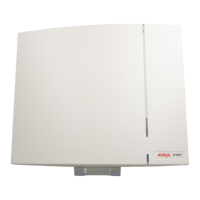
button is accessed through a hole in the back of the IPBS (IPBS1: figure 1
on page 10, IPBS2:
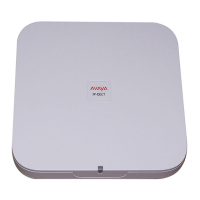
figure 2
on page 13) and on the front of the IPBL (figure 4 on page 17).
Note: Use a pointed object in an non conducting material to perform a reset.
Short press < 1 sec Restart
Medium press ~3 sec.
For IPBS2: When 3 sec.
has gone, the LED on
IPBS2 will start to flash
in blue and the reset
button can then be
released.
Restart in TFTP mode. In TFTP mode the IPBS and
IPBL can be accessed only through the gwload
application. This mode is intended for support and
development departments.
Long press ~ 10 sec.
For IPBS2: When 10
sec. has gone, the LED
on IPBS2 will start to
flash in blue, indicating
the start of the factory
reset process. Hence the
reset button can then be
released.
When the LED (LED 1
for IPBS1) is steady
amber/yellow, the factory
reset process is
complete. The device
can now be restarted by
disconnecting the supply
voltage.
Factory reset - all configuration parameters will be set
to default values.



 To Next Page