PAGE 108
Operation via Display and Keypad
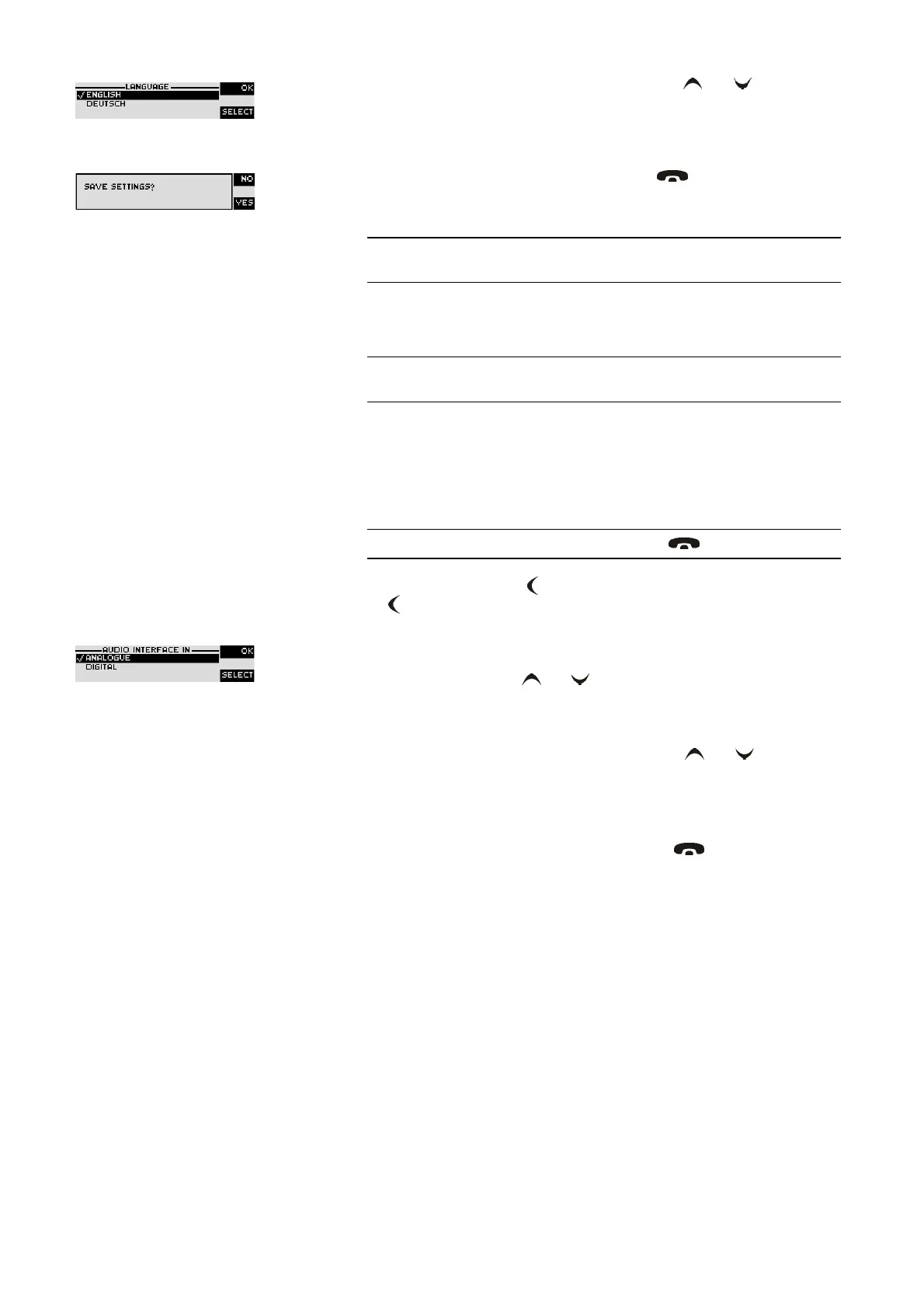
desired language. With the help of the cursor keys and please choose
the language and press again
Select
.
Please confirm your entry be pressing the
Ok
button or the
Ok
softkey.
To get back to the main menu, please press the key. Now you are asked
if you want to
Save Settings
? Via the
Yes
softkey the settings are stored per-
manently in the system.
5.1.3 Setting the Audio interface: Analogue or digital (optional)
MAGIC DC7/AC1 XIP incoroperates analogue as well as digital Audio inter-
faces which you can adjust separately. The digital AES/EBU interfaces have
integrated sample Rate Converters to adjust the digital Audio source to the
transmission clock. Additionally, clock inputs/outputs are also available. To
configure the Audio interface please follow the instructions below:
– First press the softkey
Menu
and select
System Settings
via the softkey
Select
.
– With the use of the
Select
softkey you reach the option
Audio Settings
.
– Using the cursor keys and please mark the option
Audio Input
or
Au-
dio Output
and press again
Select
. Now the options
Analogue
and
Digital
are displayed.
– Select the desired interface with the cursor keys and and by pres-
sing the softkey
Select
.
– Confirm your entry by pressing the
Ok
button or the softkey
Ok
.
– To get back to the main menu please press the button. Now you are
asked if you want to
Save Settings?
Via the softkey
Yes
the setting is
stored permanently in the system.
NOTE
If you press
No
, all settings that you have made are lost when the unit is swit-
ched off.
NOTE
You can only activate the digital AES/EBU interface if that option (order
number 430230) is unlocked in the unit.
NOTE
If you are not in the main menu please press the key first.


 To Next Page