PAGE 128
Option: Remote Control Software
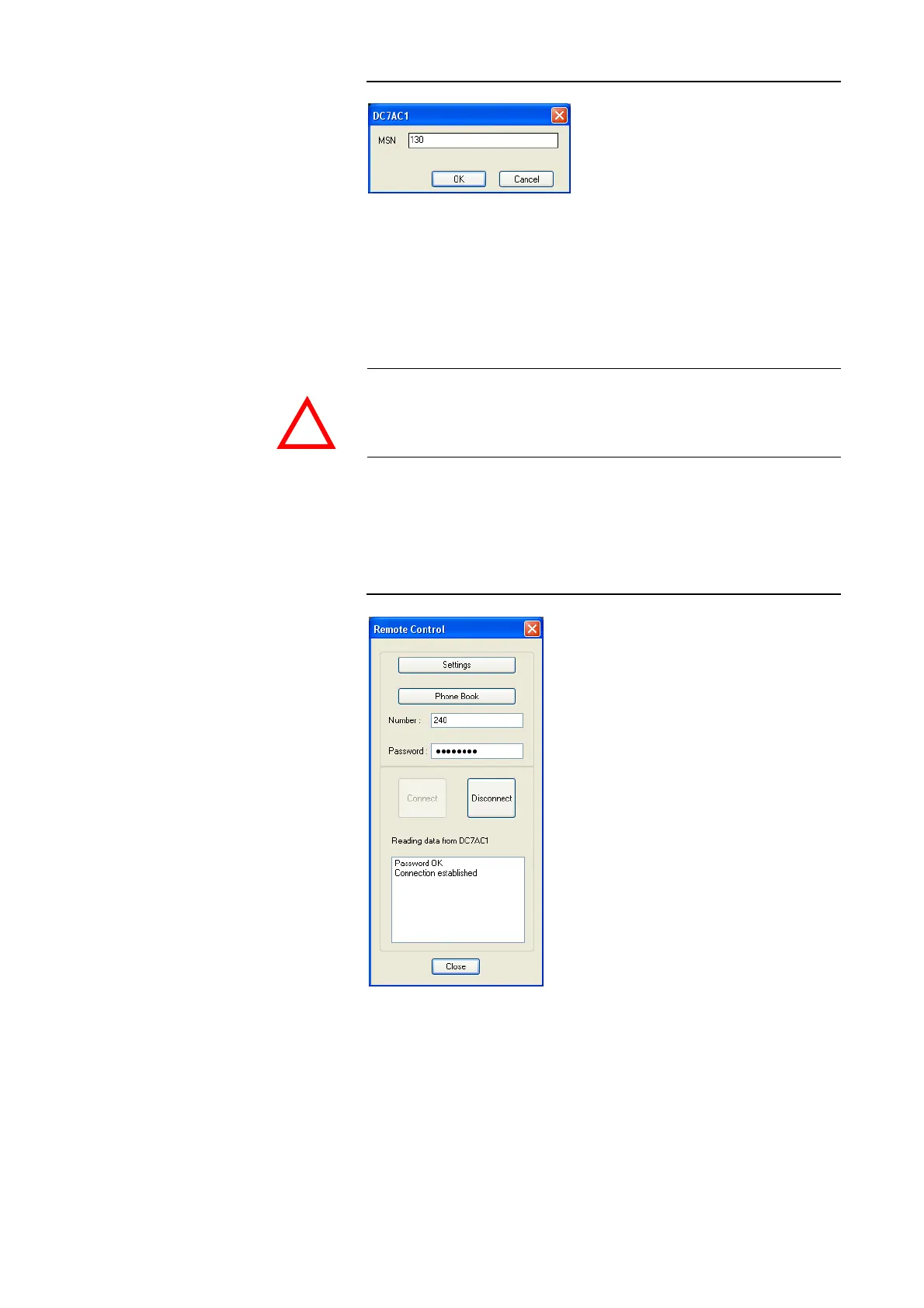
FIG. 83 MSN SETTINGS FOR REMOTE CONTROL
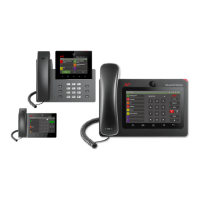
Under Number you enter the calling number of the remote system which you
want to control remotely or you select a number from the phone book by pres-
sing the Phone Book button.
If the remote side is protected by a remote password, you need to enter this
password under Password to get access to the remote system (see
CHAPTER 4.7.2.3.5)
.
The connection with the remote side is established by pressing the Connect
button and dropped by pressing the Disconnect button. The connection sta-
tus is displayed in the status window below. If the connection has been esta-
blished successfully, the message Remote control online is displayed (see fi-
gure below). Now you can close the Remote Control window.
FIG. 84 REMOTE CONTROL ONLINE
The MAGIC DC7/AC1 System can now be controlled and configured as usual.
Please note that one of the two B channels is busy with the remote control so
that the user can only work with one channel. The remote side can stop the
remote control at any time.
The main window of the MAGIC DC7/AC1 Software displays the existing
connection under the name Remote Management on both sides. To stop the
remote control, please press the DROP button blinking in yellow or open the
Remote Control window and press the button Disconnect.
ATTENTION If the remote system is additionally protected by authorised calling numbers,
you must access the remote side by the ISDN line whose calling number is en-
tered in the list. The transmission of the calling number has to be enabled for
this line.
!


 To Next Page