34 BD High Throughput Sampler User’s Guide
Plate Toolbar
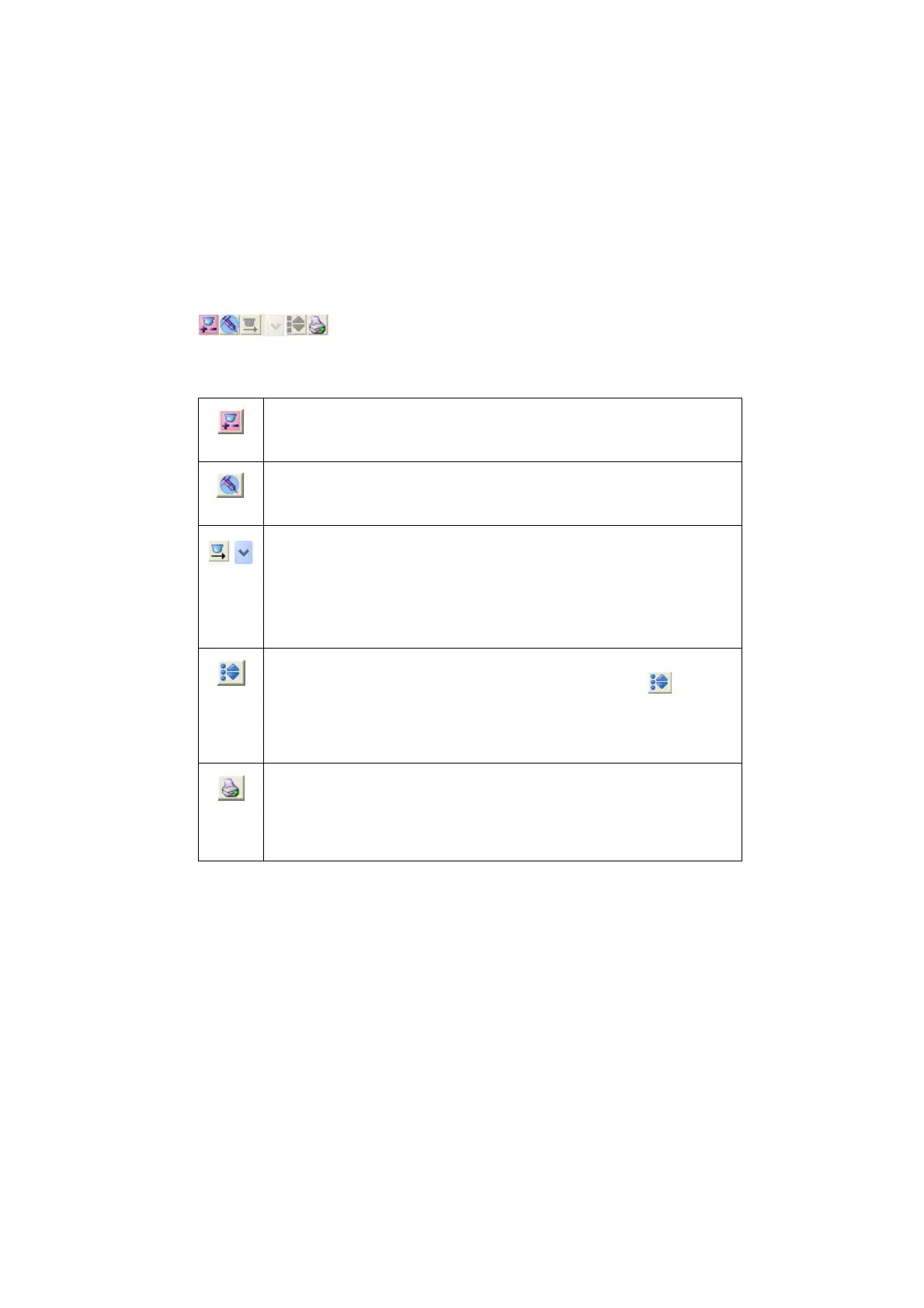
The Plate toolbar contains the following buttons:
Select a well or group of wells, and then click the Add Setup Controls button
to add well(s) to the plate layout for adjusting cytometer settings. The wells
are for setup only, and will not be recorded.
Select a well or group of wells, and then click the Add Specimen Wells
button to add a specimen to the plate layout. Wells will be run in the order
they are selected.
Select a well that has already been defined, and then click the Add Well
button to add another sample or set up a control well. The new well is
inserted to the right of or below the selected well.
Click the arrow to the right of the Add Well button to select a horizontal or
vertical orientation, depending on whether you want to add the new well to
the right of or below the selected well.
Select a well, and then click the Add Cytometer Settings button to add
cytometer settings to the sample. The Cytometer Settings icon ( ) is added
to the well in the bottom-left corner. Select a specimen from the specimen
list, and then click the Add Cytometer Settings button to add cytometer
settings to the selected specimen. The Cytometer Settings icon is added to the
first well in the top-left corner.
Click the Print button to print the Setup view. To save a record of acquisition
status for each well, print the Setup view after acquisition is complete. The
printout will contain the plate name, plate type, name of the view, and
legend that indicates well status. For more information on well status, see
Plate Layout on this page and Table 2-2 on page 36.








 To Next Page