116
Settings
• Bluetooth is switched on and a
telephone is connected to the Traffic
Pro.
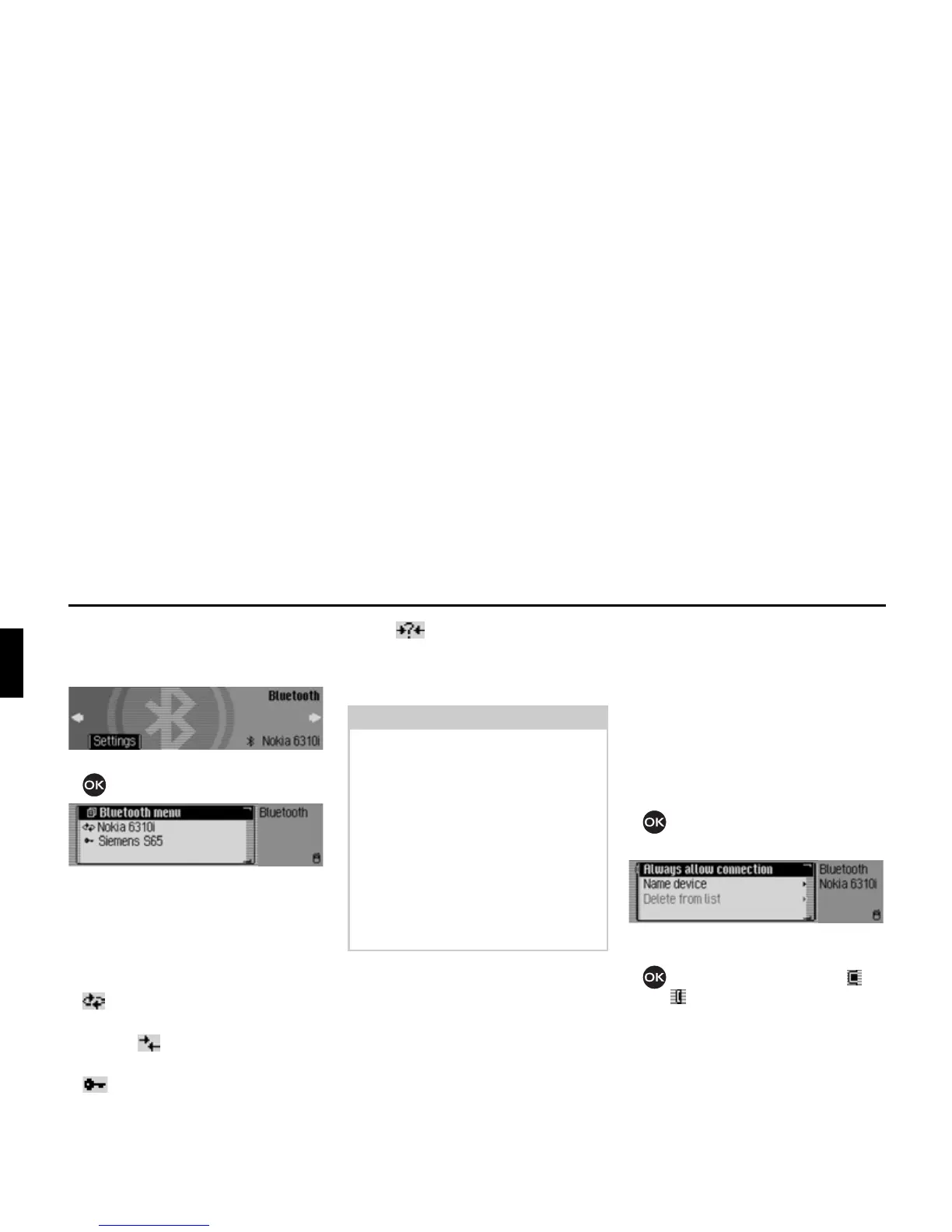
X Press the rotary control/push button
.
The Bluetooth device list is displayed.
The devices recognised by the Traffic
Pro are displayed in this list. The current
status is indicated by means of a symbol
next to the name of the devices.
• Connected device (marked with the
symbol)
• Device with Standard status (marked
with the symbol)
• Coupled devices (marked with the
symbol)
• The symbol is shown on the
display if an error occurred in
establishing a connection. It is then
only possible to disconnect the device.
Always allow connection*
When this function is activated the
corresponding external device can
establish a connection to the Traffic Pro
without you authorising it.
X In the device list, select the device for
which the “Always allow connection”
setting is to be changed.
X Press the rotary control/push button
and hold until the following menu
appears.
X Select the $OZD\VDOORZFRQQHFWLRQ entry.
X Press the rotary control/push button
to switch the function on ( ) or
off ( ).
Notes:
• The device which was stored in the
device list last will be shown at the
end of the list.
• Devices stored in the list are retained
until the entry is deleted.
• If no devices have yet been stored in
the device list,
1R %7 GHYLFHV will be
displayed. You can then start a search
for Bluetooth devices in “Searching
for Bluetooth devices*” auf
Seite 122.
7032
*Only available for the Traffic Pro with Bluetooth® wireless technology.



 To Next Page