27
Navigation mode
• (QWHUDGGUHVV
Accesses the data entry menu for the
destination. See “Entering a destina-
tion” on page 27.
•
'HVWIURPDGGERRN
You can select a destination from the
address book. See “Selecting a desti-
nation from the address book” on
page 38.
•
6SHFLDO'HVW
Access the POI selection menu. POIs
include petrol stations, airports or hos-
pitals, for example. See “Point of
interest” on page 39.
•
6HWWLQJ
Accesses the Navigation Settings menu.
See “Settings” on page 55.
Entering a destination
X In the Navigation main menu, select
the
(QWHUDGGUHVV entry.
The Enter Destination menu appears.
The last country selected and the last
town selected appear first.
X Turn the rotary control/push button
to select one of the following options:
*5($7%5,7$,1(country as example),
*/$6*2:(town as example),
6WUHHW,
6WDUWURXWHJXLGDQFH,
+RXVHQXPEHU,
,QWHUVHFWLRQ,
&HQWUH,
3RVWDOFRGH (postcode),
5RXWHVKRUW/5RXWHIDVW or 5RXWHG\QDPLF
and
6DYHGHVWLQDWLRQ
X Confirm your selection by pressing
the rotary control/push button .
Note
If route guidance is already active, you
can start to enter another destination by
selecting
(QWHU DGGUHVV, 'HVW IURP DGG
ERRN
and 6SHFLDO'HVW.
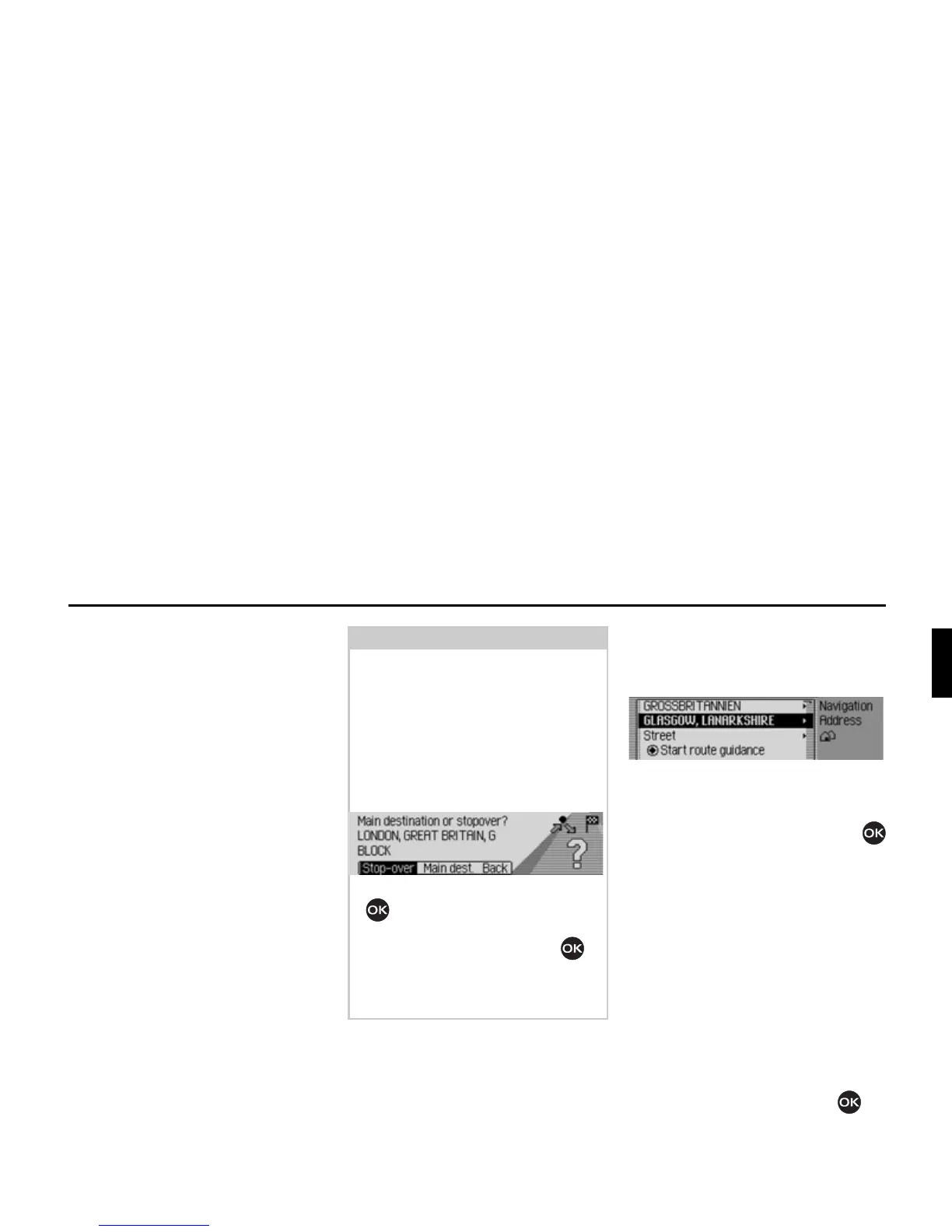
Once the destination has been selected,
the Traffic Pro will prompt you to con-
firm if the new destination is to be used
as the main destination or a stopover.
X Turn the rotary control/push button
to select
6WRSRYHU or 0DLQGHVW.
X Confirm your selection by pressing
the rotary control/push button .
Depending on the selection, the new
destination is now used as a stopover or
the new main destination.
2096
2004



 To Next Page