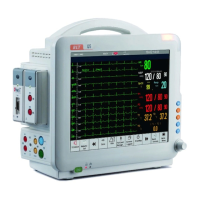
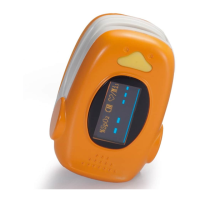
Patient Monitor User’s manual
3-6
The alarm sound is off.
The alarm is suspended.
4. Parameter area
It consists of various parameter areas, and shows measurement numerics
for each parameter module. Label displays on the top left corner of each
parameter area. When you close or open some parameter module, the
parameter area on the screen will be rearranged automatically.
5. Area of smartkeys
Shows smartkeys, these smartkeys are used to conduct some common
operations.
6. Waveform area
Shows the waveforms of each physiological parameter. Label displays on
the top left corner of each waveform area. When you close or open some
waveform, the waveform area on the screen will be rearranged automatically.
7. Technical alarm area
Shows technical alarm messages and prompt messages.
3.9 Using the Smartkeys
The position on the screen where a focus may stay is referred to as the
smartkey. Through a smartkey, you may quickly enter some menus or execute
some operations. The smartkeys of the monitor may be divided into the
following types:
Waveform smartkey
An area where any waveform stays is the smartkey; you may select a
waveform area to enter a setting menu of the corresponding waveform.
Parameter smartkey
An area where any parameter stays is the smartkey; you may select a
parameter area to enter a setting menu of the corresponding parameter.



 To Next Page