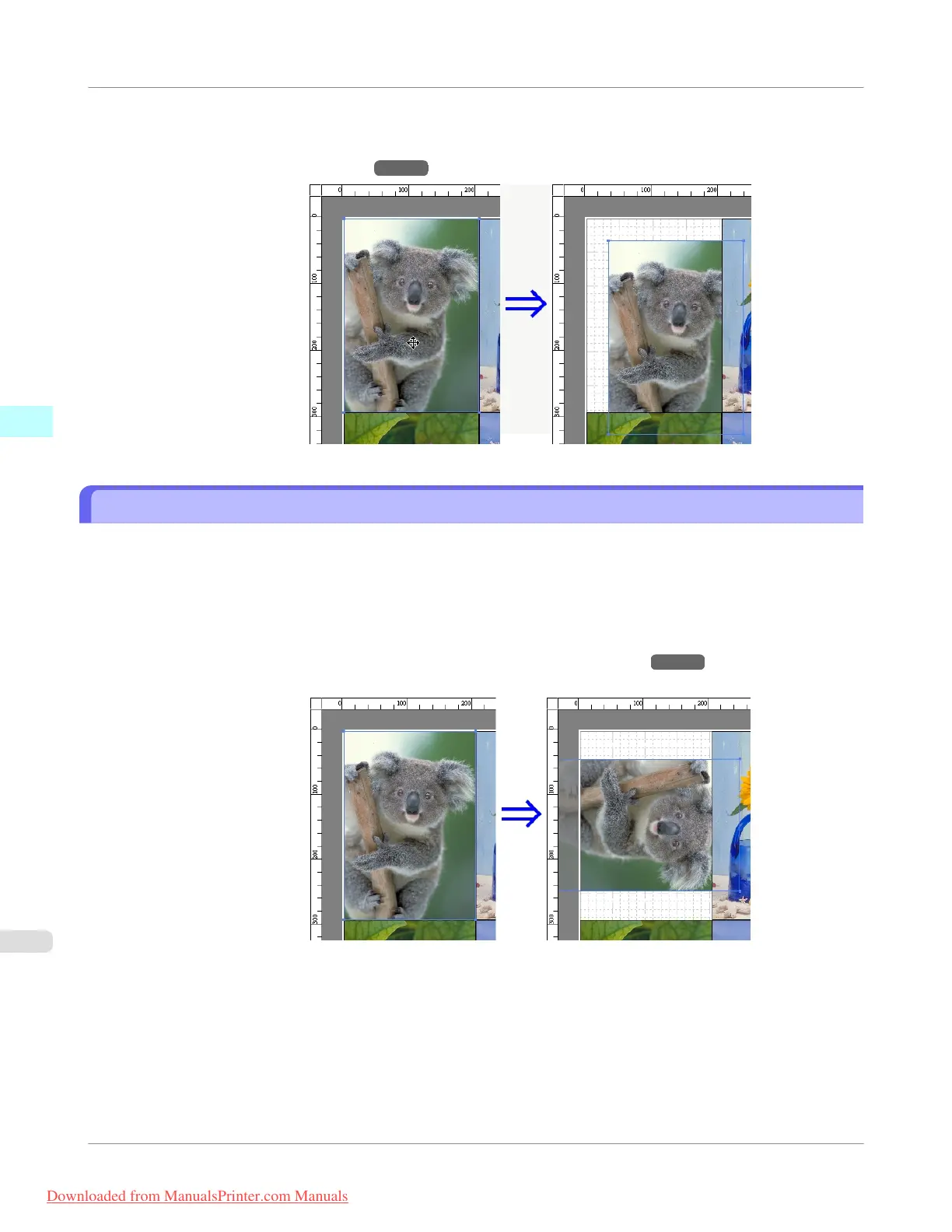
2. Place the pointer inside the selection box of the object to show the crosshair handle, and drag it to move the object.
Alternatively, you can move the Object Position by changing the values in Vertical Pos, Horizontal Pos and
Page Pos in the Format Dialog Box →P.270 .
Rotating an Object
You can rotate the object.
1. Select an object.
2. Select Rotate Left 90 Degrees or Rotate Right 90 Degrees from the toolbar.
Alternatively, you may click on the Rotate check box in the Format Dialog Box →P.270 then select Rotate
Right or Rotate Left, and click the OK button.
Windows Software
>
Free Layout
>
Rotating an Object
iPF755
3
280
Downloaded from ManualsPrinter.com Manuals


 To Next Page
 Loading...