•
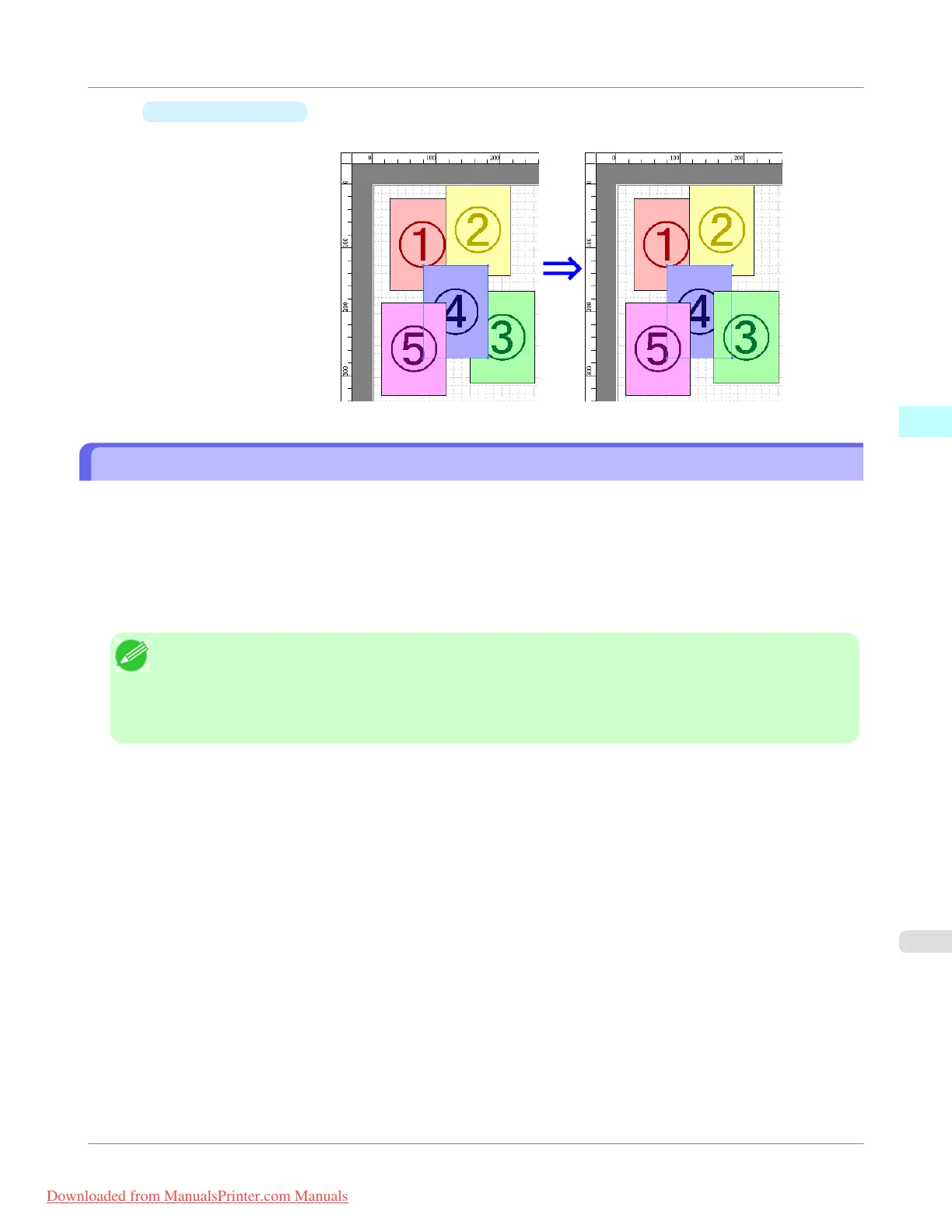
Send Backward
Moves the object one position to the back.
Pasting a Copied or Cut Object
1.
Click Copy or Cut from the toolbar.
Alternatively, you may select Copy or Cut from the Edit menu.
2. Click Paste from the toolbar.
Alternatively, you may select Paste from the Edit menu.
Note
• The copied or cut object is laid out at the end of the page.
• You can also select by clicking the right button of the mouse on an object.
• In order to paste an object on any position that you like, you can paste the object with Pointed Paste by
clicking the right button of the mouse on any position that you want.
Windows Software
>
Free Layout
>
iPF755
Pasting a Copied or Cut Object
3
285
Downloaded from ManualsPrinter.com Manuals

 To Next Page
 Loading...










