101
© Tieline Research Pty. Ltd. 2021
Gateway and Gateway 4 Manual v1.2
1. LAN1 Ethernet port (default Primary Via interface)
2. LAN2 Ethernet port (default Secondary Via interface)
3. Wi-Fi (default Tertiary Via interface)
Important Note: VLAN interfaces have features similar to physical Ethernet interfaces.
However, your network administrator will need to configure VLAN support throughout your
network for them to be supported in your codec.
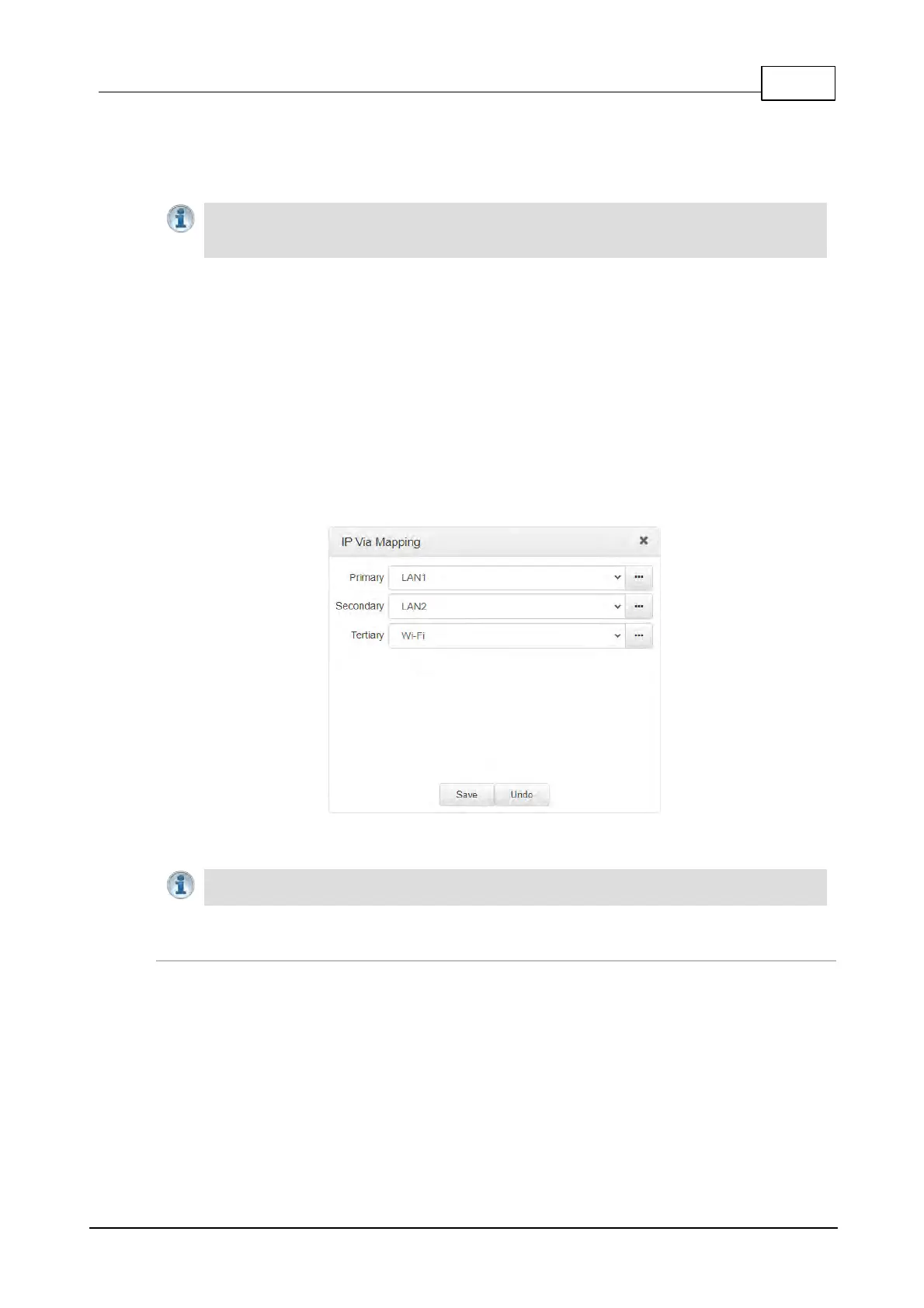
Reconfigure Default Primary, Secondary and Tertiary Interfaces
It is possible to reconfigure the default Primary (LAN1), Secondary (LAN2) and Tertiary (Wi-
Fi) interfaces in the codec. As an example, you may want to select Primary as the dialing
interface in a program and then copy this program onto multiple codecs. However, the actual
primary interface used at each location can vary for each codec. For one codec it may be an
Ethernet interface and for another it may be a Wi-Fi connection. This allows you to configure
site-specific settings to suit the available network interfaces at different remote locations.
1. Open the HTML5 Toolbox Web-GUI and click Transport and then click IP Via
Mapping to open this panel.
2. Click the drop-down arrow for each interface to select the preferred default setting.
3. Click Save to store the configuration.
Important Note: Fuse-IP cannot be configured as a default Primary, Secondary or Tertiary
Via.
Configure Firewall Settings
The Firewall menu can be used to enable or disable a range of firewall-related network services, or
limit ping to only work in a local subnet.
1. Open the HTML5 Toolbox Web-GUI and click Settings at the top of the screen, then click
Options to display the Options panel.
2. Select Firewall and then click Edit to adjust settings.
3. Click Save to store the new configuration settings.



 To Next Page