85
© Tieline Research Pty. Ltd. 2021
Gateway and Gateway 4 Manual v1.2
Selectable check-box to enable/disable an interface.
Click Save to store settings, or click Undo to revert to previously
configured settings.
Click to open the Fuse-IP panel and configure Fuse-IP bonding.
Configure default Primary, Secondary and Tertiary interfaces.
Click to open the panel and configure ISDN Answering settings if an
ISDN module is installed.
Click to edit hardware module configuration settings.
Click to open the Network panel and configure network settings.
Click to view the TieLink panel to enable, disable and prioritize
interfaces, configure ports and Fuse-IP interfaces, and configure
STUN server settings.
Click to open the panel and edit SIP account settings. Up to 6 SIP
accounts are supported.
Add trusted network codecs to the URI Allow List. Add SIP URIs to
the URI Block List and add user agents to the User Agent Block
List to deny them access to the codec.
Click to open the panel and configure port, proxy and Via settings
for the SIP1 and SIP2 interfaces. The codec supports dialing over
these SIP interfaces simultaneously.
Settings Panels
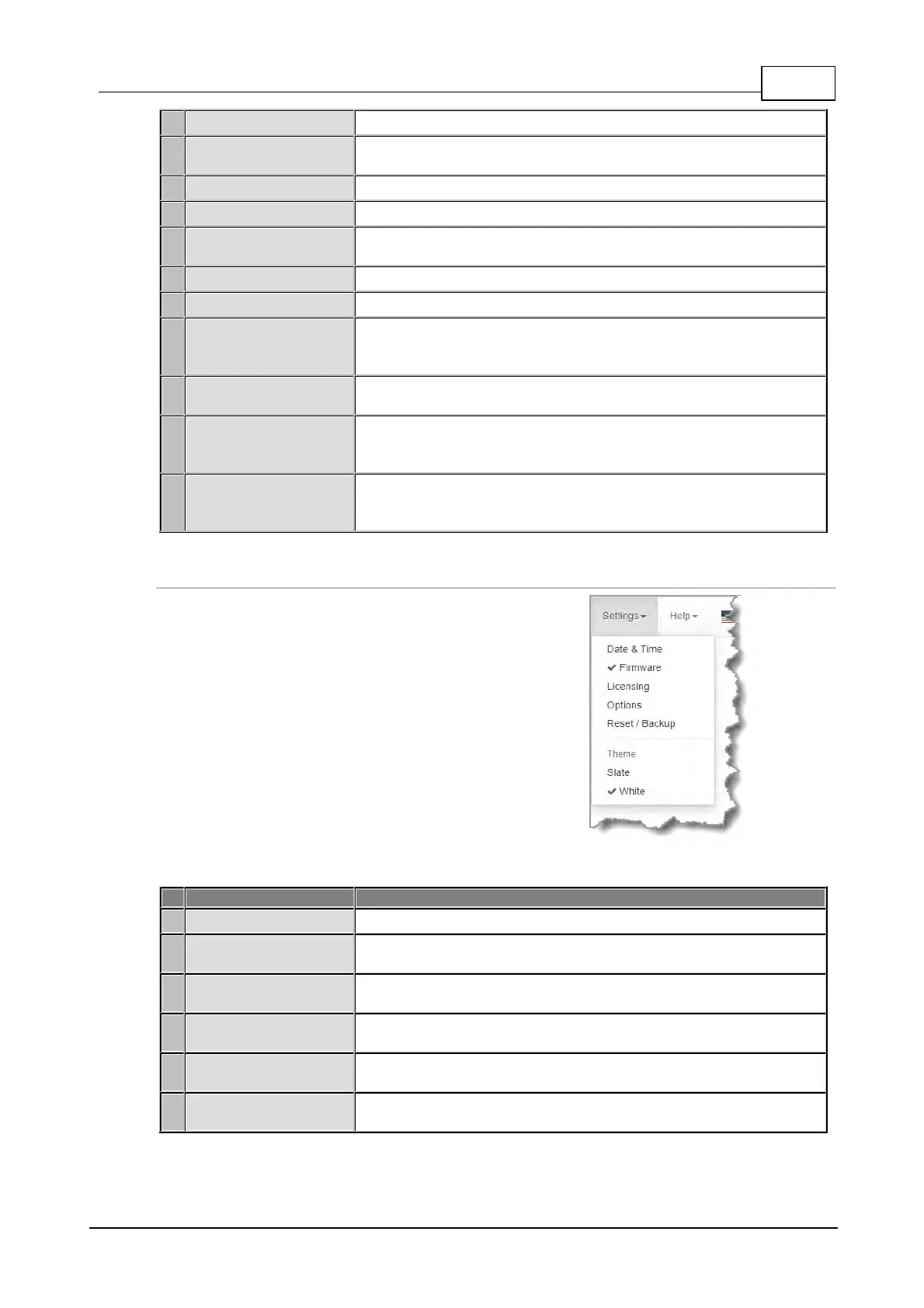
There are several Settings panels which can be
opened in the Web-GUI. Each panel provides
different codec configuration settings and options.
Click to select and open each panel. It is also
possible to change the HTML5 Web-GUI theme.
As an example, the Options panel is displayed
with a brief description of the other panels available.
Click to open the panel view and sync the codec to NTP time.
Click to open the panel; view software versions, download firmware
and perform an upgrade.
Click to open the panel; select a license file and install it in the
codec.
Click to open the panel and adjust a wide range of codec firewall,
RS232, SNMP, system, session data and Web-GUI settings.
Click to open the panel; reset codec default settings and perform
backup/restore of codec programs and settings.
Adjust the Theme or 'skin' of the HTML5 Toolbox Web-GUI; options
include White or Slate.



 To Next Page