3-2 Using the Keyboard
Writer: Karen Williams Saved by: Cheryl Love Saved date: 09/05/97 2:31 PM
Part Number: 220709-003 File name: Ch03.doc
Performing Mouse Functions
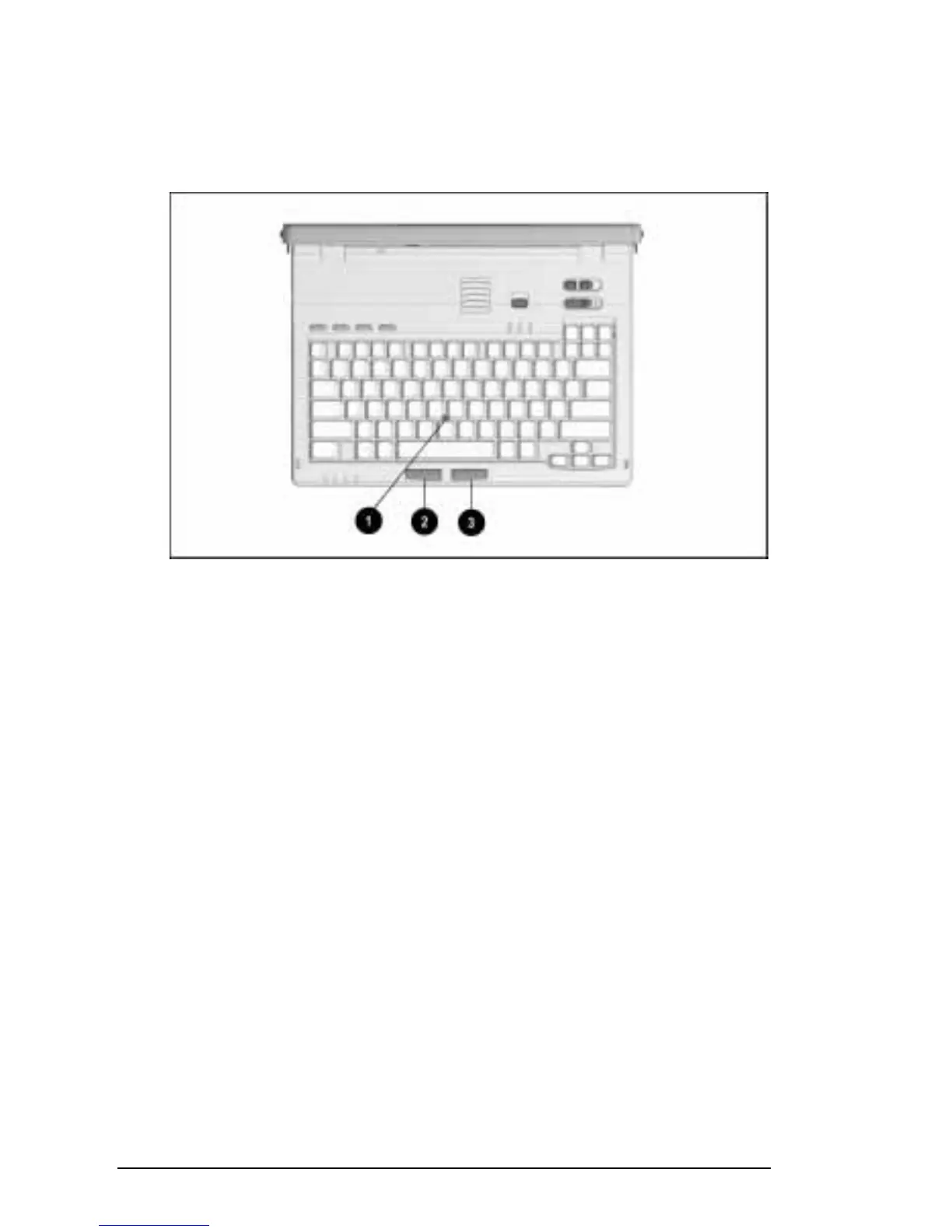
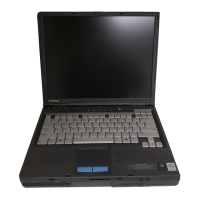
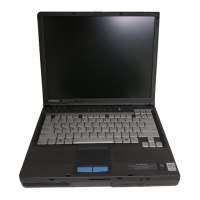
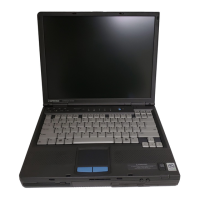
Use the EasyPoint III pointing device
1
and the left
2
and
right
3
mouse buttons to emulate the functions of an external
mouse.
Pointing Device and Mouse Buttons
Using the Pointing Device and Mouse Buttons
With either index finger, push the EasyPoint III pointing device in
the direction that you want to move the onscreen pointer. The
pressure you use on the pointing device determines the speed of
the cursor.
To click or double-click, press the left mouse button with either
thumb. To right-click, press the right mouse button.
NOTE:
If the pointing device cap becomes soiled or damaged, refer
to “Replacing the Pointing Device Cap” in Chapter 12.
Changing Mouse Function Settings
To change settings such as click speed or pointer shape or to
display pointer trails, click Start
ÆSettingsÆControl
PanelÆdouble-click the Mouse icon.
The settings you select in Mouse Properties apply to mouse
functions performed on the computer keyboard as well as to
mouse functions performed with an external mouse.




 To Next Page