User Manual: WaveLinx Lite (4.0)
65
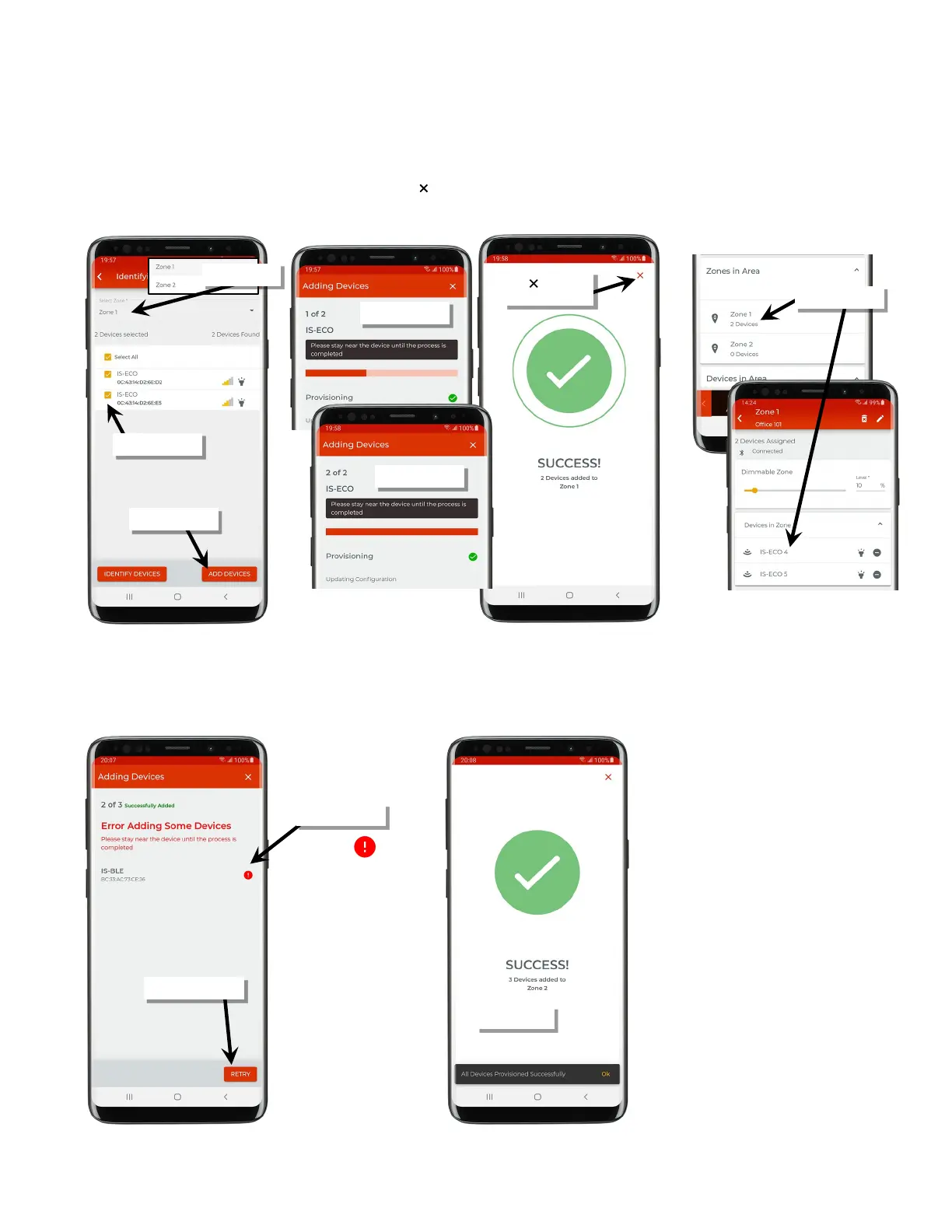
8: From the drop down, select the zone that the devices should be assigned to and then checkmark the devices that should be assigned to the
zone. If any devices were mistakenly identified, deselect the checkbox to skip those devices. Tap ‘Add Devices’ to begin the provisioning
process.
9: Stay within range of the fixtures during the process. The app will provision the devices one after the other and then display a success
message showing the total quantity of devices added. Tap ‘ ’ to close the confirmation screen. The device(s) should show assigned to the
zone.
10: Repeat steps 5 through 10 for additional zones in that area until all fixture mounted sensors in the area are identified and provisioned.
If the provisioning fails for any device, the screen will display the device(s) that errored. Move closer to the displayed device(s), and then tap
‘Retry’ to provision the device that failed. If the error continues, try closing the mobile application and then turn off and then on the mobile
device Bluetooth. Open the mobile application and try again. If the error continues, contact technical support.
Tap ‘ ’ to close



 To Next Page