User Manual: WaveLinx Lite (4.0)
66
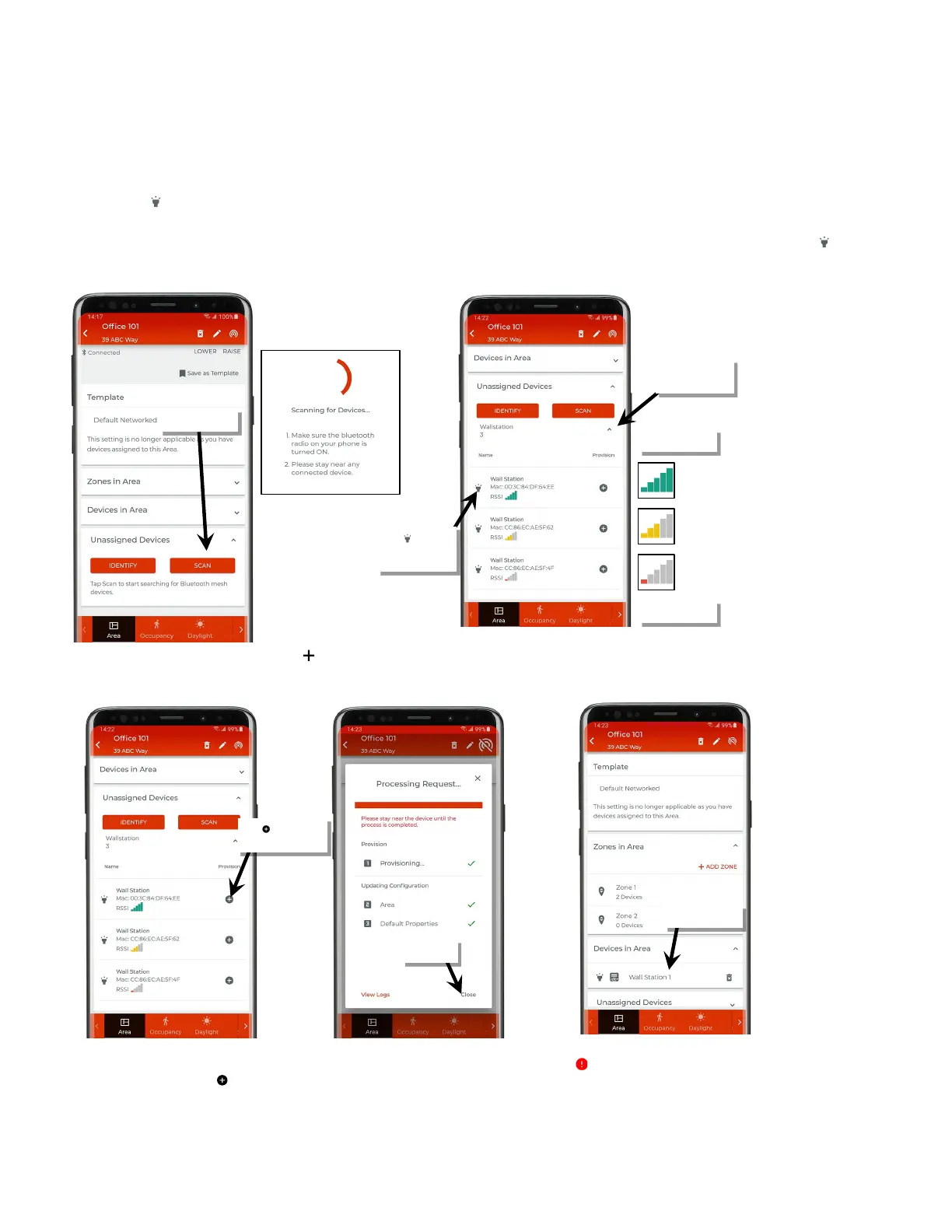
Identify and Provision Line Voltage Powered Wallstations (skip to the next section for Battery Powered Wallstations):
11: With the mobile device, stand as close as possible to the first WaveLinx Lite Line Voltage Wallstation to be provisioned in the area.
12: In the area details, scroll down to the ‘Unassigned Devices’ list and then tap the ‘Scan’ button to start a device scan.
13: Locate and open the ‘Wallstations’ list. The top listed wallstation will typically be the device closest to the mobile device. To verify, tap the
identify icon ‘ ’ to place the device in the identify mode and verify that the expected wallstation displays the identify LED behavior described
in the device reference sheet section on page 18.
After 15 seconds the device will disconnect and return to normal operation. Prior to the 15 second timeout tap the identify icon ‘ ’ to cancel
the command and disconnect manually. If an unintended device responds, try the next device listed and continue until the expected device is
found.
14: Staying near the identified device, tap ‘ ’ on the device in the mobile app to begin the provisioning process. Once the request is
successfully processed (all checkmarks), tap ‘Close’. The device should show assigned to the area.
If the provisioning fails, the ‘Processing Request’ screen will show exclamation points ‘ ’ instead of checkmarks. Tap ‘Close’, move closer to
the device, and then tap ‘ ’ to start the provisioning again until the process is successful. If the error continues, try closing the mobile
application and then turn off and then on the mobile device Bluetooth. Open the mobile application and try again. If the error continues, select
‘View Logs’ for further information and contact technical support.
Tap ‘ ’ to
identify device
‘Wallstations’ list
Tap ‘ ’ to assign/



 To Next Page