User Manual: WaveLinx Lite (4.0)
67
Identify and Provision Battery Powered Wallstations:
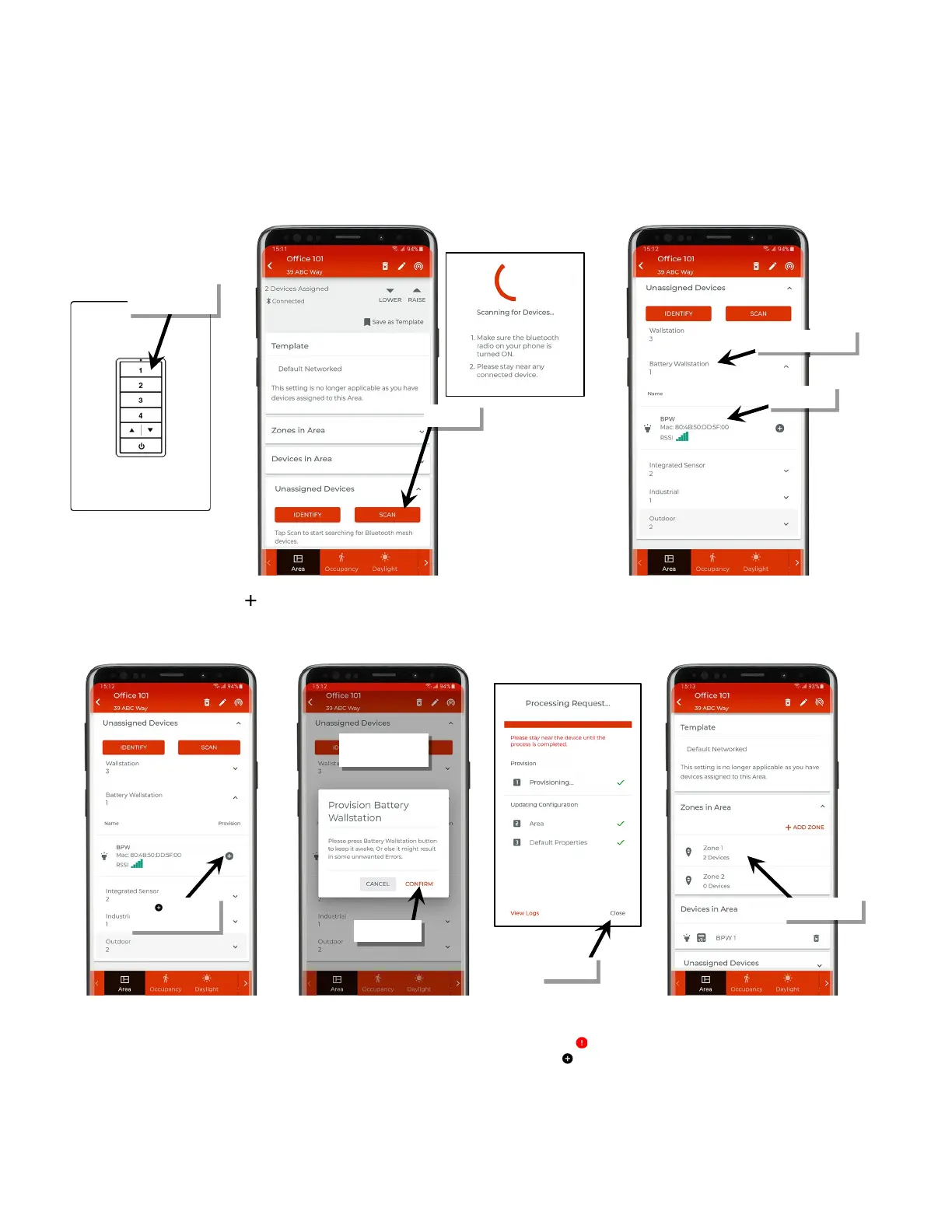
15: If the device is a battery powered wallstation, press any button on the wallstation to wake the station. The station will stay in a ready state
for 30 seconds, waiting for communication from the mobile app.
16: In the area details, scroll down to the ‘Unassigned Devices’ list and then tap the ‘Scan’ button to start a device scan. Wait for the scan to
complete and then locate and open the ‘Battery Wallstation’ list. The battery powered wallstation should appear in the list.
17: Staying near the device, tap ‘ ’ next to the wallstation to begin the provisioning process. When prompted, press any button on the
wallstation to place the station in a ready state and within 30 seconds tap ‘Confirm’. The device will begin provisioning. Once the request is
successfully processed (all checkmarks), tap ‘Close’. The device should show assigned to the area.
18: Repeat steps 15 through 17 for any additional battery powered wallstations in the area.
If the provisioning fails, the ‘Processing Request’ screen will show exclamation points ‘ ’ instead of checkmarks. Tap ‘Close’, move closer to
the device, press a button to wake up the battery powered wallstation, and then tap ‘ ’ to start the provisioning again until the process is
successful. If the error continues, try closing the mobile application and then turn off and then on the mobile device Bluetooth. Open the
mobile application and try again. If the error continues, select ‘View Logs’ for further information and contact technical support.
the wallstation
‘Battery Wallstation’ list
the wallstation
Tap ‘ ’ to assign/
provision device



 To Next Page