User's Guide
- 136 -
Scanning to an FTP address
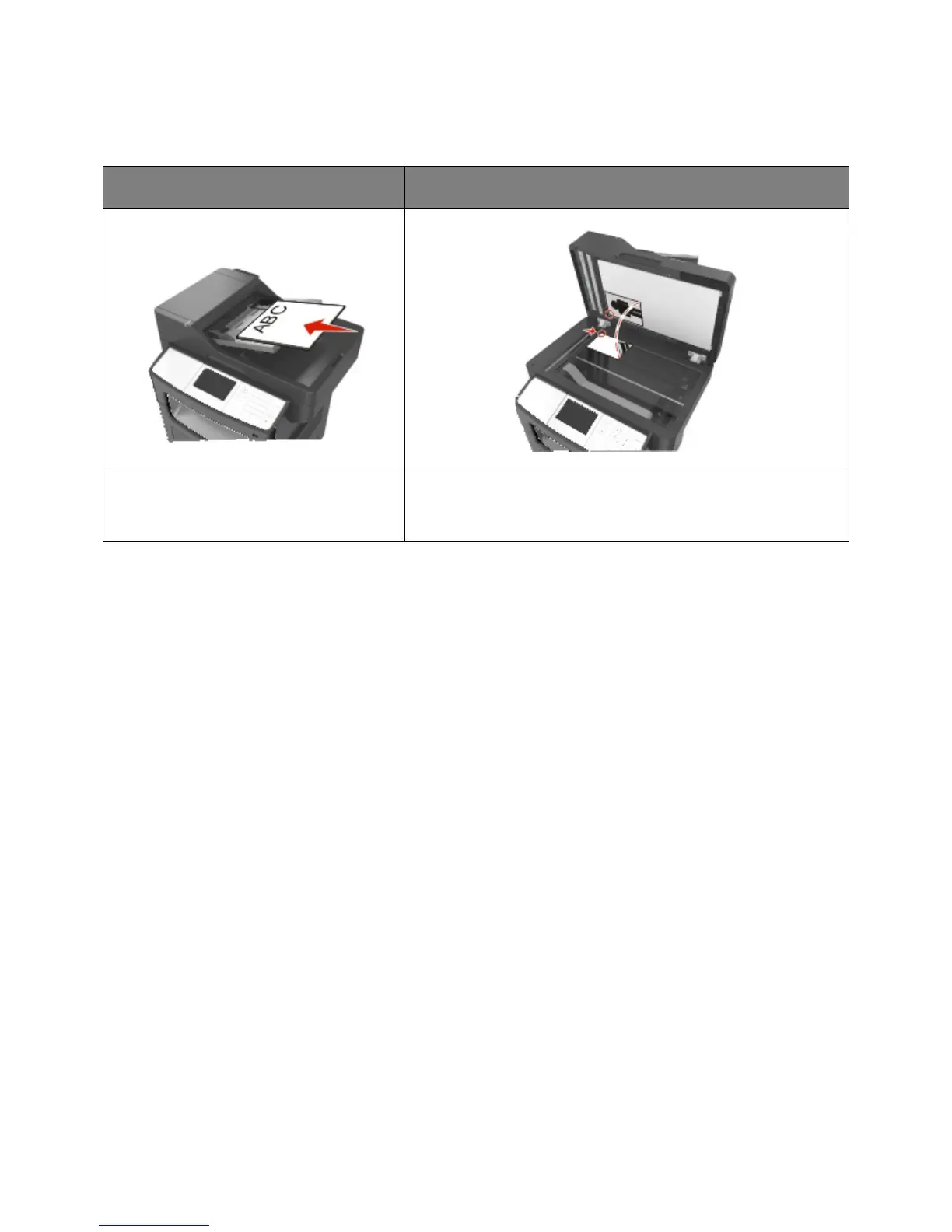
Automatic document feeder (ADF)
Use the ADF for multiple-page documents
including two-sided (duplex) pages.
Use the scanner glass for single-page documents, book pages,
small items (such as postcards or photos), transparencies, photo
paper, or thin media (such as magazine clippings).
The scanner lets you scan documents directly to a File Transfer Protocol (FTP) server. Only one FTP
address may be sent to the server at a time.
When an FTP destination has been configured by your system support person, the name of the
destination becomes available as a shortcut number, or it is listed as a profile under the Held Jobs icon.
An FTP destination could also be another PostScript printer; for example, a color document can be
scanned and then sent to a color printer.
Creating shortcuts
Instead of entering the entire FTP site address on the printer control panel each time you want to send a
document to an FTP server, you can create a permanent FTP destination and assign a shortcut number.
There are two methods for creating shortcut numbers: using the Embedded Web Server and using the
printer control panel.
Creating an FTP shortcut using the Embedded Web Server
1. Open a Web browser, and then type the printer IP address in the address field.
Notes:
- View the printer IP address on the printer home screen. The IP address appears as four sets of
numbers separated by periods, such as 123.123.123.123.
- If you are using a proxy server, then temporarily disable it to load the Web page correctly.
2. Navigate to:
Settings > Other Settings area >Manage Shortcuts >FTP Shortcut Setup










 To Next Page