User's Guide
- 97 -
4. Touch the button that best represents the content type of the document you are copying.
- Text—The content of the original document is mostly text or line art.
- Text/Photo—The original document is a mixture of text, graphics, and photos.
- Photo—The original document is mostly a photo or an image.
- Graphics—The original document is mostly business-type graphics, such as pie charts, bar
charts, and animations.
5. Touch
.
6. Touch the button that best represents the content source of the document you are copying.
- Color Laser—The original document was printed using a color laser printer.
- Inkjet—The original document was printed using an inkjet printer.
- Magazine—The original document is from a magazine.
- Press—The original document was printed using a printing press.
- Black/White Laser—The original document was printed using a mono laser printer.
- Photo/Film—The original document is a photo from a film.
- Newspaper—The original document is from a newspaper.
- Other—The original document was printed using an alternate or unknown printer.
7. Touch
>Copy It.
Collating copies
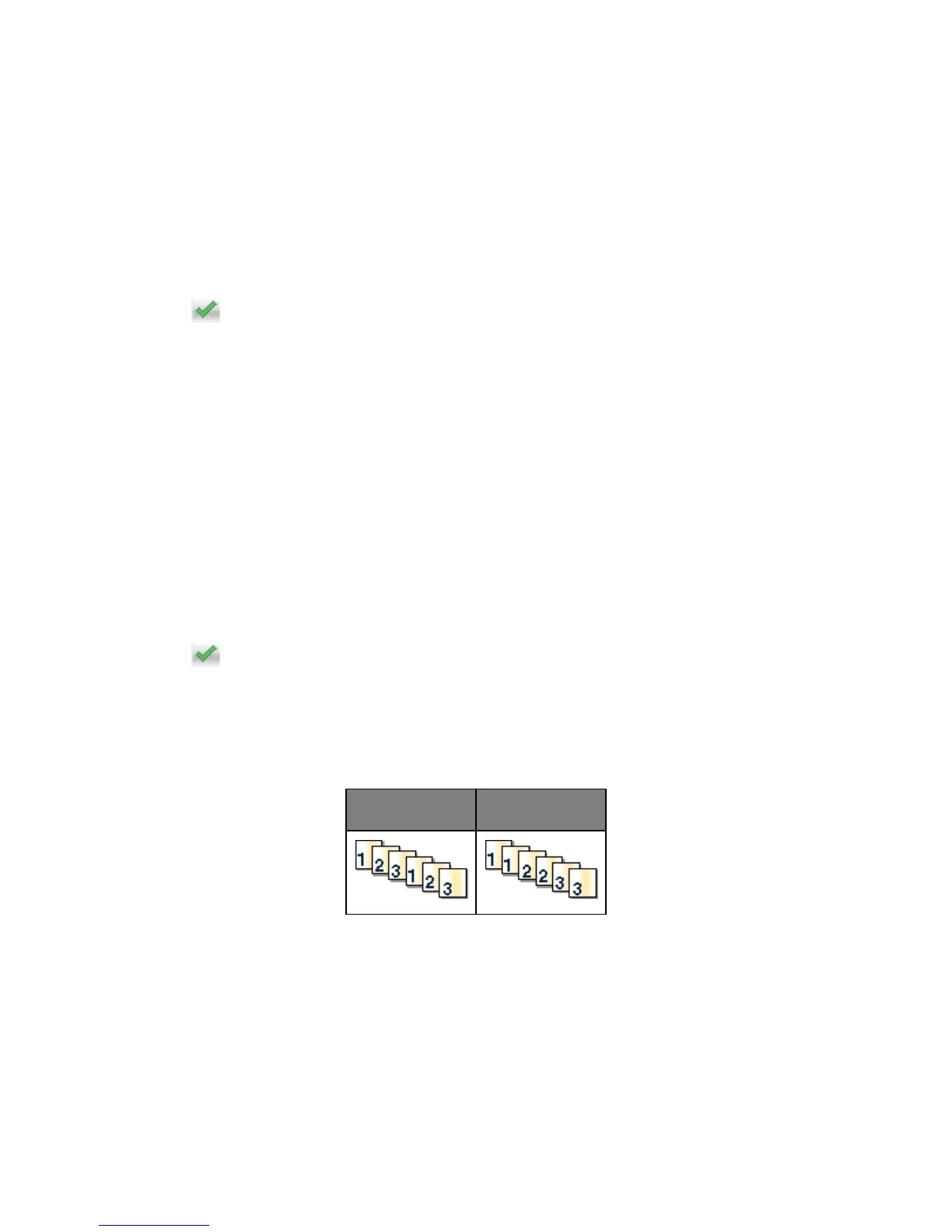
If you print multiple copies of a document, then you can choose to print the copies as a set (collated) or to
print the copies as groups of pages (not collated).
1. Load an original document faceup, short edge first into the ADF tray or facedown on the scanner
glass.
Notes:
- Do not load postcards, photos, small items, transparencies, photo paper, or thin media (such as
magazine clippings) into the ADF tray. Place these items on the scanner glass.
- The ADF indicator light comes on when the paper is loaded properly.










 To Next Page